[Preset / Bank Manager ]
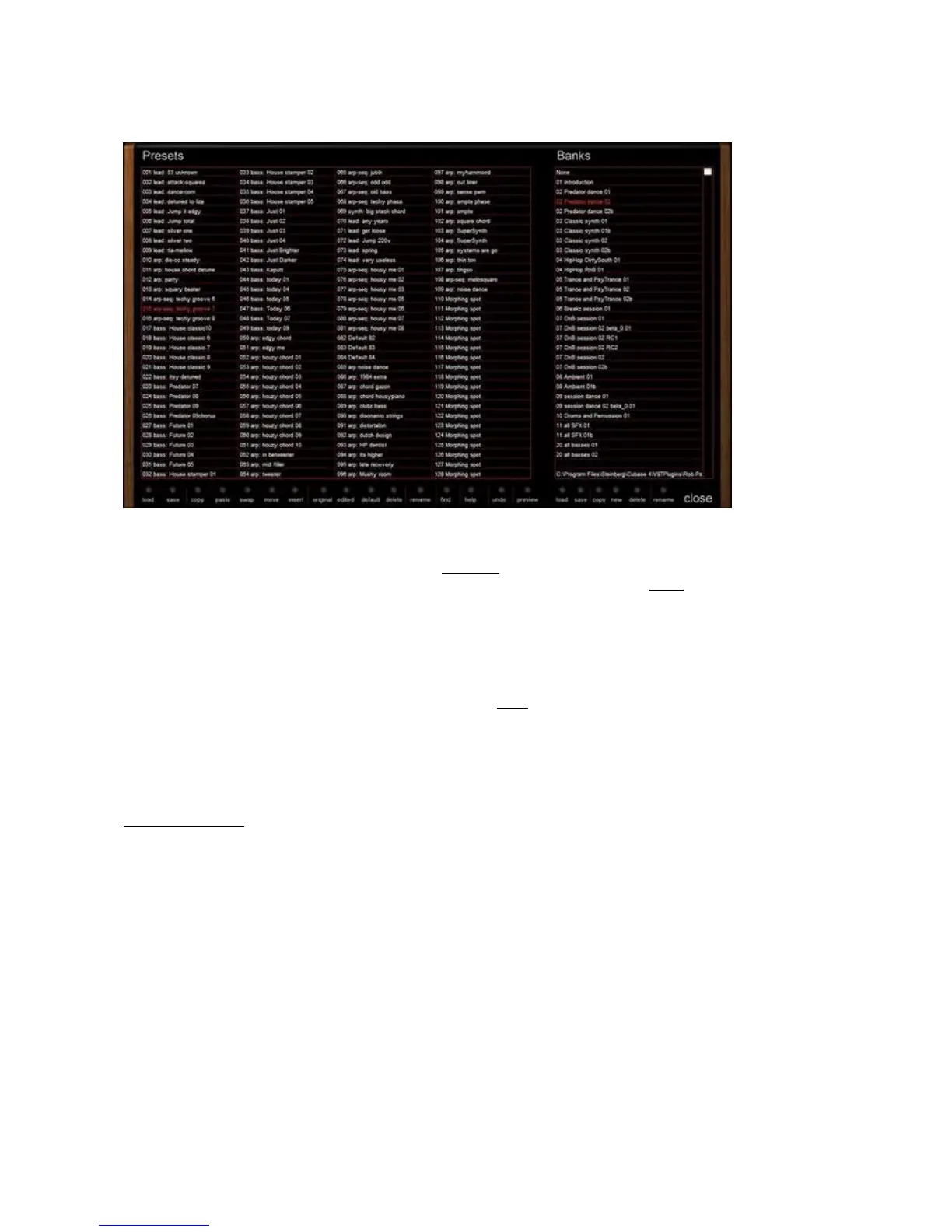
The manager screen allows you to see all the presets & banks at one time. Also it allows you to alter presets
and banks, and search for presets within all the ba
nks.
You enter the Manager screen by clicking on the
Manager
button in the Preset section or clicking on the
Preset Manager entry in the file menu. To return to the main screen, click on the
close
button.
In the Manager screen, the left hand screen shows
the presets in the current bank, and the right hand screen
the installed banks. At the bottom are the preset / bank controls.
In the Preset screen, the current preset is shown in red, and clicking on a preset loads it in.
Clicking and moving a preset al
lows you to move the preset from it's current position to a new position.
Shift + clicking allows you to select a range of presets and Ctrl + clicking allows you to select unconnected
presets. These multi
-
presets can be saved to disk via the
save
button
/ menu entry.
Alt + clicking & moving allows you to swap presets. Right clicking brings up the preset command menu.
In the Bank Screen, the current bank is shown in red, clicking on a bank loads it in and right clicking bring up
the bank command menu. M
oving the scroll bar at the right moves the displayed banks.
Preset Commands
Load
Loads in a saved preset / presets
Save
Saves the current preset/presets as a fxp file.
Copy
Copies current preset
Paste
Pastes last copied preset
Swap
Swaps the cu
rrent preset with another one
Move
Moves the current preset to another position
Insert
Inserts a blank preset at the current position, moving the
rest of the presets forward one.
Original
Returns the current preset to it's original settings
Edited
Returns the current preset to it's last edited settings
Default
Sets the current preset to the default settings
Delete
Deletes the current preset, move the rest of presets back one
Rename
Renames the current preset
Find
Read find section below
Hel
p
Brings up the Manager help screen
Undo
Undo last preset command
Preview
Previews the current preset



 To Next Page