33
8000K. Both shutter and dimmer have to be open during the correction.
Opto Corrections - This menu item runs a procedure which measures a light intensity of each colour of the
LEDs module installed in the xture and compares it with value measured during xture calibration in ROBE
factory. This procedure takes about 1 minute (messages "Red Corrections...Light Green Corrections, Saving
Corrections, Correction DONE" will appear on the screen during this procedure).
Important: If you have changed some value (values) in the menu item "Calibrate Colours", you will not be
able to run this function (message "Can´t Access This Function Now" will be displayed). The xture has to be
recalibrated or you have to load default calibration values ( menu item " Load Default Calibrations").
The function should be used if the light output from the xture diers from another T1 xtures.
Calibrate Pan/Tilt EMS - This menu item allows calibration of the pan/tilt electronic motion stabilizer.
Important: during this calibration any external force must not inuence the xture and the surface at which
the xture stands (or truss if the xture hangs) has to be without movement, shake, strokes etc.
Load Default Calibrations - The item loads default (factory) calibration values.
LEDS HW version - The item shows a hardware version of the LED engine.
Update software -
The menu item allows you to update software in the xture.
The following items are required in order to update software:
- PC running Windows or Linux or macOS
- DSU le
- Flash cable RS232/DMX, P/N13050624 (if you want to use a serial port of PC)
- Robe Universal Interface or Robe Universal interface WTX (if you want to use an USB port of PC)
After the software updating the xture will be set to default values.
To update software in the xture:
1. DSU le is available from Robe web site at WWW.robe.cz.
File with extension zip is intended for Windows (used and tested from XP to W10 on 32/64bit systems).
File with extension tbz is intended for Linux (used and tested on Debian and Ubuntu 32/64bit).
File with extension dmg is intended for
macOS (used and tested on OSX up to Sierra) XQuartz required,
install it from https://www.xquartz.org/
Save the download le to a folder on your computer.
In case that you use windows, extract les in the zip le (e.g. DSU_RobinT1Prole_18100828.zip)
2. Disconnect the xture from DMX controller.
3. If you use the ash cable RS232/DMX, connect a serial port of your computer with DMX input of the xture
by means of the cable.
If you use the Robe Universal Interface, connect a USB port of your computer with the Robe Universal Interface
by means of the USB cable and DMX input of the xture with the DMX output of the Robe Universal Interface
via a DMX cable.
4. Switch the xture to the update mode (tab "Service" --> Update Software).
Note: If you do not want to continue in the software update, you have to switch o and on the xture
to escape from the updating mode.
We recommend to cancel all running programs on your computer before starting the software update.
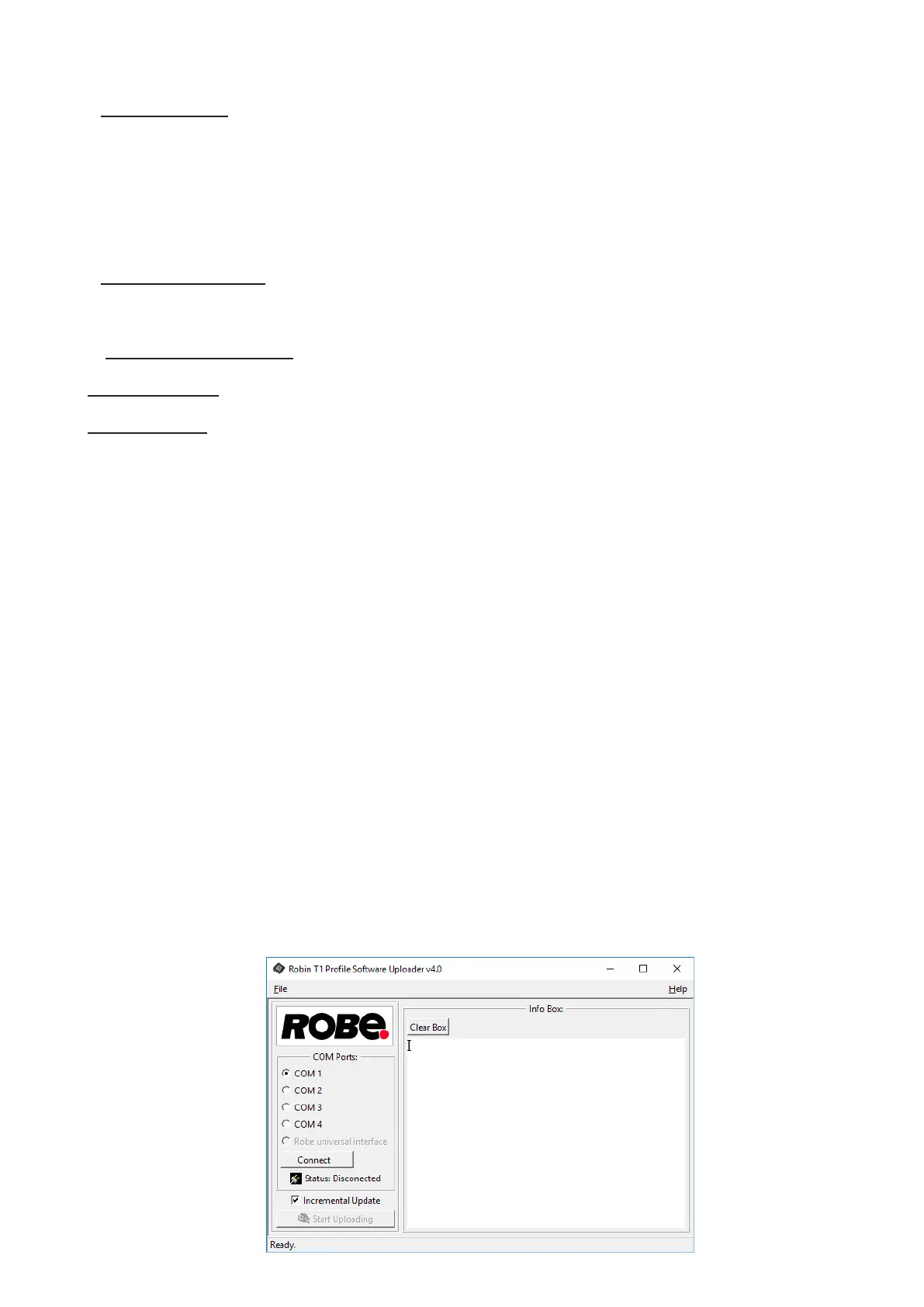
5. Double-click the software uploader le (e.g. DSU_RobinT1Prole_18100828.exe) in
the extracted les. The Software Uploader program will start running.


 To Next Page