 Need help?
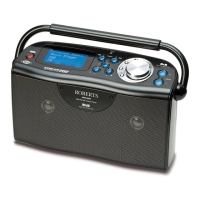
Do you have a question about the Roberts WiFi Internet Radio WM-202 and is the answer not in the manual?
 General
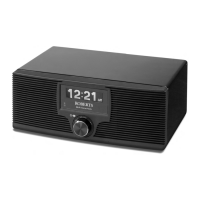
| Type | WiFi Internet Radio |
|---|---|
| Model | WM-202 |
| Connectivity | WiFi |
| Audio Output | Stereo |
| Headphone Jack | Yes |
| Speaker | Built-in |
| Display | LCD |
| Power Supply | Mains |
Details the necessary broadband connection and access point for internet radio.
Guides through connecting the radio to a network via wired Ethernet or WiFi.
Details the process for entering WEP or WPA encryption keys for WiFi connection.
Explains how to identify and select a WiFi network using the Network Wizard.
Instructions on how to switch between wired Ethernet and WiFi network connections.
Guide for manually entering network name (ESSID) and encryption details.
Step-by-step guide to finding internet radio stations based on geographical location.
Explains common reasons for failure to connect to internet radio stations.
How to add and manage favorite radio stations via the website.
How to add custom radio streams not listed in the database.
Steps to browse and find shared folders on the network.
How to configure user name and password for accessing shared folders.
Instructions to set up Windows Media Player 11 as a UPnP media server.
Guide to setting up a Windows PC for file sharing with the radio.
Steps to connect the radio to a UPnP server and configure media sharing.
Guide for extending the aerial and performing an initial scan for DAB stations.
Procedure to rescan for DAB stations in a new location or if none were found.
Steps for using the auto-tune function to find FM radio stations.
Step-by-step guide to manually set the radio's clock time.
Instructions on setting the alarm time, days of the week, and status.
How to choose alarm source (buzzer, Internet radio, DAB, FM) and specific stations.
Instructions to reset the radio to its original factory settings.
Steps to resolve problems connecting the radio to a computer network.
 To Next Page