Day&Night IP Camera
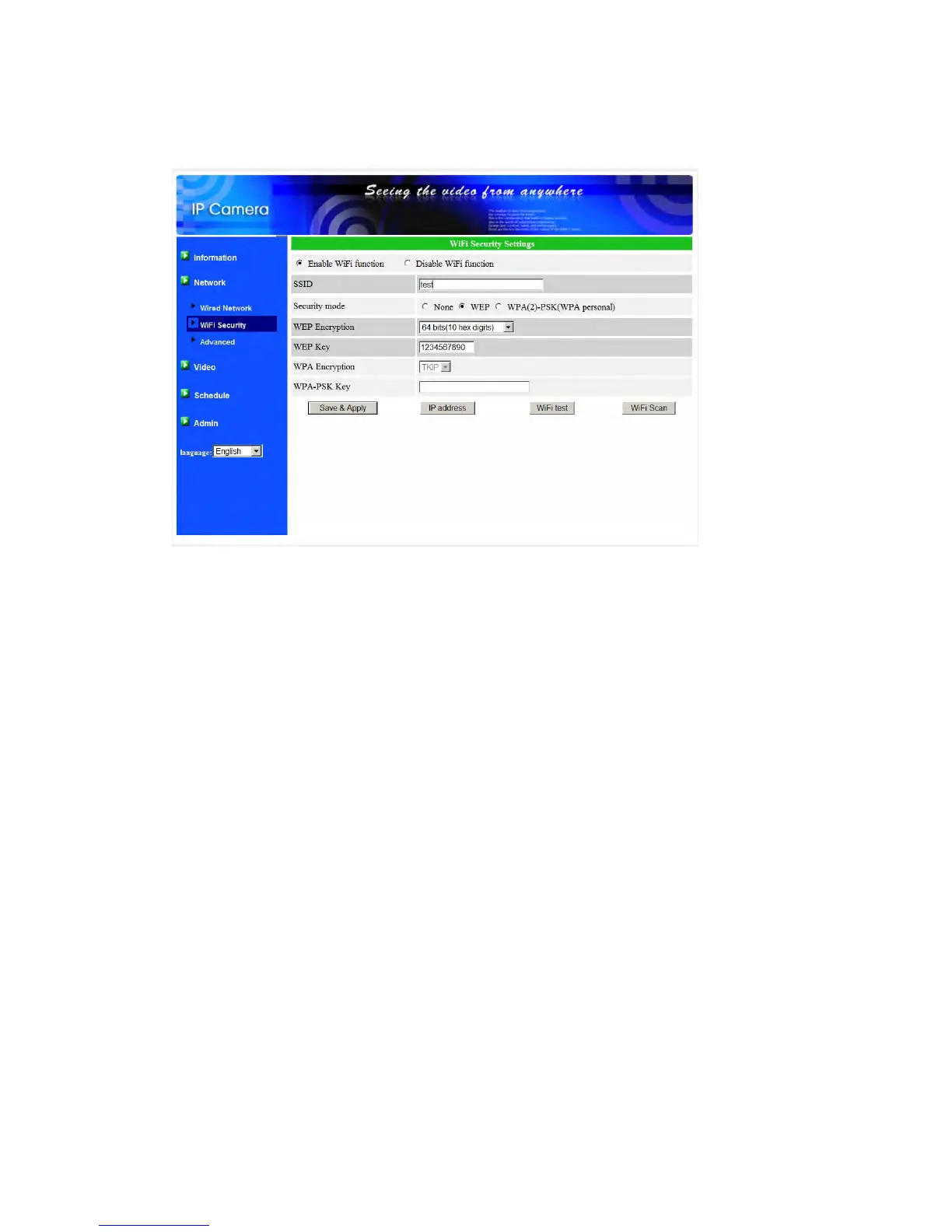
All the fields in this page must be filled correctly with the same settings the
wireless router or AP using.
Figure 3-8: WiFi security enabled page
You can click the “WiFi test” button to check if the IP CAM can connect to the
wireless network for these settings. You will need to unplug the Ethernet cable to
enable the wireless connection after the “WiFi test” is successful.
You can click the “WiFi scan” button to scan for all the available access points
nearby. See figure. 3-10 for reference.
If you want to define fixed IP address when using WiFi connection, please click the
“IP address” button and key in your preferred IP address.
After the settings updated and button “Save&Apply” clicked, do not need to restart
the IP CAM to let the WiFi work, only need to unplug the Ethernet cable.
The default setting is “Disable WiFi Function”.
22


 To Next Page