Day&Night IP Camera
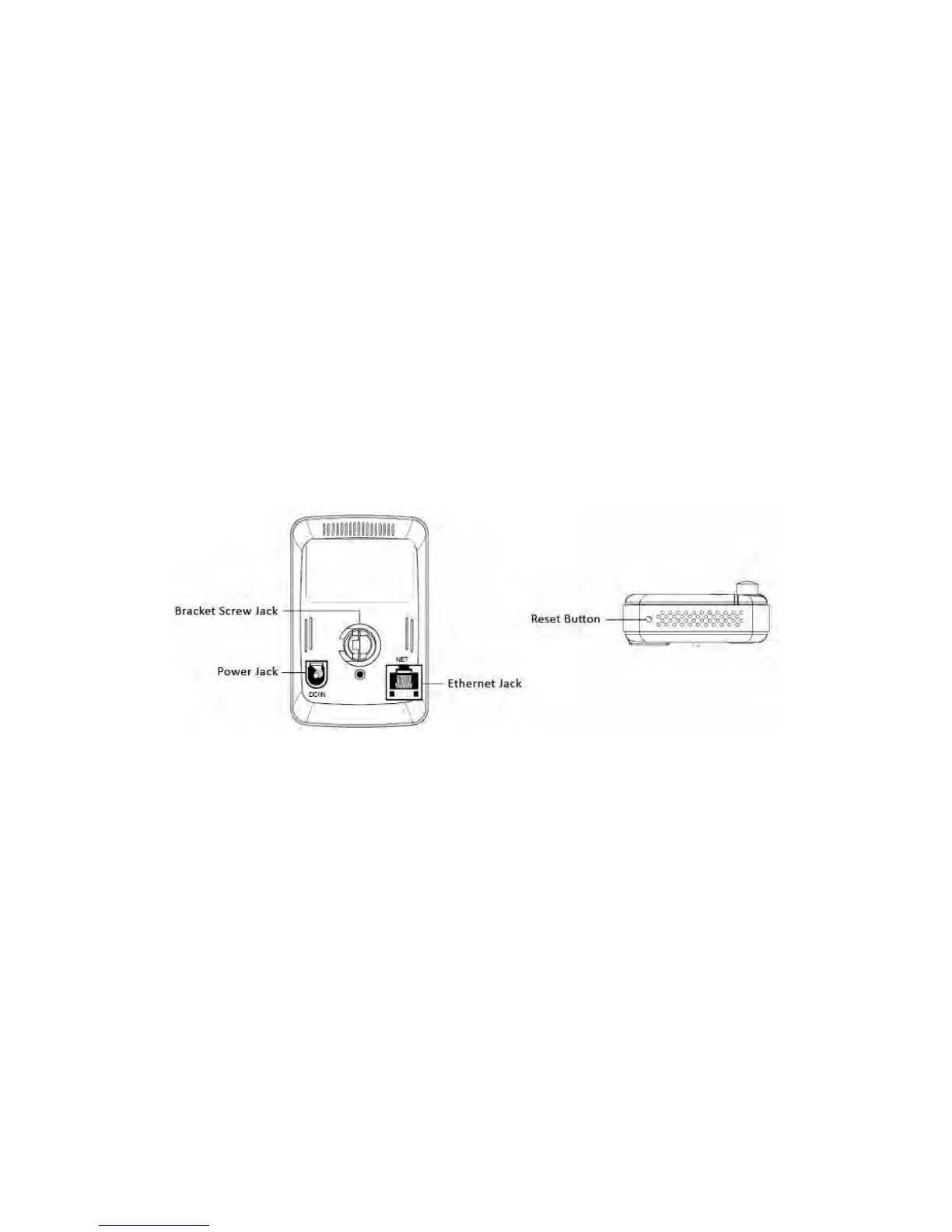
The major components on the back panel of the IP CAM products are the bracket
screw jack, power jack, Ethernet jack and reset button:
1. Bracket screw jack – this is the position to screw in the bracket of the IP CAM.
With the bracket, you can put the IP CAM on the desk, on the wall or on the
ceiling.
2. Power jack – this is the place to plug in the power adaptor. The power needed for
this IP CAM is 12V/1.0A or 5V/1A, please make sure you are using the correct
power adaptor.
3. Ethernet jack – this is the place to plug in the RJ45 Ethernet cable. When the
Ethernet link is ok, the Ethernet indication LED on the front side will be blue light.
4. Reset button – this is the button to reset the IP CAM to default factory settings.
You need to use a small stick like pencil or tooth stick to press the reset button for
more than 3 seconds to enable the reset function. Usually when you forgot the
administrator account, you will probably need to do this reset action to reset to the
default factory settings. Please refer to section 3.19 for more details.
Figure 2-2: Major components in the back and bottom panel
2.2. Quick installation and usage
There are only three things that you need to do to see the video from the IP CAM.
1. Connect the IP CAM to the home/office network.
2. Install the PC software on the notebook/PC.
3. Key in the ID/password of the IP CAM(from the ID/Password card) on the Software
, and then you can see the video.
First, Connect the IP CAM to the home/office network
Please connect the IP CAM accessaries to the IP CAM body correctly, including
the power adapter and Ethernet cable, as shown in Figure 2-3. And connect the other
end of the Ethernet cable to the home network or office network. Usually, this Ethernet
9


 To Next Page