11
Integrate Mouse Clicks
Another special feature of the ROCCAT driver
is that it allows you to integrate mouse clicks
into a macro along with keyboard commands.
You can program a mouse event to be executed
after, before or in-between a key sequence.
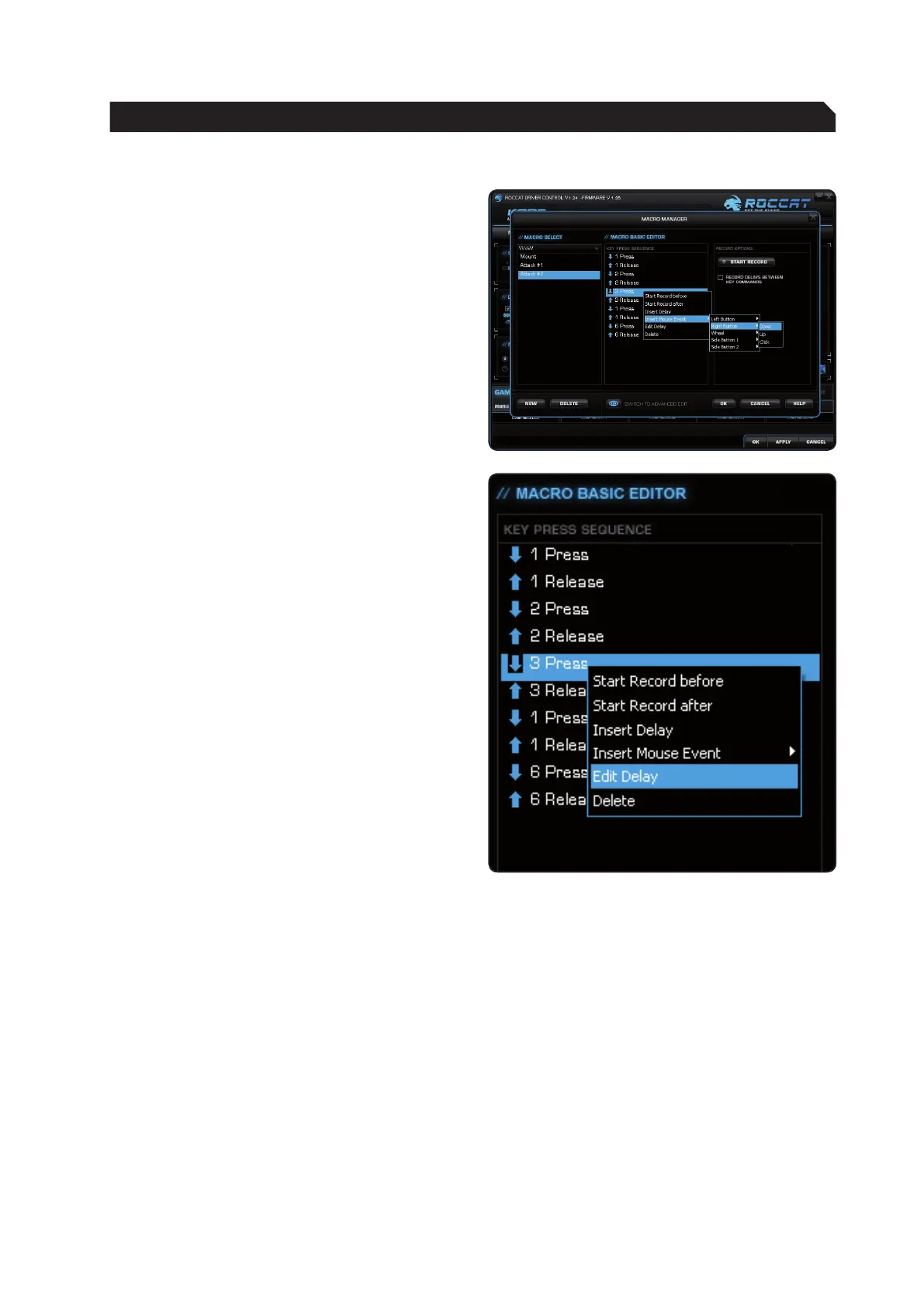
To do that, select the keyboard command in the
‘Macro Basic Manager’ before or after which you
want to insert a new event.
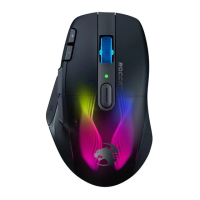
By right clicking, you can open a window
that contains various options:
Start Record before:
Starts recording the macro before the
selected event.
Start Record after:
Starts recording the macro after the
selected event.
Insert Delay:
Manually increase or decrease the delay
between two commands.
Insert Mouse Event:
Specify which mouse event should be executed.
The following options are available:
Left Button: Left mouse button
Right Button: Right mouse button
Wheel: Centre mousewheel
button
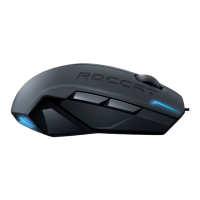
Side Button 1: The upper side button
Side Button 2: The lower side button
There are always three events to choose from:
Down: Keeps the button depressed
Up: Releases the button
Click: Executes the commands ‘press’
and 'release’ in turn.
Note: It isn’t possible to program the scroll
function to the mousewheel. Here too, only three
options are available: ‘press’, ‘release’ as well as
‘press and release’.
Edit Delay:
You can manually increase or decrease the delay
here. All you need to do is enter the desired time
value; there’s no need to enter ‘ms’ (milliseconds).
Note: Some games are unable to detect short
delays.
Delete:
Delete the selected step from the macro’s key
sequence.
MACRO MANAGER


 To Next Page