5
Windows® XP/Vista
Step 1: Plug the mouse into any free USB
port on your computer.
Step 2: Windows® will automatically
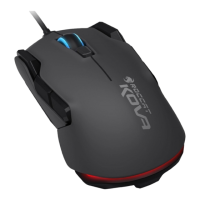
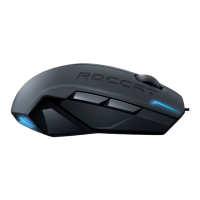
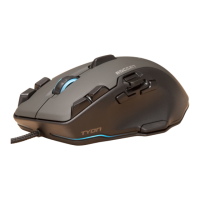
detect the ROCCAT™ Kone.
Step 3: Download the latest driver from
www.roccat.org/support.
Step 4: Select a folder in which to install
the driver software.
Step 5: Start the installation process by
clicking on the file ‘Setup.exe’.
Step 6: Windows® will prompt you if
installation should continue
despite not passing Windows
Logo testing; install the driver
despite this.
Note: The driver will automatically
uninstall older ROCCAT driver
versions. For that reason it may
take a little while until the driver
is installed and ready to use.
Step 7: As soon as the installation
process has completed click ‘Ok’.
Step 8: Reboot your PC.
Step 9: The ROCCAT symbol will now
appear in the right-hand side
of the Taskbar. You access the
ROCCAT™ Kone configuration
menu by right clicking it.
Note: Driver and Firmware Updates
The software for the ROCCAT™ Kone Gaming
Mouse consists of a driver and firmware.
Check regularly under the tab ‘Update’ in the
driver menu to see if a new driver or new
firmware is available.
System Requirements
• Windows® XP/Vista
• Free USB port
• CD-ROM drive
• 25MB free hard disk space
INSTALLATION


 To Next Page