8
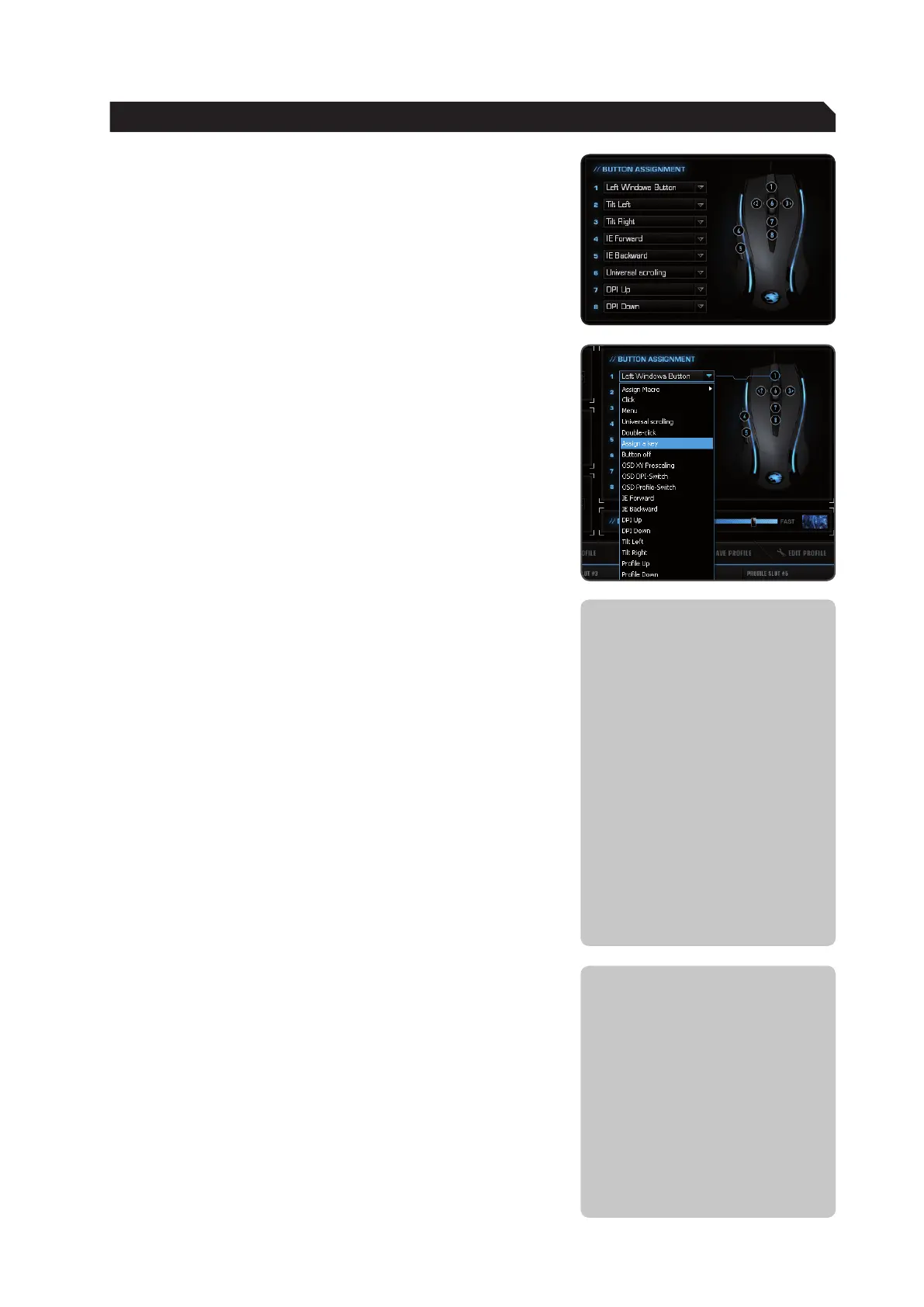
Button Assignment
Click: Left mouse button.
Menu: Right mouse button. The context menu
will open when you point to a document
or folder using the mouse.
Universal scrolling: Mousewheel function to scroll by moving
the mouse.
Double-click: Left mouse button double click.
Assign a key: A single keyboard command can be
assigned to one of the mouse buttons
here.
Button off: Switches the button function off.
OSD XY Prescaling: Displays the current X-Y sensitivity value
of the mouse above the right-hand side of
the Taskbar. It’s possible to increase or
decrease the value using the mousewheel.
OSD DPI-Switch: Displays the currently selected DPI value
above the right-hand side of the Taskbar.
It’s possible to increase or decrease the
value using the mousewheel.
OSD Profile-Switch: Displays the currently selected profile
above the right-hand side of the Taskbar.
It’s possible to scroll forward and
backward through the profiles using
the mousewheel.
Note: The OSD (on screen display) is also
displayed during a game. The duration and
intensity of the display may vary according
to the respective game and version of
DirectX.
IE Forward: Select the next previously selected
program or internet site.
IE Backward: Select the previous program or website
DPI up: Increase the preselected DPI resolution.
DPI down: Decrease the preselected DPI resolution.
Tilt Left: Scroll horizontally to the left (only under
Windows Vista™).
Tilt Right: Scroll horizontally to the right (only under
Windows Vista™).
Profile up: Jump to the next profile.
Profile down: Jump to the previous profile.
Note: If you use this function to switch
profiles by pressing a button, the same
button should be assigned this function in
the other profile(s).
Left Windows Button: This function calls up the Windows
Start menu.
Note: As soon as you’ve
configured a setting you should
assign the function to the mouse
by clicking the ‘Apply’ button
without exiting the ROCCAT menu.
It may take a few seconds until the
information is transferred to the
mouse. You’ll be able to tell the
transfer process is taking place
as the light on the mouse will light
up several times.
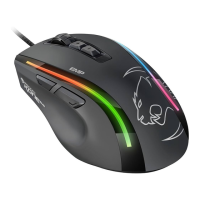
Along with the left and right
mouse buttons the mouse has 8
additional buttons which can be
freely assigned with the functions
available in the driver menu. You’ll
see the list of functions that can
be assigned when you click on the
dropdown menu to the side of the
particular button.
Note: In addition to the pre-
defined functions you can also
assign a unique key combination
(macro) to eight of the mouse
buttons. This can consist of a
keyboard modifier key plus one or
more standard keys.
You can use the Macro Manager
to do that; this is located at the
start of the dropdown menu. As
soon as you’ve programmed a
macro you can select one using
‘Assign Macro’ and assign it to
one of the buttons on the mouse.
MAIN CONTROL


 To Next Page