EasyManua.ls Logo

RODE Microphones NT-USB+ - Using with RØDE Connect Software

RODE Microphones NT-USB+
10 pages
Print Icon
To Next Page IconTo Next Page
To Previous Page IconTo Previous Page
Loading...
07-07-2023 10:21
NT-USB+ | USER GUIDE & SUPPORT | RØDE
https://rode.com/en/user-guides/nt-usb-plus
6/10
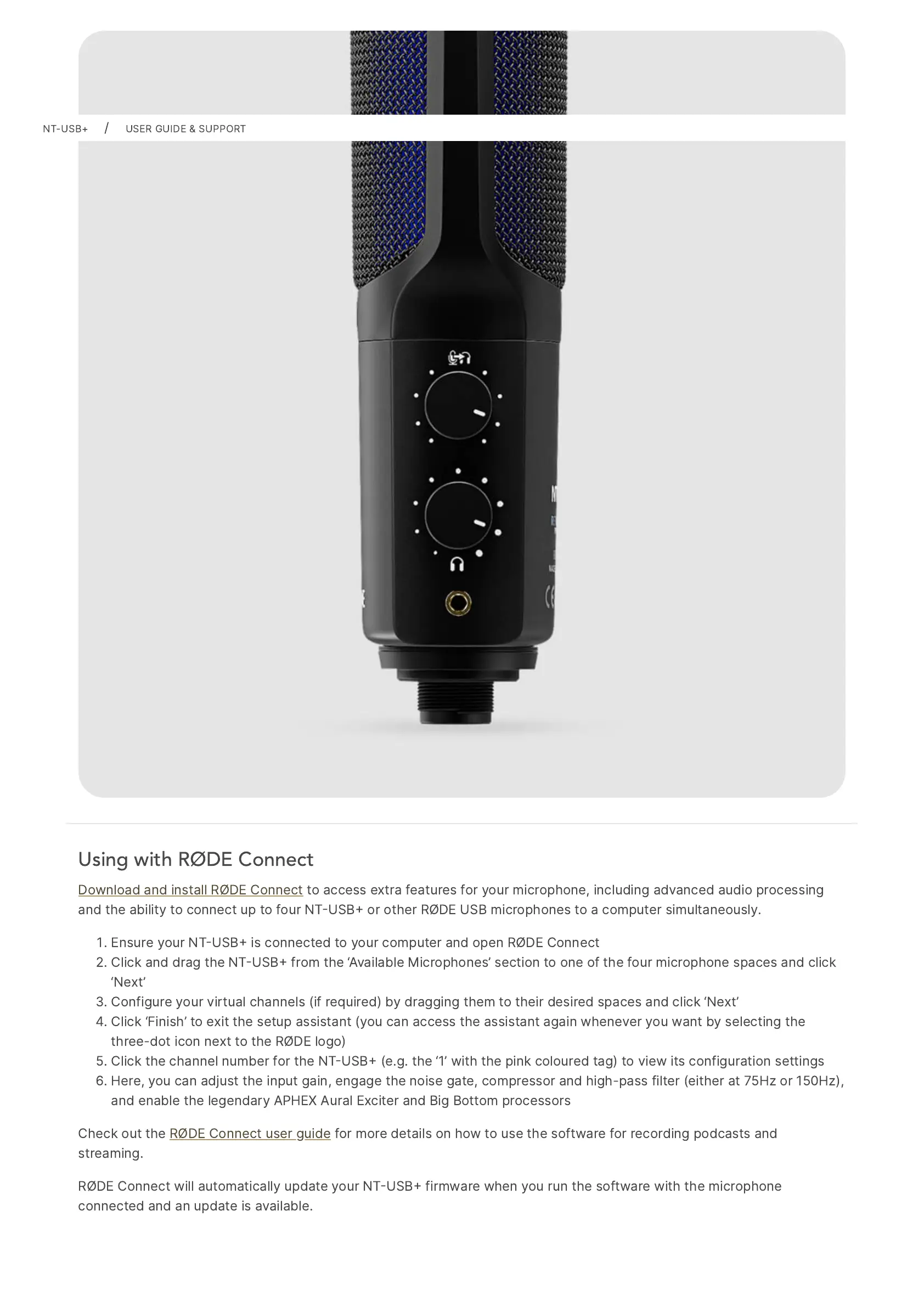
Using with RØDE Connect
Download
and
install
RØDE
Connect
to
access
extra
features
for
your
microphone,
including
advanced
audio
processing
and
the
ability
to
connect
up
to
four
NTUSB
or
other
RØDE
USB
microphones
to
a
computer
simultaneously.
Ensure
your
NTUSB
is
connected
to
your
computer
and
open
RØDE
Connect
Click
and
drag
the
NTUSB
from
the
Available
Microphones
section
to
one
of
the
four
microphone
spaces
and
click
Next
Configure
your
virtual
channels
(if
required)
by
dragging
them
to
their
desired
spaces
and
click
Next
Click
Finish
to
exit
the
setup
assistant
(you
can
access
the
assistant
again
whenever
you
want
by
selecting
the
three-dot
icon
next
to
the
RØDE
logo)
Click
the
channel
number
for
the
NTUSB
(e.g.
the
1
with
the
pink
coloured
tag)
to
view
its
configuration
settings
Here,
you
can
adjust
the
input
gain,
engage
the
noise
gate,
compressor
and
high-pass
filter
(either
at
75Hz
or
150Hz),
and
enable
the
legendary
APHEX
Aural
Exciter
and
Big
Bottom
processors
Check
out
the
RØDE
Connect
user
guide
for
more
details
on
how
to
use
the
software
for
recording
podcasts
and
streaming.
RØDE
Connect
will
automatically
update
your
NTUSB
firmware
when
you
run
the
software
with
the
microphone
connected
and
an
update
is
available.
NT-USB+
/
USER
GUIDE
&
SUPPORT

Other manuals for RODE Microphones NT-USB+

Related product manuals