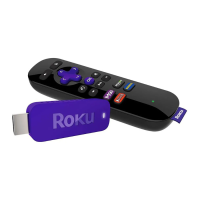
Note: The “Roku Ready” version of the Roku Streaming Stick (model 3400/3420)
connects to the MHL port of your Roku Ready television or other type of compliant
device (e.g. Blu-Ray™ player).
If your Roku Streaming Stick will not fit in your TV's HDMI® port, then you may wish to get a
free HDMI extender cable.
Setting up your Roku Streaming Stick
Follow along with the tutorial video below, or download the Quick Start Guide.
Make sure the correct TV input is selected on your TV (the input to which your Streaming Stick+
is connected). You should see the Roku logo on the TV screen as your Streaming Stick+ powers
on. Help is available if you do not see a picture on your TV or you have problems with your
remote control.
Going through Guided Setup
1. Choose a language
o The first screen you see will allow you to choose a language. All text and dialog within
the Roku application will be displayed in the selected language.
o Scroll up and down the list and press the OK button on your Roku remote to choose
a language.
Note: It is the responsibility of the channel publisher to translate their channel
and some channels may not support your chosen language.
2. Connect your Roku Streaming Stick to your network and the internet
o Choose your wireless network from the list of available networks and enter your
password. This is most often the same network you use to connect your computer or
smartphone to the internet. If you do not see your network, select Scan again to see all
networks. For more assistance, see help finding your wireless network and password.
o If you want to see your password as you type, choose Show password. This can help
prevent entering the wrong password. Remember, passwords are case-sensitive. Use
the shift button on the on-screen keyboard to enter a capital letter.
o Once you have entered your password and selected Connect. Your Roku Streaming Stick
will automatically connect to the internet. Alternatively, you can get more help if you
are unable to connect to your wireless network.
3. Wait for your Roku Streaming Stick to download the latest software
o Once connected to the internet, your Roku Streaming Stick will download the latest
version of Roku OS software and then reboot.


 To Next Page