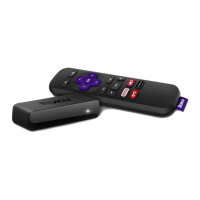
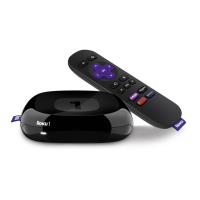
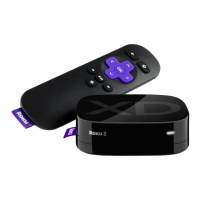
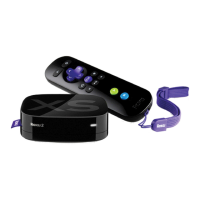
4. Try a different TV
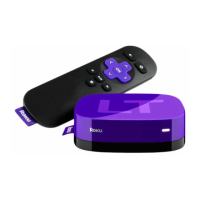
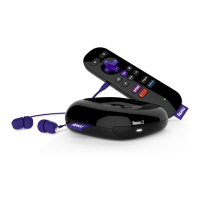
o If possible, temporarily connect your Roku player to the USB port on a different TV. This
will help you determine if the problem is due to the Roku player or your TV.
5. Connect to a wall power outlet
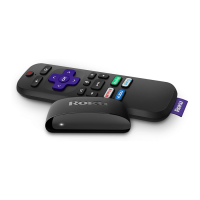
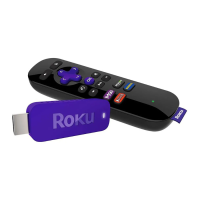
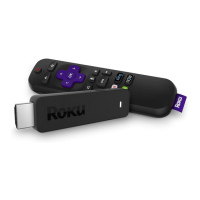
o Using the included power cord and power adapter, connect the Roku player or Roku
Streaming Stick to a working power outlet in the wall.
o Connecting to a power outlet in the wall has the additional advantage that your Roku
player will not need to power-up every time you turn on your TV. This means your Roku
player will be up and running faster than it would connected to the USB port on your TV.
Note: Most Roku players and Roku Streaming Sticks connected to the USB port on your TV will
lose power when the TV goes into standby. This means that your Roku device will “boot-up”
every time the TV is turned on. Although this is generally fast, it can be avoided by connecting
the Roku device to a wall power outlet. Also, much like “apps” on your smartphone, Roku
channels are cached the first time they are launched so they load faster; however, the cache is
emptied when the Roku device powers down.
What to do if you cannot connect to your home network or the internet
Background
Your Roku® streaming player or Roku TV™ provides you with access to stream audio and
video from the internet. For this to work, you need a good connection from your Roku device to
your home network, and from your home network to the internet.
This article provides steps to help check that these connections are working properly, along with
suggestions for troubleshooting any problems.
Why do I see an error message such as “Unable to connect to wireless network” or “Not
connected to the internet”?
When you set up your Roku player or Roku TV for streaming, you must connect this device to
your home network in the same way that you connect your computer or mobile device. Simply
select your wireless network name and enter the correct password. In doing so, a wireless
connection is established from your Roku device to your home access point or router*. Your
router will then grant access to the internet through a broadband service provided by your
internet service provider, or ISP (usually your cable or phone company).
Note: On Roku streaming devices that have an Ethernet port, you can alternatively
choose to connect to your router using an Ethernet, or wired network cable.
If your Roku device is unable to connect to your home router or gain access to the internet
through the router, you may not be able to set up your device. In cases where the network or


 To Next Page