15
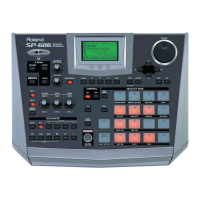
An Overview of the SP-606
Internal
In this mode you can use the SP-606’s pads and knobs to control the SP-606 itself.
To select Internal mode, press
[INT]
so it’s lit.
External
In this mode you can use the SP-606’s pads and knobs to control the P606 application (an included sequencer for
Windows) running on your USB-connected computer.
To select External mode, press
[EXT]
so it’s lit.
If you want to control both the SP-606 itself and the P606 application, press [INT] and [EXT] so both
buttons are lighted.
Switching the Mode (Internal/External)
What Is the Play Screen?
The “play screen” refers to the screen that appears when you perform the following steps.
1. Power up the SP-606 as described in “Turning the Power On/Off” (p. 21).
2. Press [INT] so it’s lit.
At this time, [EXT] will be unlit.
3. Press [SONG] or [PTN].
If you press [SONG], the word “Song” will appear vertically at the left edge of the screen.
If you press [PTN], the word “Pattern” will appear vertically at the left edge of the screen.
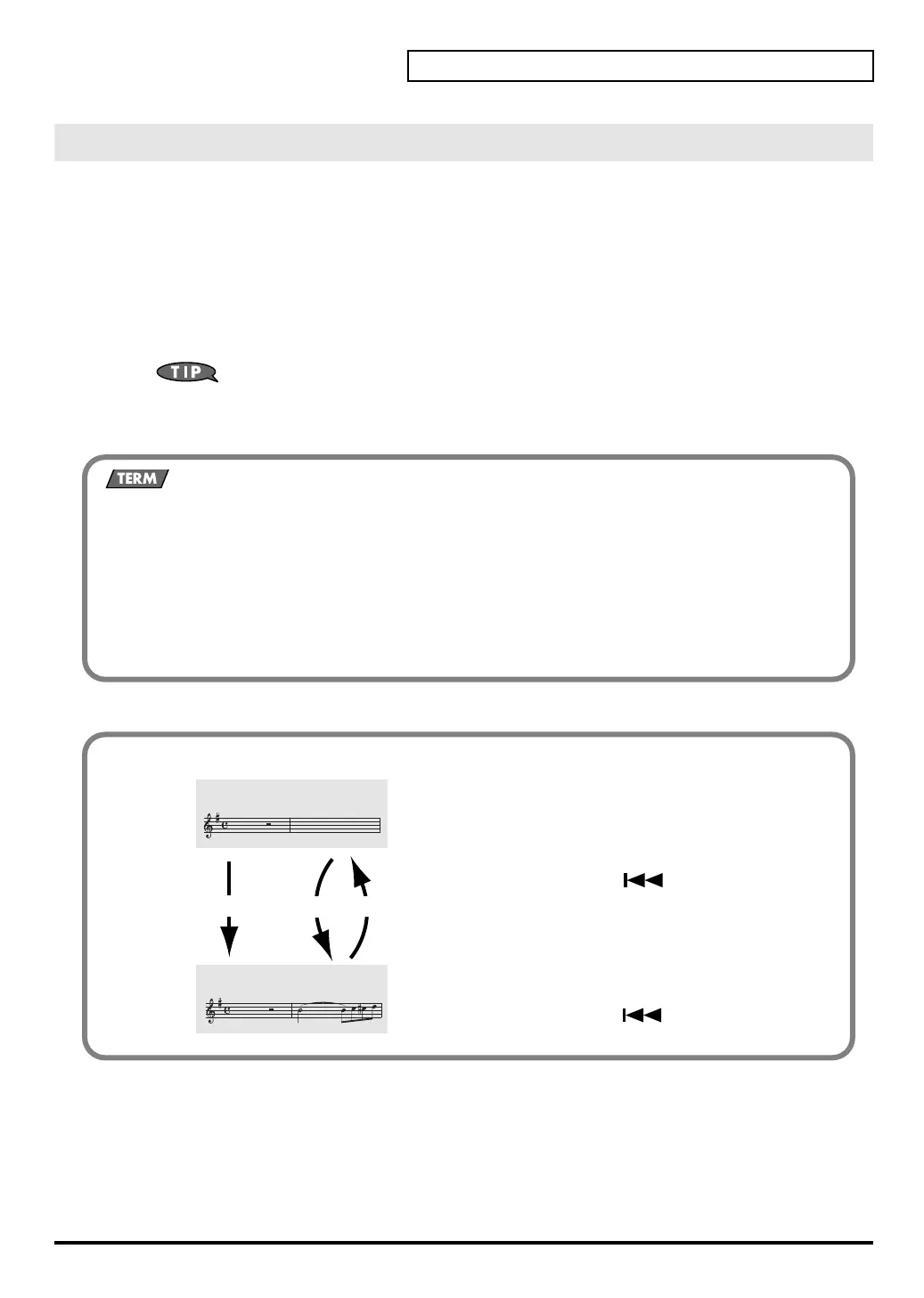
Canceling the Previous Operation (Undo/Redo)
fig.0G-6
You can cancel the editing or recording operation that you
performed most recently on a song or pattern.
Procedure
Hold down [FUNC] and press [ ] (Top).
* You can execute Undo for Pattern (microscope edit, realtime
recording, step recording) and Song (edit, recording) operations.
* The Redo function cancels the Undo, returning you to the state before
executing Undo. After you’ve executed Undo, you can once again
hold down [FUNC] and press [ ] (Top) to execute Redo.
Before Recording/Editing
After Recording/Editing
Recording/Editing
UNDO
REDO
SP-606_e.book 15 ページ 2004年6月21日 月曜日 午前10時8分


 To Next Page
 Loading...