8 Configuration
Installer reference guide
47
RRLQ004~008CA + RHBH/X04+08CB
ROTEX HPSU low temperature Bi‑bloc
4P384979-1C – 2017.04
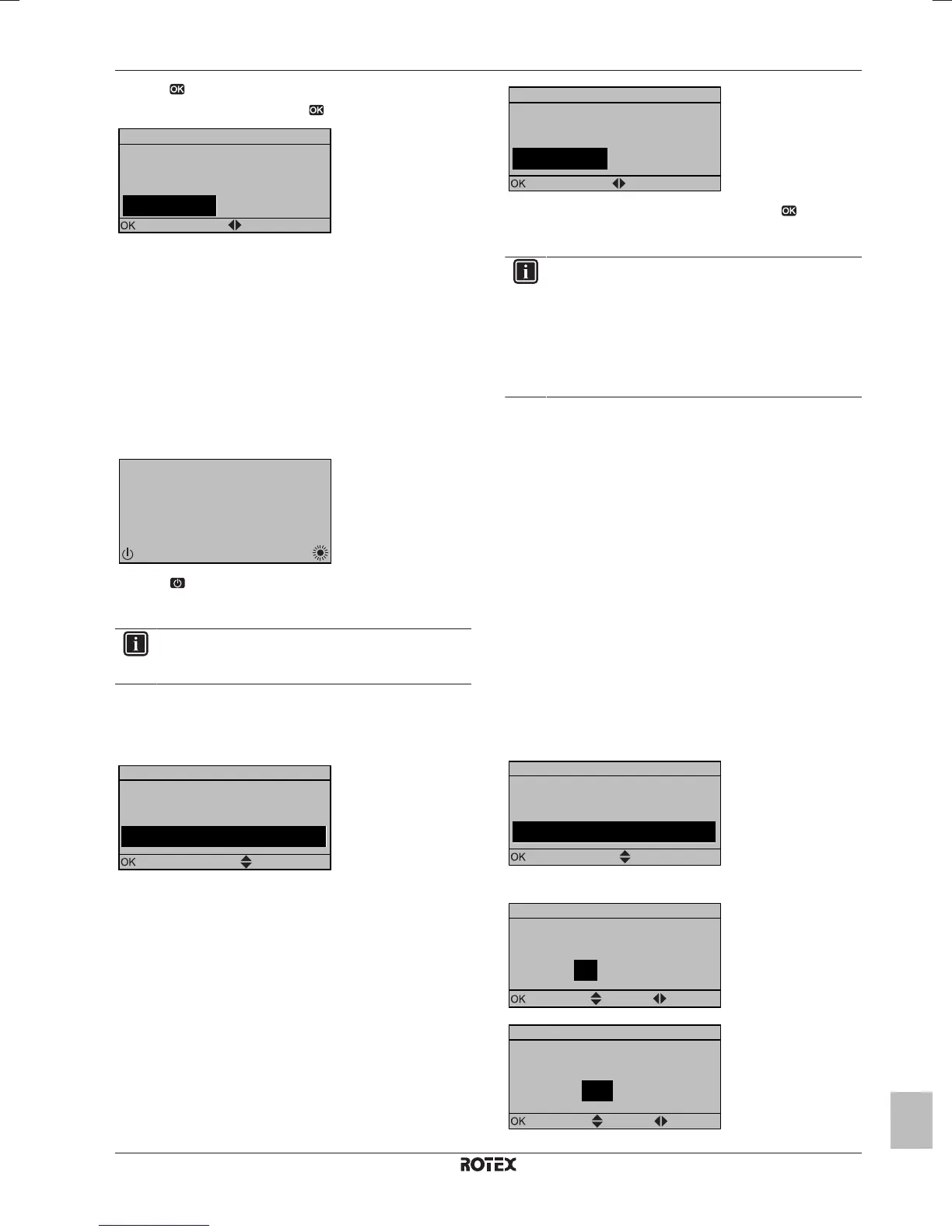
6 Push to confirm the modification of the parameter.
7 At installer settings menu, press to confirm the settings.
Installer settings
The system will restart.
Confirm Adjust
Cancel
OK
Result: The system will restart.
8.1.3 To copy the system settings from the first
to the second user interface
If a second user interface is connected, the installer must first
proceed below instructions for the proper configuration of the 2 user
interfaces.
This procedure offers you also the possibility to copy the language
set from one user interface to the other one: e.g. from RKRUCBL2 to
RKRUCBL1.
1 When power is turned on for the first time, both user interfaces
display:
15:10
Tue
U5:Auto address
Push 4 sec. to continue
2 Push for 4seconds on the user interface on which you want
to proceed to the quick wizard. This user interface is now the
main user interface.
INFORMATION
During the quick wizard, the second user interface displays
Busy and will NOT be possible to operate.
3 The quick wizard will guide you.
4 For proper operation of the system, the local data on the two
user interfaces must be the same. If this is NOT the case, both
user interfaces will display:
Synchronization
Data difference detected.
Please select action:
Send data
Confirm
Adjust
5 Select the required action:
▪ Send data: the user interface you are operating contains the
correct data and the data on the other user interface will be
overwritten.
▪ Receive data: the user interface you are operating does
NOT contain the correct data and the data on the other user
interface will be used to overwrite.
6 The user interface requests confirmation if you are sure to
proceed.
Start copy
Are you sure you want to
start the copy operation?
Cancel
OK
Confirm Adjust
7 Confirm the selection on the screen by pushing and all data
(languages, schedules etc.) will be synchronised from the
selected source user interface to the other one.
INFORMATION
▪ During the copying, both controllers will NOT allow
operation.
▪ The copy operation can take up until 90 minutes.
▪ It is recommended to change installer settings, or the
configuration of the unit, on the main user interface. If
not, it can take up to 5 minutes before these changes
are visible in the menu structure.
8 Your system is now set to be operated by the 2 user interfaces.
8.1.4 To copy the language set from the first to
the second user interface
See "8.1.3To copy the system settings from the first to the second
user interface"on page47.
8.1.5 Quick wizard: Set the system layout after
first power ON
After first power ON of the system, you are guided on the user
interface to do initial settings:
▪ language,
▪ date,
▪ time,
▪ system layout.
By confirming the system layout, you can proceed with the
installation and commissioning of the system.
1 At power ON, the quick wizard starts as long as the system
layout was NOT confirmed yet, by setting the language.
Language
Select the desired language
Confirm Adjust
2 Set the current date and time.
1 2012
Scroll
AdjustConfirm
Date
What is the date today?
Sun Jan
00 : 00
What is the current time?
Time
Confirm
Adjust
Scroll



 To Next Page