20
DETERMINING A SHIPPING RATE ON THE SCALE (continued)
6) Press the up or down arrow keys to scroll through the various delivery services offered by the selected carrier.
7) Press enter when the desired service is displayed, or press the clear key to return to selecting a carrier.
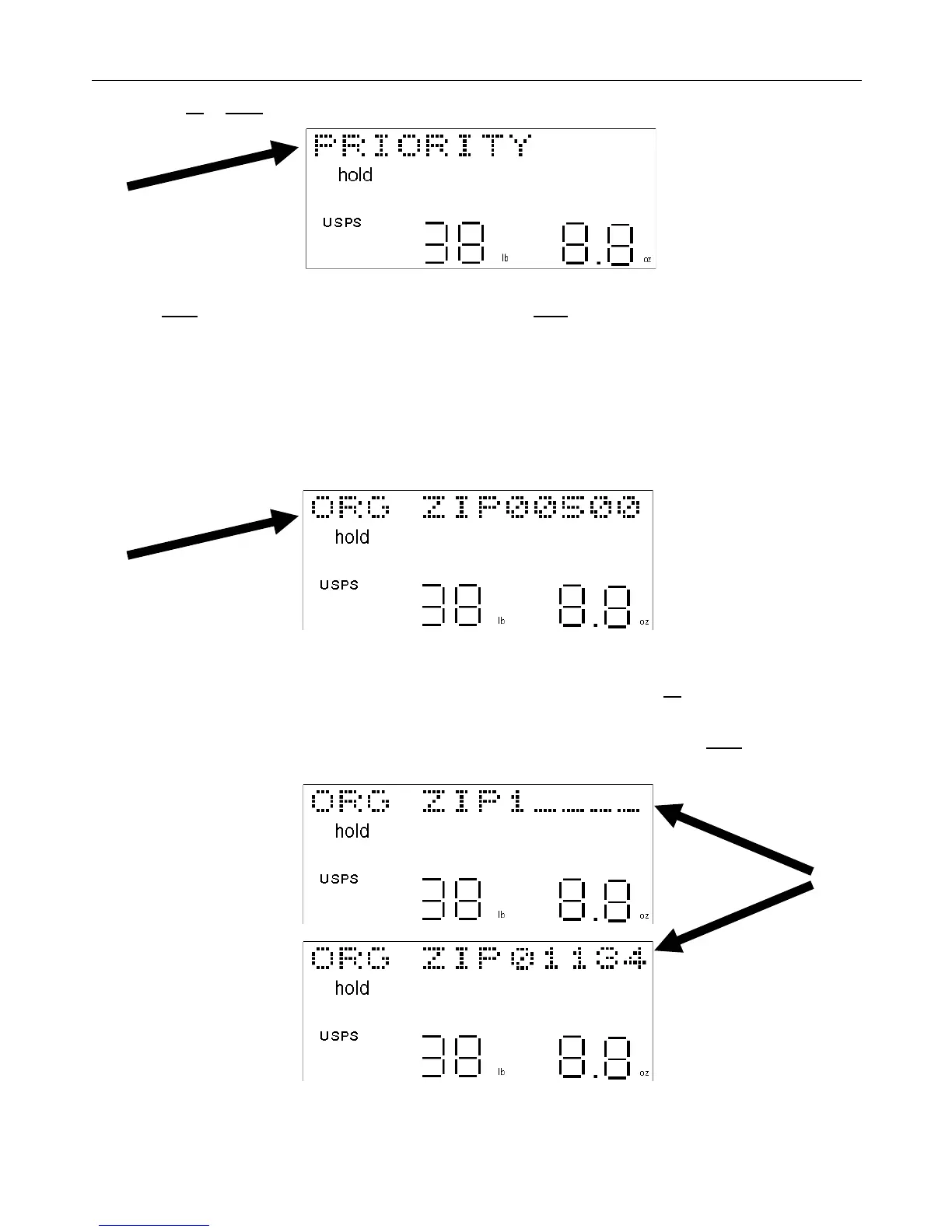
If no zip code information is necessary in determining the shipping rate, then the shipping rate or price will be
displayed in dollars and cents above the weight. If the service requires zip codes to determine a shipping zone code
and the shipping rate, then the price will not display and the scale will ask for the zip code information instead.
ZIP CODE INFORMATION:
The scale will first ask for the origin or ship-from zip code. The display will show “ORG ZIPxxxxx” (xxxxx represents
the last origin zip code entered in the scale since the scale was turned-on, or the default zip code set in the scale
during the last PC download).
8) Enter the 5-digit origin (ship-from) zip code.
• If an error was made or a number in the zip code needs to be changed, press the up arrow key to backspace to
that number and re-enter the correct number.
• If the default origin zip code, which appears on the display, is correct, then just press the enter key one time and
skip Step #9. There is no need to re-enter that zip code.


 To Next Page