Back
Tap to return to the home screen.
17
16
15
14
13
F11GIM User Manual
Copyright ©2021 Ruko All Rights Reserved.
28
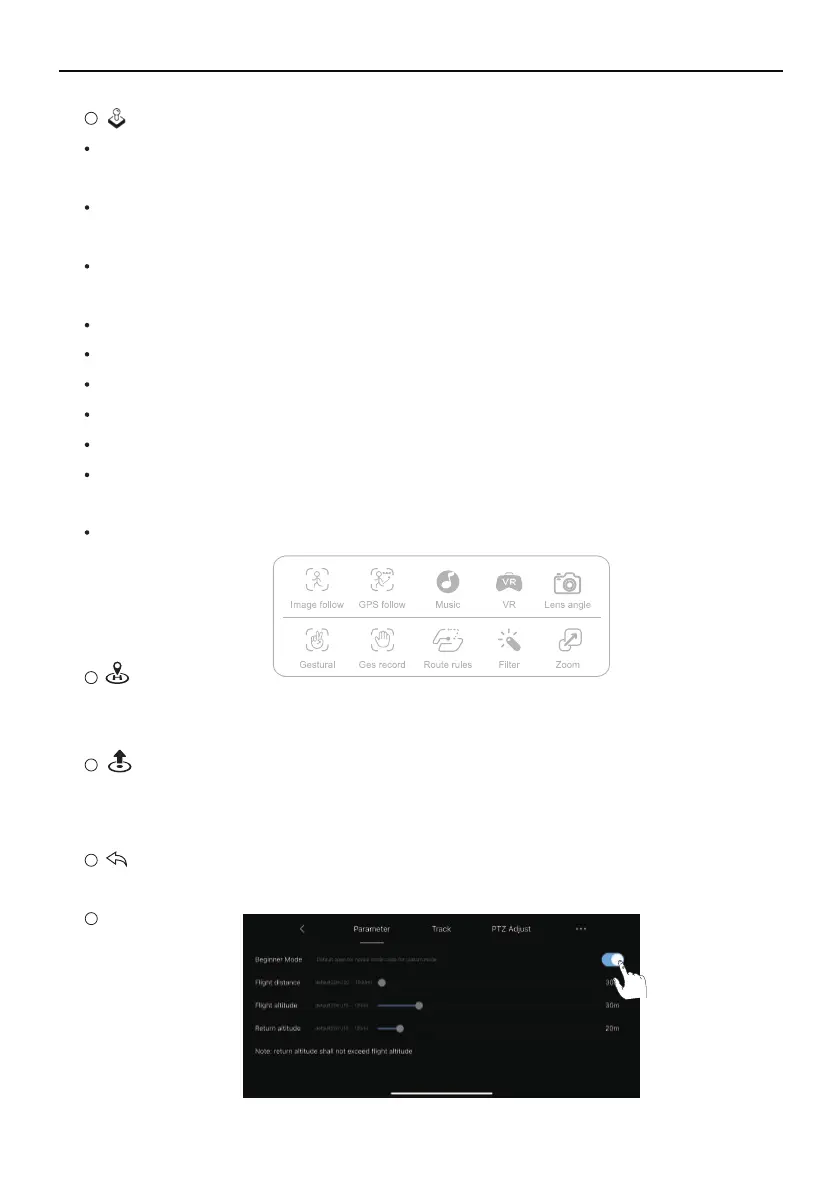
More Features
Image Follow: Tap the Image follow function, aircraft will follow the object's in circle
movement.
GPS Follow: Tap to start the follow me function, the Aircraft will use the GPS in the
smartphone to follow you.
Music: Add music to the video. Click to enter the music page, select the page and enter
the video shooting.
VR split screen: Click this button to use the VR glasses function.
Lens Angle: Click this button to adjust the camera lens to downwards and upwards.
Zoom: Click the button to use the zoom function, up to 5 times zoom.
Gesture to take photos: Tap this icon to use gestures to control Aircraft to take photos.
Gesture recording: Tap this icon to use gestures to control Aircraft recording.
Route planning: Click the change icon to enter the map, select a waypoint on the map,
and the Aircraft will follow the waypoint to fly. Up to 16 waypoints can be set.
Filter: Tap to select a different filter mode to take photos or videos.
Auto Takeoff / Landing
Click to expand the control panel, long press to make the Aircraft take off or land
automatically.
RTH
Tap to initiate Smart RTH and have the aircraft return to the last recorded Home
Point and turn off the motors.
Parameter


 To Next Page
 Loading...