This document serves as a Quick Start Guide for the Optus Wireless Voice Box, a stand-alone unit designed to provide wireless telephony services. It outlines the setup process, usage instructions, troubleshooting tips, and important safety precautions for the device.
Function Description:
The Optus Wireless Voice Box (Sagem RL302) is a device that enables wireless telephony services. It does not require connection to a traditional telephone wall socket, operating independently. The device facilitates a range of Optus services including Call Waiting, Call Divert (All Calls), Caller ID, Call Barring (arranged via Customer Service), and VoiceMail. It functions as a bridge between a standard phone handset and the Optus mobile network, allowing users to make and receive calls wirelessly.
Usage Features:
Setup and Activation:
- Activation: If the SIM card is received via courier, users must call 1800 555 050 to activate the service. Operating hours for activation are Monday-Tuesday and Thursday-Friday: 9am to 5:30pm, and Wednesday: 10am to 5:30pm.
- SIM Card Insertion: The Optus SIM card must be inserted into the SIM card slot with the golden contact facing downwards. It is crucial to disconnect the power adaptor from the device before inserting or removing the SIM card to prevent damage.
- Placement: For optimal signal strength, the Voice Box and telephone should be placed near a window. The device can be positioned horizontally or mounted on a wall. The Antenna light on the front of the Voice Box will remain constant when reception is good. It is recommended to keep other electrical devices at least one meter away from the Voice Box to avoid electrical interference.
- Connection: The power adaptor cable should be plugged into the power supply at the back of the Voice Box. The phone handset or its cradle should be plugged directly into the phone input (RJ11 port) at the back of the Voice Box. Finally, the power adapter is plugged into a power point. Only the supplied power adaptor should be used. To find out the local number, users can dial 1800 652 456.
Making Calls:
- Ensure the Voice Box is set up correctly.
- Upon hearing a dial tone, dial the desired number.
- A slight delay may occur before the ringing tone is heard; this is normal for this service type. Pressing '#' after dialing the number can reduce this delay.
- The call disconnects when the receiver is put down.
VoiceMail Services:
- Setting Up VoiceMail: Optus VoiceMail is pre-configured. Users can personalize their VoiceMail by dialing *96# and following the prompts. To deactivate, lift the handset and dial #22#. To reactivate, lift the handset and dial 77321#.
- Retrieving VoiceMail: A stutter dial tone indicates a new VoiceMail message. To listen, dial *96# and follow the prompts. If using an Optus handset or compatible phone with a VoiceMail button, press the VoiceMail button followed by the # key.
- Retrieving VoiceMail from Away: Dial 13 33 21 from any phone, then enter the VoiceMail number (including area code) and press # (e.g., 029270XXXX#).
- VoiceMail PIN: Users must enter their VoiceMail PIN (created during setup) and press # to access messages.
- Managing Messages: After listening to a message, options include pressing 3 to delete, 7 to replay, or 5 to save.
Call Waiting:
- This feature notifies users of an incoming call while they are on another call with two beeps.
- To pick up the second call, press the Recall button. The Recall button may be labeled R, F, or FLASH depending on the handset. For Optus handsets or compatible phones with a Call Waiting button, that button can be used instead of Recall.
Call Forwarding:
- Activation: To activate Call Forward, lift the handset and dial 78 followed by the destination phone number (including area code). A confirmation tone will be heard, and a different dial tone will indicate the feature is active.
- Deactivation: To deactivate, lift the handset and dial #22#, then hang up. This also cancels Call Forwarding on No Reply to VoiceMail. To reactivate Call Forwarding on No Reply to VoiceMail, dial 77321#.
Voice Box Lights Indicators:
- Phone Handset:
- OFF: Power Off.
- ON: Power On.
- Slow Blinking: Handset in use.
- Fast Blinking: Unconditional Call Forwarding activated.
- SIM:
- OFF: SIM Card is missing.
- ON: SIM Card is OK.
- Antenna:
- OFF: Searching for the network.
- ON: Strong network reception.
- Blinking: Weak network reception.
- VoiceMail:
- OFF: No message.
- Blinking: New message.
Maintenance Features:
Troubleshooting:
- Cannot Make a Call:
- Network Coverage: Check the antenna light signal. If blinking, move the Voice Box to a new position, ideally closer to a window, for a constant light signal.
- Power Failure: The device will not operate during a power failure.
- Incomplete Setup: Ensure the Voice Box is plugged into the wall socket and the phone is plugged into the Voice Box.
- Cannot Receive a Call:
- Network Coverage: Similar to making calls, check the antenna light signal and reposition if blinking.
- Call Forward Unconditional Active: If the phone handset light is blinking, all calls are forwarded to VoiceMail. To reset, dial #22# and hang up, then lift the handset and dial 77321# for a confirmation tone.
- Power Failure: The device will not receive calls during a power failure.
- Incomplete Setup: Ensure the Voice Box is plugged into the wall socket and the phone is plugged into the Voice Box.
Handy Hints:
- The Voice Box is a stand-alone unit and does not need to be plugged into a telephone wall socket.
- It is compatible with cordless phones.
- To connect multiple handsets (up to 3) on one service number, an "RJ11 triple adaptor" can be purchased from electronic suppliers.
- If multiple handsets are connected and a call is received, leave the first phone off the hook until the second phone is picked up.
Safety Precautions:
- Only use the main units supplied.
- Do not use the Voice Box in environments with explosion hazards (e.g., auto paint shops).
- Be aware that the device's operation may affect medical appliances.
- Dispose of electrical and electronic products separately from municipal waste via designated collection facilities to prevent negative environmental and health consequences.
- Not suitable for use in flammable atmospheres (e.g., petrol stations, chemical factories).
- The handset connected to the Voice Box may cause an intrusive 'hum' in some hearing aids.
- Do not place the Voice Box near other electronic appliances as it may cause interference.
- Do not install the Voice Box in a bathroom or shower room as it is not splash-proof.
- The Voice Box does not have a battery backup and will not operate during a mains power failure, meaning emergency services cannot be accessed in such an event.
- The service may not be suitable for users requiring disability services, those with back-to-base home alarm systems, or those who require an uninterrupted phone line.
- Purchasing an uninterruptible power supply (battery backup) is recommended if relying on the service during power failures.
- The Optus Wireless Telephony service does not allow preselection of other long-distance service providers.
- The Customer Service Guarantee does not apply to this service as it uses a mobile network.

 Need help?
 General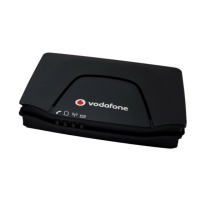

 To Next Page