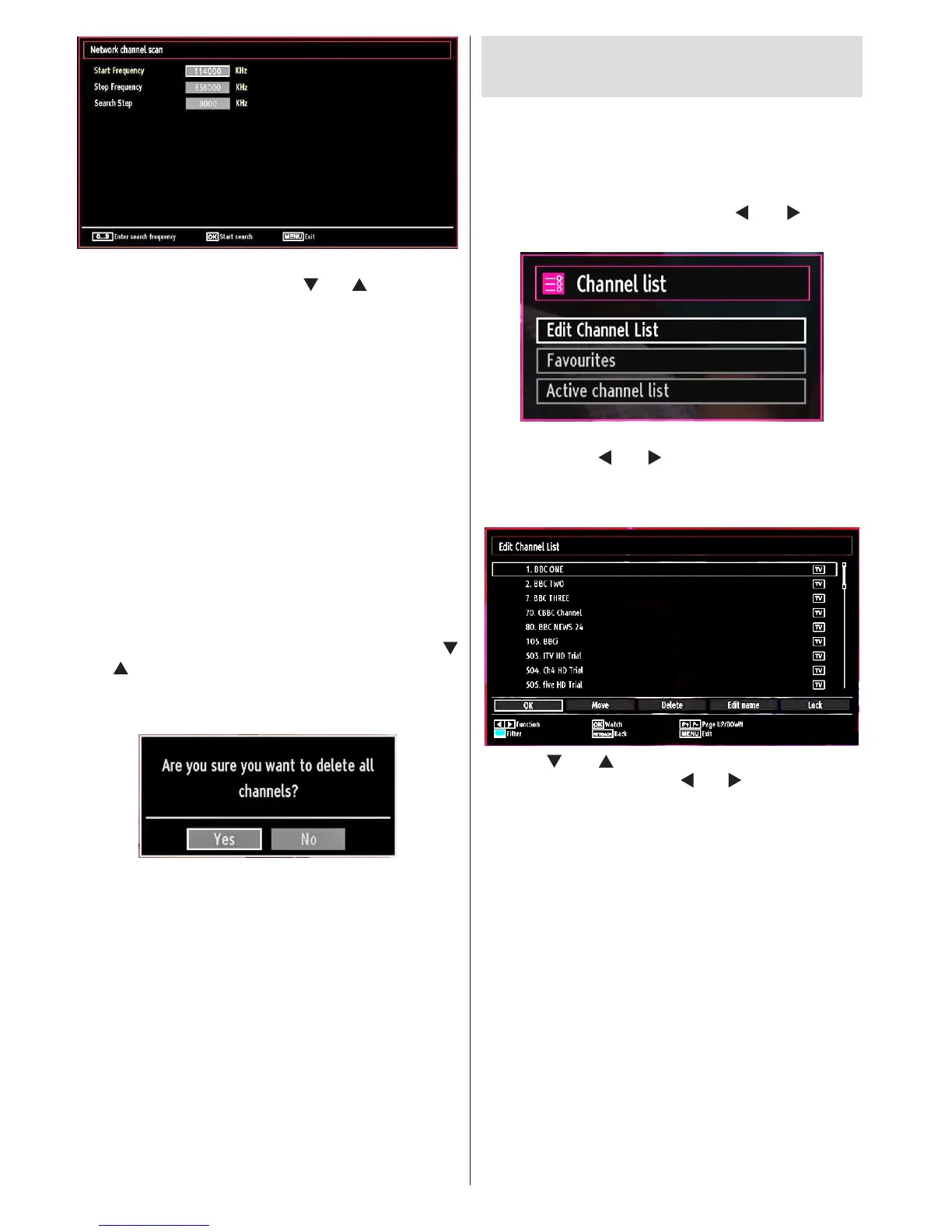
You can select frequency ranges from this screen. For
highlighting lines you see, use “ ” or “ ” button. You
can enter the frequency range manually by using the
numeric buttons on the remote control. Set Start and
Stop Frequency as desired by using numeric buttons
on the remote control. After this operation, you can set
Search Step as 8000 KHz or 1000 KHz. If you select
1000 KHz, the Tv will perform search process in a
detailed way. Searching duration will thus increase
accordingly. When nished, press OK button to start
automatic search. Automatic searching screen will be
displayed during the process.
Note: If you select an extended gap between Start
and Stop frequency rate, automatic search duration
will take a longer time.
Clear Service List (*)
(*) This setting is visible only when the Country option
is set to Denmark, Sweden, Norway or Finland.
Use this setting to clear channels stored. Press “
” or “ ” button to select Clear Service List and then
press OK. The following OSD will be displayed on
the screen:
Select YES and press OK to continue or select NO
and press OK button to cancel.
Managing Stations: Channel
List
The TV sorts all stored stations in the Channel List.
You can edit this channel list, set favourites or set
active stations to be listed by using the Channel List
options.
Press • “MENU” button to view main menu. Select
the Channel List item by using “
” or “ ” button.
Press OK to view menu contents.
Select Edit Channel List to manage all stored
channels. Use “ ” or “ ” and OK buttons to select
Edit Channel List.
Operating the Channel List
Press “• ” or “ ” button to select the channel that
will be processed. Press “ ” or “ ” button to select
a function on Channel List menu.
Use • P+ or P- buttons to move page up or down.
Press • BLUE button to view ltering options.
Press • “MENU” button to exit.
Moving a Channel
First select the desired channel. Select Move option •
in the channel list and press the OK button.
Edit Number screen will be displayed. Enter the •
desired channel number by using the numeric
buttons on the remote control. If there is a previously
stored channel on that number, a warning screen
will be displayed. Select Yes if you want to move the
channel and press OK.
Press the • OK button to process. Selected channel
is now moved.








 To Next Page