Watching TV Channels
After Tuning is completed, you can watch TV
channel.
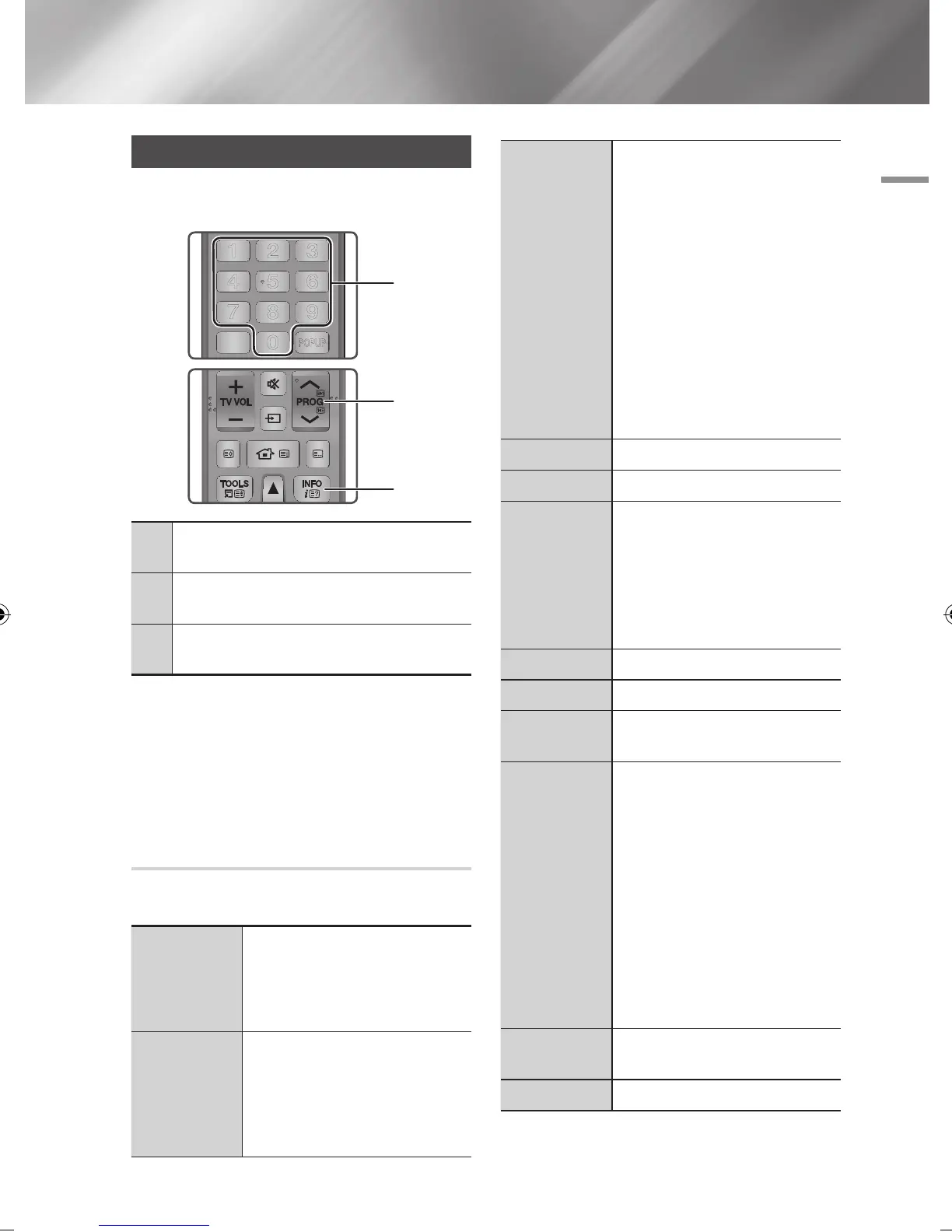
1
NUMBER buttons : To move TV channel directly,
press the channel numbers of desired TV channel.
2
PROG
buttons : Press this button to change TV
channels.
3
INFO buttons : Press this button to display detailed
information of selected channel.
| NOTE |
\
If you want to watch TV while you are playing Blu-ray
Disc/DVD/CD contents with AllShare, or Internet contents
via Smart Hub, press the EXIT button on your remote
control. With the EXIT button, you can also watch TV
directly on the Menu screen.
Using the Tools Menu
Press the TOOLS button while you are viewing a
channel.
3D Perspective
Select to adjust the 3D perspective
| NOTE |
\
This menu can be displayed when
convert 2D contents into 3D.
3D Depth
Select to adjust the 3D depth of 2D to
3D conversions.
| NOTE |
\
This menu can be displayed when
convert 2D contents into 3D.
Picture Mode
Select this to set the picture mode.
- Dynamic : Choose this setting to
increase Sharpness.
- Standard : Choose this setting for
most viewing applications.
- Movie : This is the best setting for
watching movies.
- User : Lets you adjust the sharpness
and noise reduction function
respectively.
| NOTE |
\
This menu can not be displayed
when you use the BD wise function.
Audio Language
Select to set the desired audio language.
Dual I II
Select to set the desired audio.
Lock Current
Channel
You can lock a TV channel by setting
PIN.
| NOTE |
\
This menu can be displayed when
the country set to Netherlands and
brodcast signal is cable.
Arial
Select to change a signal.
Edit Favourites
Select to Edit Favourites.
Signal
Information
Select to check the signal information.
PIP
Select to display PIP screen.
- PIP : If you select On, you can use
PIP function.
- Air/Cable : Select to change
broadcast signals.
- Channel : Select to change channels
- Size : Select to set PIP screen size.
- Position : Select to set PIP screen
position.
- Sound Select : Select one of Main
or Sub which you want to hear the
sound.
Audio
Description
Select to add a verbal description to the
main audio to help the visually impaired.
Subtitle
Select to set the desired subtitle.
DTV Functions
FUNCTION
TV SOURCE
POWER
RECEIVER
DIGITAL
SUBTITLE
INPUT
1 2 3
4 5 6
7 8 9
PANDORA SUBTITLE
SUBTITLE
INPUT
DISC MENU TITLE MENU
0
POPUP
A B C D
SMART HUB
SEARCH
BD TV
TV MUTE
TV SOURCE
TTX/MIX
SOCIAL REC REC PAUSE
2D 3D
CH LIST HOME GUIDE
3
2
FUNCTION
TV SOURCE
POWER
RECEIVER
DIGITAL
SUBTITLE
INPUT
1 2 3
4 5 6
7 8 9
PANDORA SUBTITLE
SUBTITLE
INPUT
DISC MENU TITLE MENU
0
POPUP
A B C D
SMART HUB
SEARCH
BD TV
TV MUTE
TV SOURCE
TTX/MIX
SOCIAL REC REC PAUSE
2D 3D
CH LIST HOME GUIDE
1
English 51
|
02230J-BD-E8900-EN-ENG.indd 51 2012-04-13 오후 2:53:30



 To Next Page