EasyManua.ls Logo

Samsung BD-F5700 - User Manual

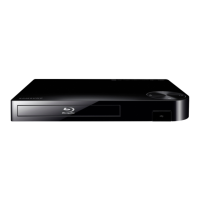
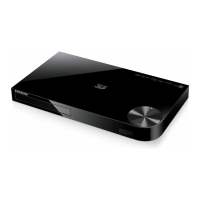
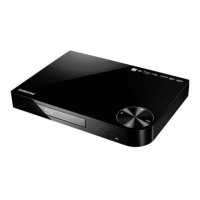
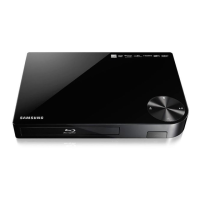
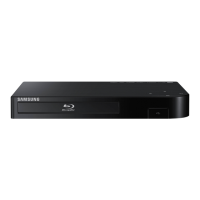
Samsung BD-F5700
24 pages
Print Icon
To Next Page IconTo Next Page
Loading...
imagine the possibilities
Thank you for purchasing this Samsung product.
To receive more complete service,
please register your product at
www.samsung.com/register
Blu-ray
Disc Player
user manual
BD-F5700
ENGLISH

Questions and Answers

  • R
    richardleonardAug 19, 2025
    What to do if the screen is blank on my Samsung Blu-ray Player?
    • R
      Ryan DennisAug 19, 2025
      If the HDMI output on your Samsung Blu-ray Player is set to a resolution that your TV doesn't support (for example, 1080p), the screen may appear blank. To resolve this, press the @ button on the front panel for more than 5 seconds with no disc inside. This will revert all settings to the factory defaults. Note that restoring factory default settings will delete all stored user BD data.
  • S
    susansmithAug 22, 2025
    How to reset a forgotten password on a Samsung Blu-ray Player?
    • N
      Natalie HillAug 22, 2025
      If you've forgotten your password for your Samsung Blu-ray Player, press the @ button on the front panel for more than 5 seconds when there is no disc inside. This will restore all settings, including the password, to the factory defaults. Be aware that this action will erase all stored user BD data, so only use it when absolutely necessary.
  • J
    Janet AndersonAug 23, 2025
    What to do if the remote control is not working with my Samsung Blu-ray Player?
    • V
      Victoria BatesAug 25, 2025
      If no operation can be performed with the remote control of your Samsung Blu-ray Player, try the following: * Check and replace the batteries in the remote control if needed. * Ensure that you are operating the remote control within 20 feet of the player. * Remove the batteries, press and hold one or more buttons for a few minutes to drain the microprocessor inside the remote control and reset it. Then, reinstall the batteries and try again.
  • K
    Kendra KingAug 26, 2025
    Why is there no HDMI output from my Samsung Blu-ray Player?
    • S
      Stacey ReevesAug 26, 2025
      If you are getting no HDMI output from your Samsung Blu-ray Player, try these steps: * Check the connection between your TV and the HDMI jack on the player. * Verify that your TV supports 480p, 720p, 1080i, or 1080p HDMI input resolutions.
  • D
    davismichelleAug 27, 2025
    What to do if a disc does not play in my Samsung Blu-ray Player?
    • D
      David SawyerAug 28, 2025
      If your Samsung Blu-ray Player is not playing a disc, make sure the disc is installed with the label side facing up and check the region number of the Blu-ray Disc/DVD to ensure it is compatible.
  • N
    Nathan LambertAug 29, 2025
    How to fix no audio on a Samsung Blu-ray Player?
    • K
      Keith RiosAug 30, 2025
      Make sure you have selected the correct Digital Output in the Audio Options Menu of your Samsung Blu-ray Player.
  • V
    valerie07Aug 31, 2025
    What causes an abnormal HDMI output screen on a Samsung Blu-ray Player?
    • B
      bennettjustinSep 1, 2025
      If your Samsung Blu-ray Player displays an abnormal HDMI output screen, it could be due to your TV not supporting HDCP (High-bandwidth Digital Content Protection). If random noise appears on the screen, this indicates that your TV does not support HDCP.
  • K
    kkellySep 2, 2025
    Why is the picture noisy or distorted on my Samsung Blu-ray Player?
    • Z
      Zachary BellSep 2, 2025
      If the picture from your Samsung Blu-ray Player appears noisy or distorted, make sure the disc is not dirty or scratched. Cleaning the disc may resolve this issue.
  • R
    Richard ThomasSep 4, 2025
    Why is the DLNA connection unstable between my Samsung Blu-ray Player and my PC?
    • M
      Michelle Ford MDSep 5, 2025
      If the DLNA connection between your Samsung Blu-ray Player and PC is unstable, it may be due to IP interference. Ensure that each IP address within the same subnetwork is unique. Also, check if a firewall is enabled and, if so, disable it.
  • V
    Vincent BlakeSep 6, 2025
    What to do if the disc menu does not appear on my Samsung Blu-ray Player?
    • M
      Maria ReedSep 7, 2025
      If the Disc Menu does not appear on your Samsung Blu-ray Player, make sure that the disc actually has disc menus.

Summary

Safety Information

Warnings, Cautions, and Laser Safety

Key safety warnings, cautions, and Class 1 Laser product information.

Important Safety Instructions

Essential guidelines for safe usage and installation of the apparatus.

Safety Information Continued

Remote Control Operations

Connectivity Options

Connecting the Player to a TV

Steps for connecting the player to a television via HDMI.

Connectivity Options Continued

Connecting to Audio Systems and Networks

Methods for connecting to audio systems and network routers.

Settings and Configuration

Initial Setup, Menu Navigation, and Home Menu

Initial setup, menu navigation, and Home Menu options.

Settings and Configuration Continued

Audio Settings and Digital Output Options

Options for configuring audio output formats, PCM downsampling, and downmixing.

Network Settings

Network Connection Configuration

Steps to connect the player to a network, wired or wireless.

Wired and Wireless Network Setup Methods

Automatic and manual setup procedures for wired and wireless network connections.

Network Settings Continued

System Settings

System Settings Continued

Media Playback

Media Playback Continued

Appendix - Troubleshooting

Player, Network, and DLNA Troubleshooting

Solutions for common player problems and network/DLNA issues.

Appendix - Specifications and Repairs

Samsung BD-F5700 Specifications

General IconGeneral
Depth193 mm
Wi-FiYes
Width269.2 mm
Height38.1 mm
Weight998 g
Full HDNo
Device typeBlu-Ray player
Product colorBlack
Audio decodersDolby Digital, Dolby Digital Plus, Dolby TrueHD
Package weight1406 g
Disc types supportedBD, CD, CD-R, CD-RW, DVD+R, DVD+RW, DVD-R, DVD-RW
Playback disc formatsBlu-Ray video
Card reader integrated-
USB 2.0 ports quantity1
Audio formats supportedAAC, LPCM, MP3, WMA
Image formats supportedJPG
Video formats supportedAVCHD, MKV, MPEG2, MPEG4, WMV
Digital audio optical out0
Sustainability certificatesENERGY STAR
Consumer Electronics Control (CEC)Anynet+
Audio output channels2.0 channels

Related product manuals