EasyManua.ls Logo

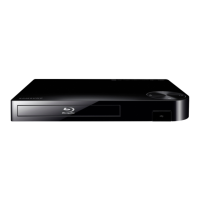
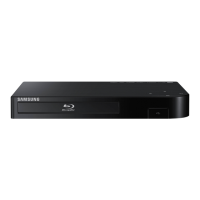
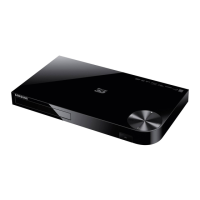
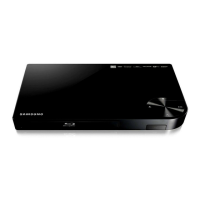
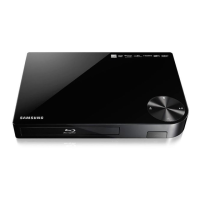
Samsung BD-F5900 - User Manual

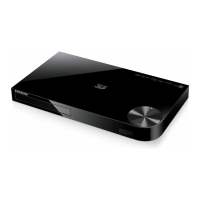
Samsung BD-F5900
68 pages
Print Icon
To Next Page IconTo Next Page
Loading...
imagine the possibilities
Thank you for purchasing this Samsung product.
To receive more complete service,
please register your product at
www.samsung.com/register
Blu-ray
Disc Player
user manual
BD-F5900

Table of Contents

Questions and Answers

  • C
    Christopher WrightAug 17, 2025
    How to fix a Samsung BD-F5900 Blu-ray Player remote that is not working?
    • J
      James CarlsonAug 17, 2025
      If your Samsung Blu-ray Player remote control isn't working, first, try replacing the batteries. If that doesn't help, make sure you're within 20 feet of the player when using the remote. As a last resort, you can reset the remote by removing the batteries, holding down one or more buttons for several minutes, and then reinstalling the batteries.
  • M
    millerdouglasAug 20, 2025
    What to do if I forgot the password on my Samsung BD-F5900?
    • T
      Travis JohnsonAug 20, 2025
      If you forgot your password for your Samsung Blu-ray Player, you can reset all settings, including the password, to the factory defaults by pressing the button on the top panel for more than 5 seconds without a disc inside. Note that this will erase all stored user BD data, so only use this method if absolutely necessary.
  • R
    Rachel ReevesAug 23, 2025
    Why is the screen blank on my Samsung BD-F5900 Blu-ray Player and how to fix it?
    • R
      Robert HancockAug 23, 2025
      If your Samsung Blu-ray Player screen is blank, and if the HDMI output is set to a resolution your TV cannot support (for example, 1080p), press the button on the top panel for more than 5 seconds with no disc inside. This will revert all settings to the factory defaults. Note that when the factory default settings are restored, all stored user BD data will be deleted.
  • S
    Steven DelgadoAug 26, 2025
    Why is there no HDMI output from my Samsung BD-F5900 Blu-ray Player?
    • R
      Rebecca CurtisAug 26, 2025
      If there's no HDMI output from your Samsung Blu-ray Player, first check the connection between the TV and the HDMI jack on the player. Also, verify that your TV supports the HDMI input resolution (480p, 720p, 1080i, or 1080p).
  • D
    Deborah RobertsAug 27, 2025
    Why is there no audio from my Samsung Blu-ray Player?
    • R
      Robert ReyesAug 27, 2025
      If you're experiencing no audio with your Samsung Blu-ray Player, ensure you have selected the correct Digital Output in the Audio Options Menu.
  • T
    Thomas ReeseAug 30, 2025
    Why does the video play intermittently on my Samsung Blu-ray Player?
    • J
      Jennifer ThompsonAug 30, 2025
      If the video on your Samsung Blu-ray Player plays intermittently, check if the network is stable. Also, ensure the network cable is properly connected and that the network isn't overloaded. If you're using a wireless connection with an AllShare compatible device, check that connection as well.
  • J
    Justin Garza PhDSep 1, 2025
    What to do if my Samsung Blu-ray Player disc does not play?
    • J
      Jillian HughesSep 1, 2025
      If your Samsung Blu-ray Player isn't playing discs, first, make sure the disc is installed with the label side facing up. Also, check the region number of the Blu-ray Disc/DVD to ensure it's compatible.
  • N
    Nicholas CurtisSep 4, 2025
    Why is the picture noisy or distorted on my Samsung BD-F5900?
    • L
      laurasandersSep 4, 2025
      If the picture on your Samsung Blu-ray Player is noisy or distorted, make sure the disc is not dirty or scratched. If it is, clean the disc.
  • C
    Christopher ClarkSep 6, 2025
    Why is the AllShare connection unstable between my Samsung BD-F5900 and PC?
    • L
      loridaltonSep 7, 2025
      If the AllShare connection between your Samsung Blu-ray Player and PC is unstable, IP addresses within the same subnetwork should be unique. If they are not, IP interference can cause this phenomenon. Also, check if you have a firewall enabled. If so, disable the firewall function.
  • P
    Phyllis WhiteSep 9, 2025
    What does the prohibition message mean on my Samsung BD-F5900?
    • J
      Jose SchmidtSep 9, 2025
      The prohibition message on your Samsung Blu-ray Player screen appears when an invalid button is pressed, or if the Blu-ray Disc/DVD's software doesn't support the feature you're trying to use (e.g., angles). It can also appear if you've requested a title or chapter number or search time that is out of range.

Summary

Safety Information

Warning and Cautionary Statements

Covers electrical shock, laser, and general warnings for safe product operation.

Regulatory and Installation Notes

Includes FCC compliance for US users and specific grounding guidelines for CATV installers.

Safety Information

General Precautions and Instructions

Covers handling, storage, and usage precautions for the Blu-ray player.

Safety Information

3 D Function Safety and Copyright

Safety advice for using 3D features and the product's copyright notice.

Getting Started

Disc and Format Compatibility

Details on playable and unplayable disc types and their formats.

Getting Started

Region Code and Disc Logos

Explanation of disc region coding and visual identification of supported disc logos.

Getting Started

Supported File Formats

Information on supported video and audio file formats and their limitations.

Getting Started

Music and Subtitle File Support

Details on audio file formats and supported subtitle file formats.

Getting Started

USB Connection and AVCHD Format

Notes on USB device connection and information about the AVCHD video format.

Getting Started

Included Accessories

List of accessories provided with the Blu-ray disc player.

Getting Started

Player Panel Descriptions

Overview of the front and rear panels of the Blu-ray player.

Getting Started

Remote Control Operation

Guide to using the remote control and installing batteries.

Connections

Connecting to a TV

Steps for connecting the Blu-ray player to a television using HDMI.

Connections

Connecting to an Audio System

Methods for connecting the player to audio equipment via HDMI or Optical.

Connections

Network Connection Setup

Instructions for wired and wireless network connections.

Settings

Initial Setup and Home Screen

Overview of the initial setup procedure and the player's home screen interface.

Settings

Accessing Settings and Remote Controls

How to enter the settings menu and use remote controls for navigation.

Settings

Display Settings Menu

Detailed explanation of various display-related settings for optimal viewing.

Settings

Audio and Network Settings

Configuration options for audio output and network connections.

Settings

Smart Features and System Setup

App features, system setup, and language preferences.

Settings

System: Device Management

Managing connected keyboards and mice for player control.

Settings

System: Security and General

Security settings, parental controls, and general system preferences.

Settings

Support Options

Remote management, software update, and contact information.

Settings

Network Configuration Guide

Detailed setup for wired and internet connections.

Settings

Wireless Network Setup

Automatic and manual wireless connection procedures.

Settings

WPS Connection Methods

Setup procedures for WPS(PBC) and WPS(PIN) connection methods.

Settings

Wi-Fi Direct Connection

Setting up direct device connections using Wi-Fi Direct.

Settings

Software Upgrading Procedures

Instructions for updating the player's software.

Settings

Automatic Software Updates

Setting up auto-updates and performing updates via USB.

Media Play

Accessing Media and Playing Discs;USB

Navigating media screens and playing content from discs or USB devices.

Media Play

Playing User Recorded Content

Instructions for playing discs with personal recordings.

Media Play

AllShare Network Functionality

Using network sharing and downloading AllShare software.

Media Play

Streaming PC Content and Phone Control

Playing PC media and controlling playback via a smartphone.

Media Play

Video Playback Controls and Tools

Managing video playback and using the tools menu.

Media Play

Video Navigation and Playback Options

Searching, repeating, picture mode, and audio language selection.

Media Play

Subtitle and View;Options Menus

Subtitle settings and file navigation menus.

Media Play

Music Playback Controls and Menus

Managing music playback and using view/options menus.

Media Play

Audio CD Functions

Ripping, repeating, shuffling, and playlist creation for audio CDs.

Media Play

Photo Content Playback and Tools

Displaying photo files and using the tools menu for playback.

Media Play

Photo Slideshow and View;Options Menus

Slideshow settings and file navigation menus for photos.

Media Play

Using the Send Function

Uploading files to online services like Picasa or Facebook.

Network Services

Samsung Account Login

Process for logging into or creating a Samsung account.

Network Services

Using Movies & TV Shows

Browsing and watching streaming movies and TV shows.

Network Services

App Management and Downloads

Using apps, downloading applications, and understanding the app screen.

Network Services

Managing Downloaded Apps

Starting, sorting, and editing downloaded apps.

Network Services

Editing Apps in My Apps

Adding, deleting, and moving apps within the My Apps section.

Network Services

Folder Management for Apps

Creating, moving, and renaming folders for applications.

Network Services

Deleting Apps and Updating Apps

Removing apps and folders, and updating installed applications.

Network Services

Screen Mirroring and Web Browser

Displaying device screen on TV and accessing the internet.

Network Services

Web Browser Interface and Keyboard

Browser control panel overview and on-screen keyboard usage.

Network Services

Keyboard Options and Browser Settings

Keyboard pop-up options and browser settings menu.

Network Services

Advanced Browser Settings and Service Linking

Browser settings and linking internet service accounts.

Network Services

BD-LIVETM Service

Using the BD-LIVE service for movie-related content.

Appendix

Compliance and Compatibility Notices

Regulatory compliance and disc compatibility statements.

Appendix

Copy Protection and Network Disclaimers

Information on copy protection mechanisms and network service disclaimers.

Appendix

License Information

Details on software licenses, trademarks, and patents.

Appendix

Usage Notes and Settings Clarifications

Notes on 3D, aspect ratio, BD Wise, audio output, and PCM downsampling.

Appendix

Settings and Media Play Notes

Notes on BD-LIVE, Anynet+, audio, and subtitle language selection.

Appendix

Resolution Settings by Content Type

Table detailing resolution options for different content types.

Appendix

Detailed Digital Output Selection

Table outlining digital audio output configurations.

Appendix

Troubleshooting Common Issues

Solutions for remote control, disc playback, and menu errors.

Appendix

Troubleshooting Picture and Network Issues

Solutions for picture quality and AllShare problems.

Appendix

Troubleshooting BD-LIVE and Repairs

Solutions for BD-LIVE errors and information on repair services.

Appendix

Product Specifications

Technical details and specifications of the Blu-ray player.

Samsung BD-F5900 Specifications

General IconGeneral
3DYes
Depth196 mm
Width361 mm
Height406 mm
Weight1180 g
Product colorBlack
Audio decodersDolby Digital, Dolby Digital Plus, Dolby TrueHD, DTS, DTS-HD, DTS-HD Master Audio
Package weight2000 g
Progressive scan-
Disc types supportedBD, CD-R, CD-RW, DVD, DVD+R, DVD+RW, DVD-R, DVD-RW
Supported video modes1080p
Card reader integratedNo
USB 2.0 ports quantity1
Audio formats supportedAAC, LPCM, MP3, WMA
Image formats supportedJPEG XR
Video formats supportedAVCHD, DIVX HD, MKV, MPEG2, MPEG4, MPO
Audio output channels- channels

Related product manuals