EasyManua.ls Logo

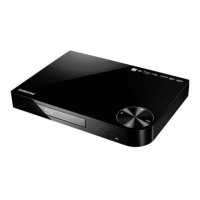
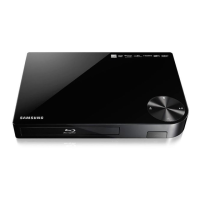
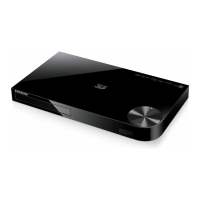
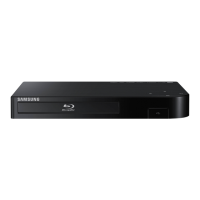
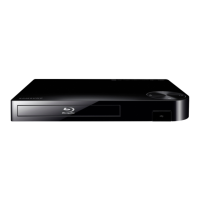
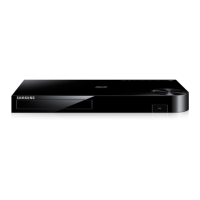
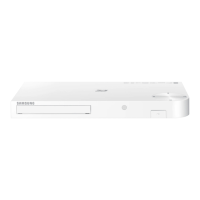
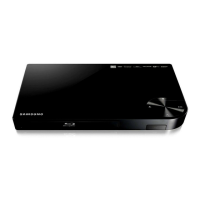
Samsung BD-FM59C - User Manual

Samsung BD-FM59C
68 pages
Print Icon
To Next Page IconTo Next Page
Loading...
imagine the possibilities
Thank you for purchasing this Samsung product.
To receive more complete service,
please register your product at
www.samsung.com/register
Blu-ray
Disc Player
user manual
BD-FM59
BD-FM59C

Table of Contents

Questions and Answers

  • N
    Nathan BaileyAug 19, 2025
    Why is my Samsung Blu-ray Player remote control not working?
    • K
      Kayla ReidSep 12, 2025
      If your Samsung Blu-ray Player's remote control isn't working, try these solutions: * First, check and replace the batteries in the remote control. * Ensure that you are operating the remote control within 20 feet of the player. * If the issue persists, remove the batteries, press and hold one or more buttons for several minutes to reset the remote's microprocessor. Then, reinstall the batteries and try again.
  • N
    nandersonAug 21, 2025
    How to reset forgotten password on Samsung Blu-ray Player?
    • M
      Melissa RichardsonAug 21, 2025
      To reset a forgotten password on your Samsung Blu-ray Player, press and hold the @ button on the top panel for more than 5 seconds when there is no disc inside. This will restore all settings, including the password, to the factory defaults. Be aware that this action will erase all stored user BD data.
  • B
    Benjamin RamosAug 23, 2025
    What to do if my Samsung Blu-ray Player screen is blank?
    • T
      Tony BensonAug 23, 2025
      If your Samsung Blu-ray player shows a blank screen, it might be due to the HDMI output resolution being unsupported by your TV. To resolve this, press the @ button on the top panel for more than 5 seconds without a disc inside. This will revert all settings to the factory defaults. Note that restoring factory settings will erase all stored user BD data.
  • J
    joneswendyAug 26, 2025
    What to do if my Samsung Blu-ray Player has no HDMI output?
    • K
      Kim LuceroAug 26, 2025
      If there's no HDMI output from your Samsung Blu-ray Player, verify the connection between the TV and the player's HDMI jack. Also, ensure that your TV supports the HDMI input resolution (480p, 720p, 1080i, or 1080p).
  • G
    Gary PadillaAug 28, 2025
    Why does my Samsung Blu-ray Player disc not play?
    • E
      Erika HallAug 28, 2025
      If your Samsung Blu-ray Player isn't playing discs, ensure the disc is loaded with the label side facing up. Also, verify that the Blu-ray Disc/DVD region code is compatible with your player.
  • J
    Jessica TaylorAug 29, 2025
    Why is there no audio from my Samsung Blu-ray Player?
    • R
      rjeffersonAug 30, 2025
      If you are experiencing no audio from your Samsung Blu-ray Player, ensure that you have selected the correct Digital Output in the Audio Options Menu.
  • C
    christensendavidSep 1, 2025
    What causes a noisy or distorted picture on my Samsung Blu-ray Player?
    • C
      Christy PatelSep 1, 2025
      If the picture on your Samsung Blu-ray Player is noisy or distorted, make sure the disc is not dirty or scratched. If it is, clean the disc to see if that resolves the issue.
  • C
    Casey MaysSep 3, 2025
    What to do if Samsung Blu-ray Player video plays intermittently?
    • D
      Daniel MorrisSep 3, 2025
      If the video playback on your Samsung Blu-ray Player is intermittent, check the stability of your network connection. Ensure the network cable is properly connected and that the network is not overloaded. If you're using a wireless connection with an AllShare compatible device, verify the stability of that connection.
  • S
    selenasmithSep 5, 2025
    Why does the screen ratio not change on my Samsung Blu-ray Player?
    • A
      acalderonSep 5, 2025
      If you cannot change the screen ratio on your Samsung Blu-ray Player, it is likely because the screen ratio is fixed on the Blu-ray Disc/DVD. This is not a problem with the player itself.
  • B
    Benjamin IngramSep 7, 2025
    What does abnormal HDMI output screen mean on Samsung Blu-ray Player?
    • T
      tuckerbrandonSep 7, 2025
      If random noise appears on the screen of your Samsung Blu-ray Player, it means that your TV does not support HDCP (High-bandwidth Digital Content Protection).

Summary

Safety Information

Warning

General safety warnings about electric shock and product care.

CAUTION

Precautions regarding electric shock and opening the product cover.

FCC NOTE (for U.S.A)

Compliance information for digital devices under FCC rules.

CLASS 1 LASER PRODUCT

Information about laser safety, compliance, and potential radiation exposure.

Safety Information

Precautions

Important safety instructions and precautions for operating the player.

Disc Storage & Management

Guidelines for handling and storing discs to maintain quality.

Handling Cautions

Precautions regarding liquid exposure and power cord handling.

Safety Information

Using the 3 D function

Important health and safety information for using the 3D feature.

Copyright

Copyright notice for the product manual.

Getting Started

Disc and Format Compatibility

Details on compatible and incompatible disc types and file formats.

Disc types your player cannot play

Lists disc types that are not supported by the player.

Getting Started

Region Code

Explanation of region coding for discs and players.

Logos of Discs the player can play

Visual identification of supported disc types and formats.

Getting Started

Supported Formats

Lists supported video, music, and subtitle file formats.

Getting Started

Music File Support

Details on supported audio codecs and file formats.

Supported Subtitle File Formats

Lists various subtitle file formats supported by the player.

Getting Started

Notes on the USB connection

Important information and limitations regarding USB device connectivity.

AVCHD (Advanced Video Codec High Definition)

Information on playing AVCHD format video files.

Getting Started

Accessories

Lists the included accessories with the Blu-ray player.

Getting Started

Front Panel

Description of the player's front panel controls and ports.

Rear Panel

Description of the player's rear panel connection ports.

Getting Started

Remote Control

Overview of the remote control buttons and installation of batteries.

Connections

Connecting to a TV

Instructions for connecting the player to a TV via HDMI.

Connections

Connecting to an Audio System

Methods for connecting the player to an AV receiver for audio output.

Connections

Connecting to a Network Router

Steps for establishing a wired or wireless network connection.

Settings

The Initial Settings Procedure

Guide to the initial setup process upon first use.

The Home Screen

Overview of the main interface and its icons.

Settings

Accessing the Settings Screen

How to navigate to and use the player's settings menu.

Buttons on the Remote Control Used for the Settings Menu

Identifies remote buttons used for accessing settings.

Settings

Settings Menu Functions

Detailed descriptions of various display settings.

Settings

Audio Settings

Configuration options for digital audio output and sound settings.

Network Settings

Options for configuring network status and connection.

Settings

Network Settings

Settings related to network features like AllShare and BD-Live.

Smart Features

Configuration for app notifications and Smart Hub settings.

System Settings

System-level configurations like setup, language, and quick start.

Settings

Device Manager

Managing connected USB devices like keyboards and mice.

Settings

Security Settings

Options for parental controls and PIN management.

General Settings

Basic settings like time zone and menu transparency.

Anynet+ (HDMI-CEC)

Functionality for controlling Samsung devices via HDMI.

Settings

Support Settings

Options for remote management, software updates, and contacting Samsung.

Reset Settings

Procedure to reset player settings to factory defaults.

Networks and the Internet

Configuring Your Network Connection

Step-by-step guide to setting up wired and manual network connections.

Networks and the Internet

Wireless Network Setup

Methods for connecting to a wireless network automatically or manually.

WPS(PBC)

Instructions for connecting using Wi-Fi Protected Setup (PBC method).

Networks and the Internet

WPS(PIN)

Instructions for connecting using Wi-Fi Protected Setup (PIN method).

Wi-Fi Direct

Settings

Upgrading Software

Guide to upgrading player software via network.

Update Now

Process for manually updating the software.

Settings

Auto Update

Settings for automatic software update downloads.

Media Play

The AllShare Play Screen

Accessing and navigating the AllShare Play interface for media playback.

Playing Files on a USB Device

Methods for playing multimedia files from a USB storage device.

Playing Commercial Discs

How to play standard Blu-ray and DVD discs.

Media Play

Playing a Disc with User Recorded Content

How to play back discs containing user-recorded multimedia files.

Media Play

Using the Allshare Network Function

Using AllShare to play media from networked PCs.

To Download the Allshare Software

Instructions for downloading and installing the AllShare software.

Media Play

Playing Content Located on Your PC or Allshare Device through the Blu-ray Disc Player

Connecting and playing media from PCs and AllShare devices.

Controlling the Playback of Content Located on Your PC with Your Smart Phone

Using a smartphone to control media playback from a PC.

Media Play

Controlling Video Playback

Functions and buttons for controlling video playback.

Buttons on the Remote Control used for Video Playback

Identifies remote buttons for video playback control.

Using the Tools Menu

Accessing playback tools like Play from Beginning, 3D, and Movie Note.

Media Play

Search Scene

Function to search and jump to specific scenes in video content.

Search Titles

Option to select and play specific titles from a disc.

Search Chapters

Option to select and play specific chapters from a disc.

Search Time Bar

Function to select and play content from a specific time point.

Repeat Mode

Settings to repeat tracks, chapters, or specific sections.

Picture Mode

Options to adjust picture settings like Dynamic, Standard, Movie, User.

Audio Language

Selecting the desired audio language for playback.

Media Play

Subtitle Language

Selecting the desired subtitle language for playback.

Subtitle Settings

Options for configuring subtitle display.

Angle

Viewing scenes from different camera angles on supported discs.

BONUSVIEW Video;Audio

Options for BONUSVIEW features, if available on the disc.

Full screen

Adjusting the video image size.

Information

Viewing video file information.

Using the View Menu

Options for viewing files sorted by Title, Date, or Folder.

Using the Options Menu

Options for managing playlists, sending files, and deleting files.

Media Play

Controlling Music Playback

Functions and buttons for controlling music playback.

Buttons on the Remote Control used for Music Playback

Identifies remote buttons for music playback control.

Using the View & Options Menus

Navigating view and option menus for music playback.

Media Play

Repeating Tracks on an Audio CD

Setting the player to repeat tracks on an audio CD.

Shuffling Tracks on an Audio CD

Enabling random playback of tracks on an audio CD.

Creating a Playlist from an Audio CD

Steps to create custom playlists from audio CDs.

Media Play

Ripping

Process for converting CD audio to MP3 format.

Playing Photo Contents

How to view photo files from various media sources.

Using the Tools Menu

Accessing tools for photo slideshows, zoom, and rotation.

Media Play

Slide Show Settings

Options for customizing photo slideshows.

Using the View Menu

Options for viewing photo files sorted by Title, Date, or Folder.

Using the Options Menu

Options for managing photo playlists, sending files, and deleting files.

Media Play

Using the Send Function

How to upload photo files to online sites or devices.

Network Services

Logging In to Your Samsung Account

Guide to logging into a Samsung account for service access.

Network Services

Using Movies & TV Shows

How to download or stream movies and TV shows.

Network Services

The Apps Screen at a Glance

Overview of the Apps screen layout and features.

Downloading Applications

Steps to download apps from Samsung Apps.

Network Services

Starting an Application

How to launch downloaded applications.

Using the Downloaded Screen

Managing downloaded applications.

Sorting the Apps

Options for sorting downloaded applications.

Using the Edit Menu Functions

Functions for managing apps, including lock/unlock and adding to My Apps.

Network Services

Edit My Apps

Functions for managing downloaded applications, including deleting and moving.

Delete an App from My Apps

How to remove applications from the My Apps list.

Move an App in My Apps

How to rearrange the position of apps within My Apps.

Network Services

Create Folder

How to create folders for organizing downloaded apps.

Move to Folder

How to move apps into created folders.

Rename Folder

How to rename existing folders.

Network Services

Delete Apps and Folders

Procedures for deleting apps and folders from the My Apps screen.

Update Apps

Procedure for updating installed applications.

Network Services

Screen Mirroring

How to view your smartphone or tablet screen on the TV.

Using the Web Browser

Accessing the internet using the built-in web browser application.

Link Browsing and Pointer Browsing

Explains different browsing modes within the web browser.

Network Services

The Control Panel at a Glance

Description of the icons in the web browser's control panel.

Using the Keyboard Pop-up

How to use the on-screen keyboard with the remote control.

Network Services

Options on the Keyboard Pop-Up

Customization options for the on-screen keyboard.

Using the Setting Menu

How to access and use the web browser's setting menu.

Network Services

Linking Your Internet Service Accounts to the Player

Connecting player to external online service accounts.

Network Services

BD-LIVE

Information on accessing movie-related content via BD-LIVE.

Appendix

Compliance and Compatibility Notice

Information regarding disc compatibility and regulatory compliance.

Appendix

Copy Protection

Details on copy protection systems like AACS, Cinavia, and their implications.

Network Service Disclaimer

Disclaimer regarding third-party content and services.

Appendix

License

Information on software licenses and trademarks.

Appendix

Additional Information

Notes on 3D settings, aspect ratio, BD Wise, and digital output.

Appendix

Settings

Details on BD-LIVE connection, data management, Anynet+, audio, and subtitle language settings.

Appendix

Resolution according to the contents type

Table showing resolution settings for different content types.

Appendix

Digital Output Selection

Guide to selecting appropriate digital audio output settings.

Appendix

Troubleshooting

Solutions for common problems encountered with the player.

Appendix

AllShare function

Troubleshooting common issues with the AllShare function.

Appendix

BD-LIVE

Troubleshooting connection issues with BD-LIVE services.

Repairs

Information on service procedures and potential fees for repairs.

Appendix

Specifications

Technical specifications of the Blu-ray Disc player.

Samsung BD-FM59C Specifications

General IconGeneral
TypeBlu-ray Player
Video OutputHDMI
Internet ConnectivityYes
3D PlaybackYes
Smart TVYes
Wi-FiYes
HDMI Output1
USB1
Ethernet Port1
Disc Capacity1
Output Resolution1080p
Supported FormatsBD, DVD, CD
Video PlaybackDVD
Audio PlaybackCD
ConnectivityHDMI, USB, Ethernet

Related product manuals