EasyManua.ls Logo

Samsung BD-J7500 - User Manual

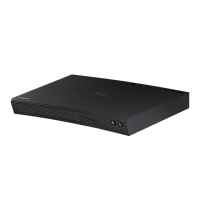
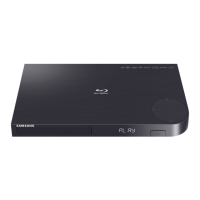
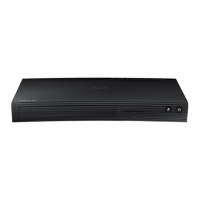
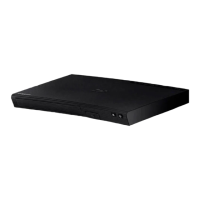
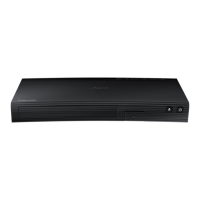
Samsung BD-J7500
82 pages
Print Icon
To Next Page IconTo Next Page
Loading...
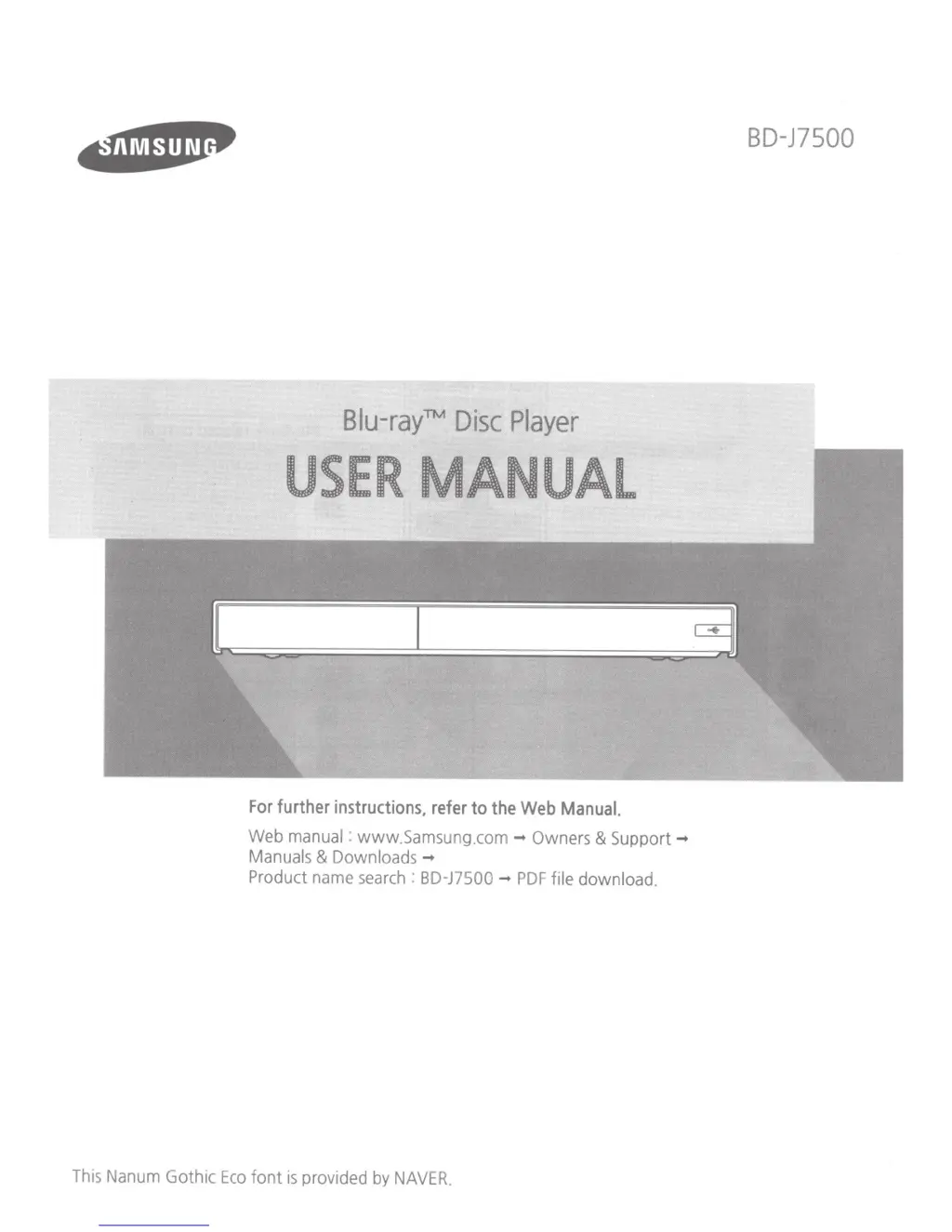
Blu-ray™
Disc
Player
USER
MANUAL
For
further
instructions.
refer
to
the
Web
Manual.
Web
manual
:
www
.Samsung.com
....
Owners
&
Support
....
Manuals
&
Downloads
....
Product name search : BD-J7500
....
PDF
file
download.
This Nanum
Gothic
Eco
font
is
provided
by
NAVER.
BD-J7500

Table of Contents

Questions and Answers

  • H
    hurstaaronAug 19, 2025
    How to fix a Samsung BD-J7500 Blu-ray Player remote that is not working?
    • P
      Philip RichardsAug 19, 2025
      If your Samsung Blu-ray Player remote control isn't working, first check the batteries and replace them if needed. Also, make sure you're within 20 feet of the player. If it still doesn't work, try resetting the remote by removing the batteries, holding down one or more buttons for several minutes, then reinstalling the batteries.
  • S
    Stephen HillAug 21, 2025
    What to do if the screen is blank on my Samsung BD-J7500?
    • P
      Peter RiveraAug 21, 2025
      If the screen is blank, and the HDMI output is set to a resolution your TV doesn't support (e.g., 1080p), press the @ button (on the top panel) for more than 5 seconds without a disc inside. The initialization message will appear, and the player will turn off. When you turn it on again, all settings will be reset. Also, when the factory default settings are restored, all stored user BD data will be deleted.
  • M
    Melinda LongAug 23, 2025
    How to fix a Samsung BD-J7500 Blu-ray Player remote control that is not working?
    • A
      April JuarezAug 23, 2025
      If your Samsung Blu-ray Player remote control isn't working, try the following: * Check and replace the batteries. * Ensure you're within 6.1 meters (20 feet) of the player. * Remove the batteries, press and hold any button(s) for several minutes to reset the remote's microprocessor, then reinstall the batteries.
  • G
    Greg ZhangAug 26, 2025
    What to do if my Samsung BD-J7500 screen is blank?
    • C
      Cheryl SimonAug 26, 2025
      If your Samsung Blu-ray Player's screen is blank, it might be due to the HDMI output resolution being incompatible with your TV. Also, you can try resetting the player by pressing the @ button on the top panel for more than 5 seconds without a disc inside. Note that this will delete all stored user BD data and restore factory default settings.
  • E
    Erica SimonAug 27, 2025
    Why won't my Samsung BD-J7500 Blu-ray Player play the disc?
    • E
      Eric FloresAug 28, 2025
      If your Samsung Blu-ray Player isn't playing discs, ensure the disc is placed with the label side facing up. Also, verify that the Blu-ray Disc/DVD region number is compatible with your player.
  • A
    asmithAug 30, 2025
    How to troubleshoot no audio on a Samsung BD-J7500?
    • C
      Cheryl GrahamAug 30, 2025
      If you're not getting any sound from your Samsung Blu-ray Player, check that you've selected the correct Digital Output in the Audio Options Menu.
  • A
    Amy RodriguezSep 1, 2025
    What does the prohibition message mean on my Samsung BD-J7500?
    • O
      Olivia SmithSep 1, 2025
      The prohibition message on your Samsung Blu-ray Player appears when an invalid button is pressed, the Blu-ray Disc/DVD's software doesn't support the feature, or you've requested a title, chapter number, or search time that is out of range.
  • L
    Luke HopkinsSep 3, 2025
    Why doesn't the disc menu appear on my Samsung BD-J7500?
    • D
      Donna NunezSep 3, 2025
      If the disc menu is not appearing on your Samsung Blu-ray Player, make sure that the disc actually has disc menus.
  • C
    Christy Figueroa DDSSep 5, 2025
    Why does play mode differ from the Setup Menu selection on my Samsung BD-J7500?
    • P
      Paul BarrySep 5, 2025
      If the play mode on your Samsung Blu-ray Player differs from the Setup Menu selection, it may be because the disc is not encoded with the corresponding function selected in the Setup Menu.
  • R
    rick48Sep 7, 2025
    Why can't I change the screen ratio on my Samsung BD-J7500?
    • A
      Adrienne BowersSep 7, 2025
      If the screen ratio cannot be changed on your Samsung Blu-ray Player, the Screen Ratio on your Blu-ray Disc/DVD Disc is fixed and cannot be changed. This is not a problem with the product.

Summary

Remote Control

TV Related buttons

Buttons for TV functions like source, power, and volume adjustment.

Menu Related Buttons

Buttons for navigating menus and player settings.

Playback related buttons

Buttons for controlling disc playback: play, pause, stop, skip.

Front Panel and Rear Panel

Front Panel

Details the controls and indicators on the front of the player.

Rear Panel

Details the input and output connections on the back of the player.

Connections

Connecting to a TV

Instructions for connecting the Blu-ray player to a television via HDMI.

Connecting to an Audio System

Steps to connect the player to an audio system using HDMI or other audio outputs.

Connecting to a Network Router

Instructions for connecting the player to a network.

The Initial Settings Procedure

Home Screen

Overview of the main interface elements and their functions.

Playing Media Content

Playing Commercial Discs

How to play commercial Blu-ray, DVD, or CD discs.

Playing Photos, Videos, and Music (Multimedia)

Plays media content from USB, phones, cameras, computers.

Playing Media Content Saved on a USB Device

How to play media content from a connected USB device.

Playing Media Content Saved in a Computer;Mobile Device

Plays media from networked computers or mobile devices.

Playing a Disc with User Recorded Content

Plays back user-recorded discs.

Additional Functions

SAMSUNG APPS

Download and access applications from the internet.

Web Browser

Access the internet using the built-in browser.

Screen Mirroring

View smart device screen on TV.

Upgrading Software

Instructions for updating the player's software.

Specifications

General

General product specifications like weight and dimensions.

USB

USB interface specifications.

Video

Video output resolutions and formats.

Audio

Audio output formats and channels.

Audio Output

Details on analog and digital audio outputs.

Network

Network specifications including security protocols.

Supported Formats

Disc types and contents your product can play

Lists playable disc types and their content.

Supported Video Formats

Details supported video file extensions, codecs, and resolutions.

Supported Subtitle File Formats

Lists supported subtitle file formats and their properties.

Supported Music File Formats

Lists supported music file formats and codecs.

Supported Picture File Formats

Lists supported image file formats and resolutions.

Safety Information

Warning

General warnings regarding electrical shock and product handling.

CAUTION

Cautions about ventilation, liquids, and batteries.

FCC NOTE (for U.S.A)

FCC compliance information for Class B digital devices.

CLASS 1 LASER product

Information regarding the product's classification as a Class 1 Laser product.

Important Safety Instructions

Detailed safety instructions for operating the unit.

Using the 3 D function

Health and safety information specific to the 3D function.

LIMITED WARRANTY TO ORIGINAL PURCHASER

One (1) Year Parts and Labor*

Details the standard warranty period for parts and labor.

QUESTIONS OR COMMENTS?

IN THE US

Contact information and support channels for the US.

Samsung BD-J7500 Specifications

General IconGeneral
3DYes
Depth196 mm
Width360 mm
Height40 mm
Weight1700 g
Device typeBlu-Ray player
Product colorBlack
Audio decodersDolby Digital Plus, Dolby TrueHD, DTS-HD Master Audio
Package weight2300 g
Disc types supportedBD, DVD, DVD+R, DVD+RW, DVD-R, DVD-RW
Supported video modes-
Card reader integratedNo
USB 2.0 ports quantityUSB 2.0 ports have a data transmission speed of 480 Mbps, and are backwards compatible with USB 1.1 ports. You can connect all kinds of peripheral devices to them.
Audio formats supportedAAC, FLAC, LPCM, MP3, WMA
Image formats supportedJPG
Video formats supportedAVCHD, MKV, MPEG2, MPEG4, MPO, WMV
Analog signal format systemNTSC
Power consumption (standby)0.4 W
Power consumption (typical)18.5 W
Sustainability certificatesENERGY STAR
On Screen Display (OSD) languagesEnglish
Consumer Electronics Control (CEC)Anynet+
Audio output channels7.1 channels

Related product manuals