42_ system setup
system setup
Available buttons on the Samsung TV remote: These buttons work the same as this player's remote
control.
- Playback control buttons :
- Menu operation button :
ENTER
- Numeric buttons :
- Color buttons :
ABCD
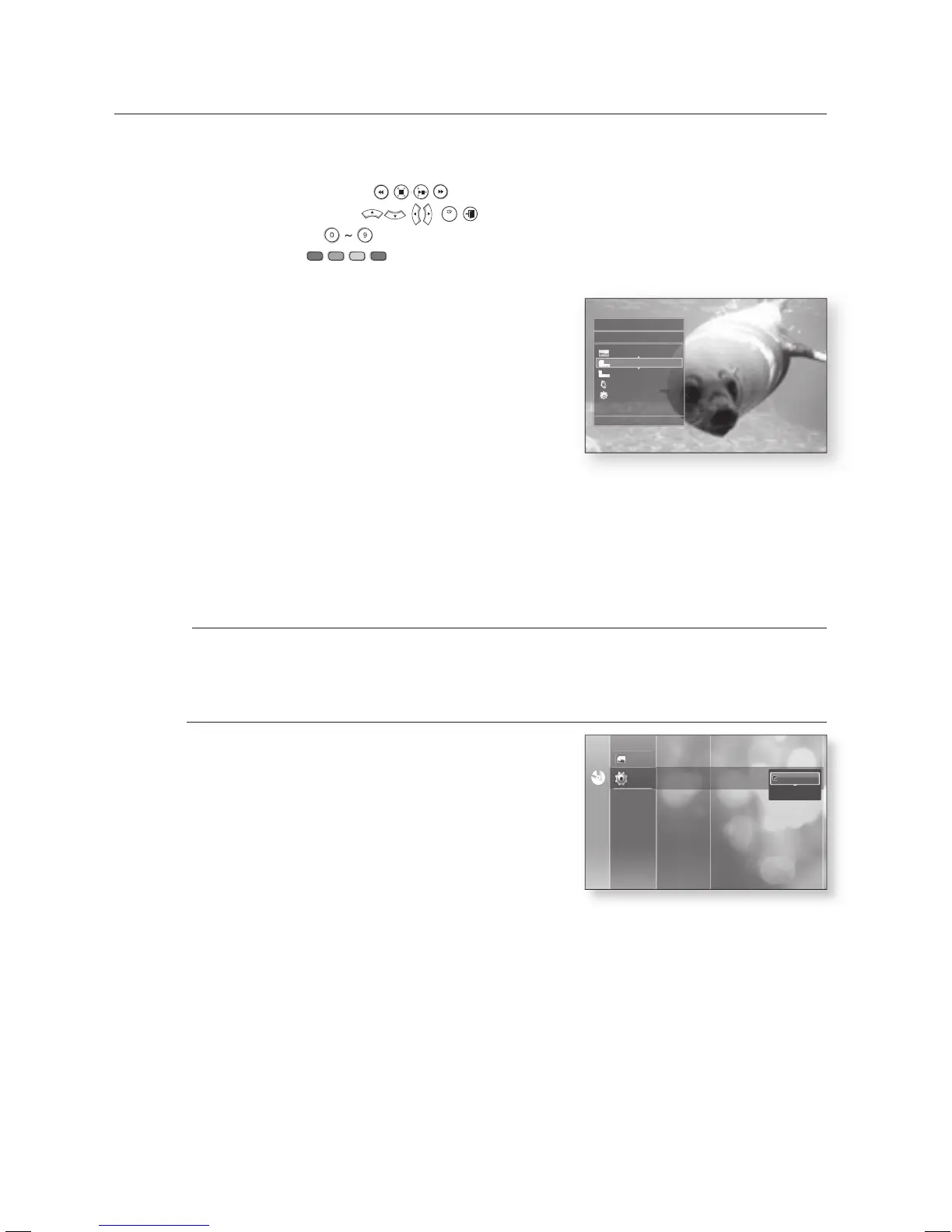
TV Anynet+ Menu
When pressing the Anynet+ button on your Samsung TV's
remote control, the following On-Screen Display (OSD) will be
shown.
BD Player Menu
- When playing a movie : brings up the disc’s menu (same
as DISC MENU button on the Blu-ray player’s remote
control)
- In Stop mode : brings up the SETUP menu (same as the MENU button on the Blu-ray player’s
remote control.)
BD Player Operation Menu
- When playing a DVD VIDEO, DVD-RW/-R, BD-ROM :
shows INFO OSD (same as INFO button on the player's remote control)
These menus will vary from Samsung TV to TV.
Format
You can optimize the HDMI output for connection to a TV or
Monitor.
• TV : Select if connected to a TV via HDMI.
• Monitor : Select if connected to a Monitor via HDMI.
If the player is connected to a TV, the Monitor option is
unavailable.
•
•
•
M
No DiscNo Disc
Photo
Setup
Parental Setup
System Upgrade
HDMI Setup Format : TV
Audio Setup
Display Setup
Anynet+ (HDMI-CEC) : On
TV
Monitor
BD Player
m
MOVE
s
ENTER
e
EXIT
View TV
BD Player Menu
BD Player Operation
Receiver : Off
Setup
n




 To Next Page