ENG
BASIC
FUNCTIONS
ENG
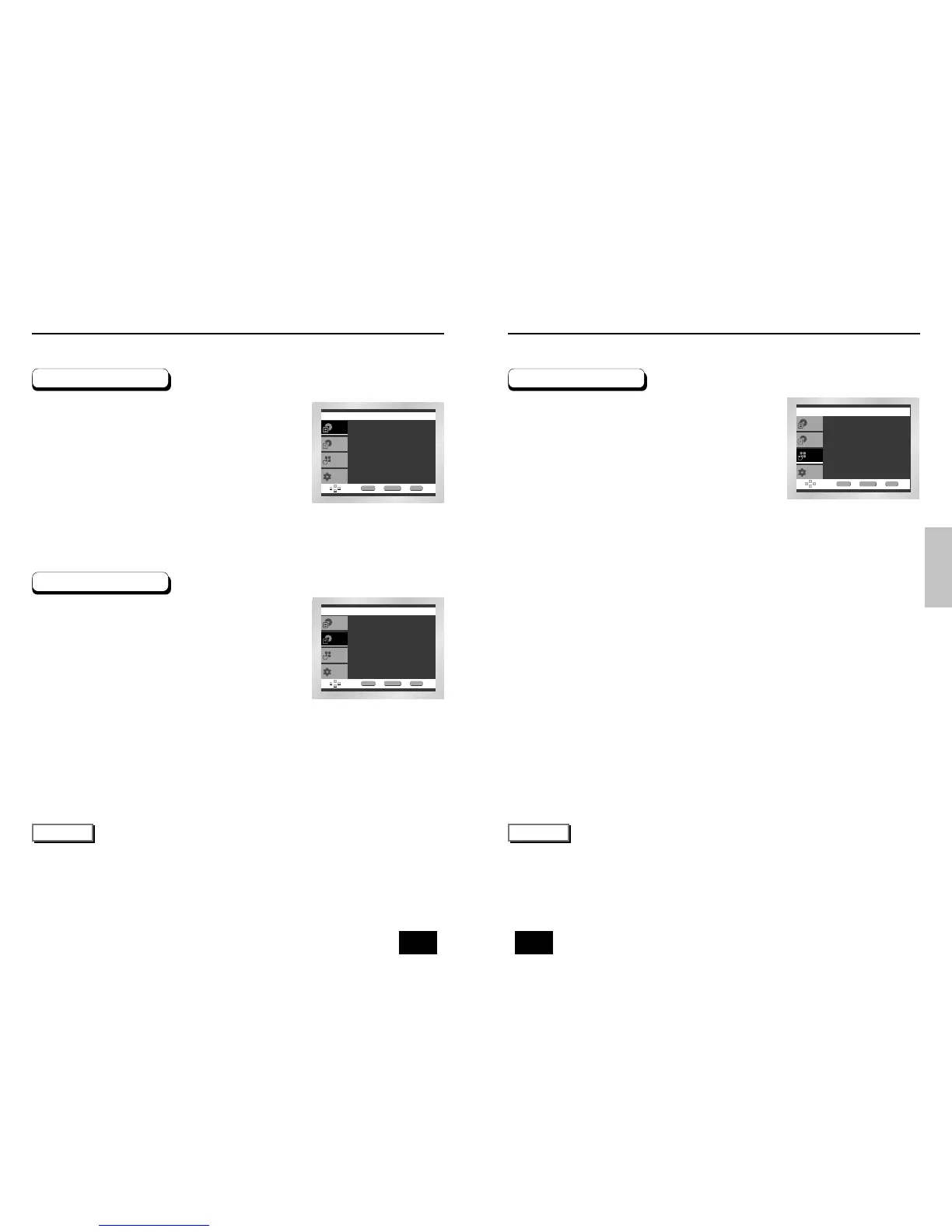
Using the Function Menu
Press the MENU button during playback.
Use the UP/DOWN buttons to highlight Function,
then press the RIGHT or ENTER button.
Function selection screen appears, Info, Zoom,
Bookmark, Repeat and EZ View.
- Info (See Page 23)
- Zoom (See Page 35)
- Bookmark (See Page 34)
- Repeat (See Page 26)
- EZ View (See Page 27~28)
Use the UP/DOWN button to highlight one of the 5
functions. Then press the RIGHT or ENTER button
to access the function.
1
2
3
4
• You can also directly select these functions using thier respective buttons on the remote.
NOTE
Using the Function Menu
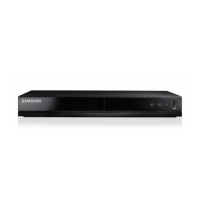
Using the Title Menu
During the playback of a DVD disc, Press the
MENU button on the remote.
Select Title Menu using the UP/DOWN buttons,
then press the RIGHT or ENTER button.
1
2
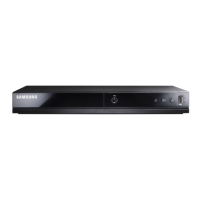
Using the Disc Menu
During the playback of a DVD disc, press the
MENU button on the remote.
Select Disc Menu using the UP/DOWN buttons,
then press the RIGHT or ENTER button.
1
2
• Depending on the disc, the Title and Disc Menus may not work.
• Title Menu will only be displayed if there are at least two titles in the disc.
• You can also use the Title Menu and the Disc Menu, using the TITLE MENU and the DISC MENU buttons
on the remote.
• In VCD2.0, the DISC MENU button works as a conversion switch between Menu On and Menu Off mode.
NOTE



 To Next Page