9
CD-R AVI fileThis
unit can play the following video compression
formats within the AVI file format:
- DivX 3.11 contents
- DivX 4 contents (Based on MPEG-4 Simple
Profile)
- DivX 5 contents (MPEG-4 simple profile plus
additional features such as bi-directional frames.
Qpel and GMC are also supported.)
DVD-RW & DVD+R
Format that support for DivX file :
- Basic DivX format DivX3.11 / 4.12/ 5.x
- DivX Pro
- File format : *.avi, *.div, *.divx.
- These functions may not work depending on MPEG4 file.
Possible warning messages that may appear
when trying to play DivX/AVI files are :
1. No Authorization
- File with bad registration code.
2. Unsupported Codec
- Files with certain Codec Types, Versions
(ex. MP4, AFS and other proprietary
codecs) are not suppoerted by this player.
3. Unsupported Resolution
- Files containing resolutions higher than the
player’s specification are not supported.
This unit supports all resolutions up to maximum below.
DivX5
720 x 480 @30fps
720 x 576 @25fps:
Maximum bitrate : 4Mbps
Note
•Theresolutionthatcanbesupportedby
DVD-E360K,E360, E350 model up to 720 x
480 @30 frames/ 720 x 576 @25 frames.
•ThisunitsupportsCD-R/RWwrittenin
MPEG4 in accordance with the “ISO9660
format”.
Fast playback
To play back the disc at a faster speed, press (k/K) during playback
•Eachtimeyoupresseitherbutton,theplaybackspeedwillchangeasfollows:2X➞ 4X ➞ 8X
➞ 16X ➞ 32X.
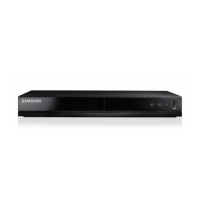
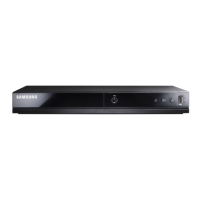
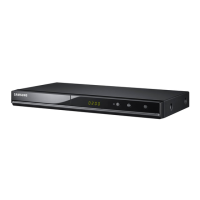
Playing Media Files Using the USB Host feature
(Only DVD-E360K, E360)
You can enjoy the media files such as pictures, movies andtunes saved in an MP3 player, USB
memory or digital camera in high audio by connecting the storage device to the USB port of the
DVD Player.
Using the USB HOST feature
1. Connect the USB device to the USB port on the front of the unit.
2. The USB Menu screen appears. Press the √/® button to select Menu, then press ENTER.
3. Press the π/† buttons to select a file in the USB device. Press ENTER to Open the file.
Note
•
Depends on the file size and clip duration, loading time on USB may take longer than using CD or
DVD media.
Safe USB Removal
1. Press the USB button to return to disc mode or the main screen.
2. Press the STOP (■) button
3. Remove the USB cable.
Skip Forward/Back
During playback, press the (|k/K|) button.
•Whenthereismorethanonefile,whenyoupresstheK| button, the next file is selected.
•Whenthereismorethanonefile,whenyoupressthe|k button, the previous file is selected.
Slow Motion Play
During play, press the PLAY ( ( ) button, and then press the SEARCH (K) button
to view video at a slower speed. (1/2, 1/4, 1/8, 1/16)
ZOOM
X1/X2/X3/X4/Normal in order
Switching Between DVD and USB
If you have a disk in the player, and you are viewing or listening to files on a USB device, or the
USB Menu is on the screen, you can switch from the USB device to the disc by pressing the USB
button on the remote.
Also, you can switch from the disc to the USB device by pressing the USB button on the remote.
“USB loading...” appears on the screen, and then the USB Menu appears.
Compatible Devices
1. USB devices that support USB Mass Storage v1.0.(USB devices that operate as a removable disk in
Windows (2000 or later) without additional driver installation.)
2. MP3 Player: Flash type MP3 player.
3. Digital camera: Cameras that support USB Mass Storage v1.0.
•CamerasthatoperateasaremovablediskinWindows(2000orlater)withoutadditionaldriver
installation.
4. USB Flash Drive: Devices that support USB2.0 or USB1.1.
•YoumayexperienceadifferenceinplaybackqualitywhenyouconnectaUSB1.1device.
5. USB card Reader: One slot USB card reader and Multi slot USB card reader
•Dependingonthemanufacturer.theUSBcardreadermaynotbesupported.
•Ifyouinstallmultiplememorydevicesintoamulticardreader,youmayexperienceproblems.
6. If you use a USB extension cable, the USB device might not be recognized.
Note
• CBI(Control/Bulk/Interrupt)isnotsupported.
• DigitalCamerasthatusePTPprotocolorrequireadditionalprograminstallationwhenconnectedto
a PC are not supported.
• AdeviceusingNTFSfilesystemisnotsupported.(OnlyFAT16/32(FileAllocationTable16/32)file
system is supported.)
• SomeMP3players,whenconnectedtothisproduct,maynotoperatedependingonthesectorsize
of their file system.
• TheUSBHOSTfunctionisnotsupportedifaproductthattransfersmediafilesbyitsmanufacturer-
specific program is connected.
• DoesnotoperatewithJanusenabledMTP(MediaTransferProtocol)devices.
• TheUSBhostfunctionofthisproductdoesnotsupportallUSBdevices.
• TheUSBHostdoesnotsupportUSBHardDiscDrives(HDD).
CD Ripping (Only DVD-E360K, E360)
This feature allows you to copy audio files from a disc to a USB device in MP3 format.
Open the dics tray. Place the Audio CD(CD DA) disc on the tray, and close the tray. Connect the
USB device to the USB port on the front of the unit. Press the USB button.
1. Press the TOOLS button to display the Ripping screen.
2. Press the π/† buttons, then press the ENTER button to select files for ripping.
- To deselect files, press ENTER button again.


 To Next Page