Using the Ring
18
Connecting the Ring to a phone through Bluetooth
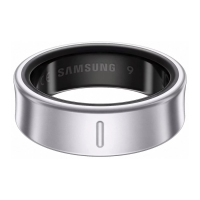
1 Before connecting, check if the battery level of the Ring is sufficient by placing it in
the charging case.
If the indicator light does not flash, connect the charging case to the charger and
charge the Ring for more than 10 minutes.
2 Close the charging case and open it.
Alternatively, open the charging case and press and hold the charging case’s
Multipurpose button for more than 3 seconds.
The Ring will enter Bluetooth pairing mode automatically and a pop-up window will
appear on your phone.
If the charging case or Ring is not charged sufficiently, the pop-up window may not
appear or the Multipurpose button may not work.
3 On your phone, tap
Connect
on the pop-up window and follow the on-screen
instructions to complete the connection.
You must register your Samsung account on your connected phone and add it to your
Ring to access the various Ring features. When the instruction to sign in to a Samsung
account appears while you are connecting the Ring to your phone, create a new
Samsung account or sign in to your Samsung account on your phone.
When the Ring has been connected to the phone, you can check the Ring’s status, such
as the connection status or the remaining battery level, and the measured health data
with the Galaxy Wearable app on the connected phone.
•
The initial setup screen may differ depending on your region.
•
Connection methods may vary depending on your region, model, phone, and
software version.
•
When you connect your Ring to a phone for the first time or after resetting it, the
Ring’s battery may drain more quickly while syncing data.
•
Supported phones and features may vary depending on your region, carrier, or
device manufacturer.


 To Next Page