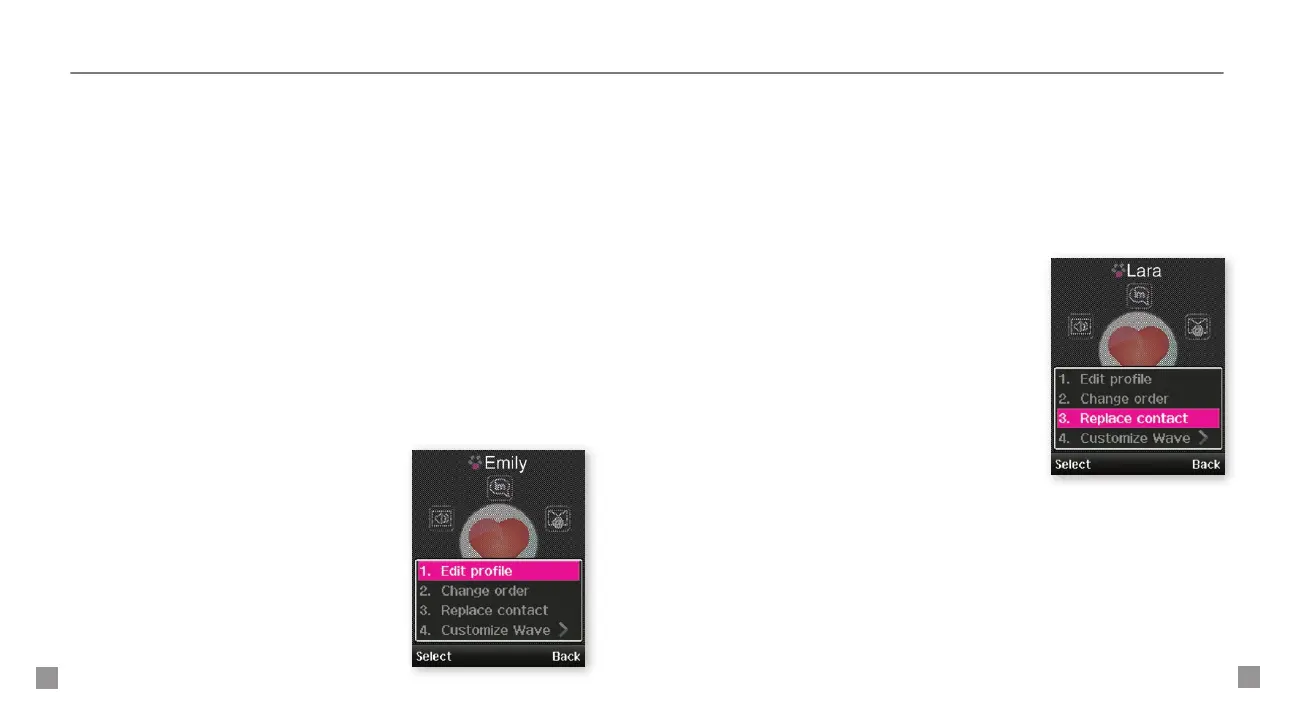
3. Edit the contact’s name, number, icon, ringtone, birthday, and
anniversary. For more information on how to assign icons and
ringtones, see instructions in the Add myFaves contacts section
of this guide.
Replace a myFaves contact
1. From the main screen, scroll to the
contact and press the OK key.
2. Select Options > Replace contact.
3. Select one of the following:
n
Create New: Type the contact’s
name. Scroll down and type the
contact’s phone number.
n
From phonebook: Scroll to the
contact and press the OK key.
4. Select Save and Yes when done.
Assign ringtone to myFaves
7. Scroll to T-Jingle and press the OK key.
8. At Ring tone, press the OK key.
9. Scroll to and select the ringtone.
10. Select Save.
An hourglass displays in the circle while the contact is being added
to the contacts list. You can use your phone during this time. Once
the contact is added, you will receive a conrmation message and the
hourglass is replaced by your new contact.
Now you are ready to call your contact. From the main screen, scroll to
the contact and press the green Send key to call.
Edit a myFaves contact
Names and icons: You can change names
and icons at any time.
Phone numbers: You can only change a
contact’s phone number once per calendar
month. If a number change is not allowed, you
will receive an error message explaining why.
1. From the main screen, scroll to the
contact and press the OK key.
2. Select Options > Edit prole.




 To Next Page