Basics 24
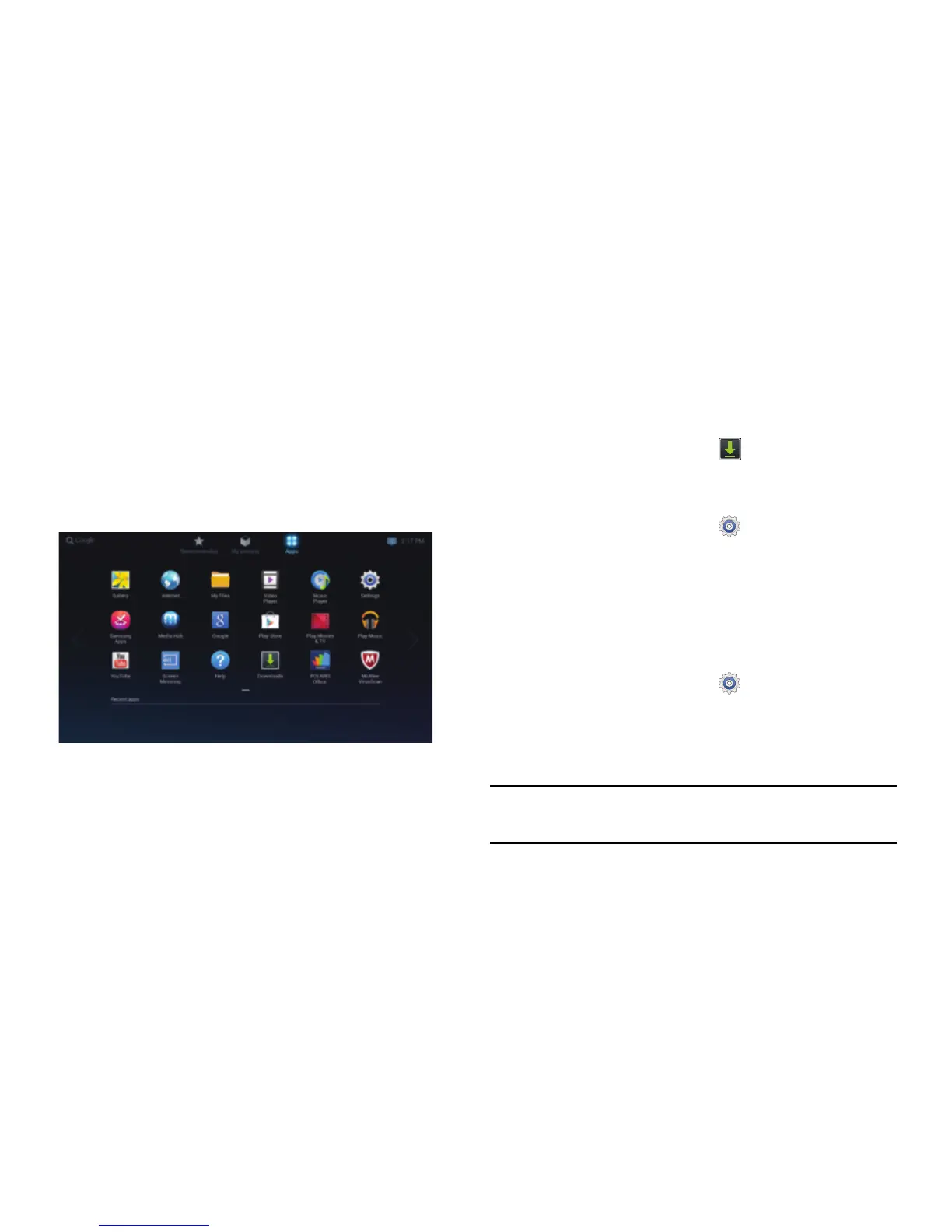
Apps Screen
The
Apps
screen displays icons for all applications, including
any new applications installed.
On the
My content
screen, select
Apps
.
When a new panel is added because a new application
has been installed, move to another panel by dragging left
or right.
Installing Applications
Use application stores, such as
Samsung Apps
, to download
and install applications.
To view and manage your downloaded applications:
On the
Apps
screen, select
Downloads
➔
Other downloads
.
– or –
On the
Apps
screen, select
Settings
➔
Application manager
➔
DOWNLOADED
.
For more information, refer to “Application and Media
Stores” on page 40.
Uninstalling Applications
To uninstall applications:
1. On the
Apps
screen, select
Settings
➔
Application manager
➔
DOWNLOADED
.
2. Select the application you want to uninstall.
3. Select
Uninstall
.
Note:
Default applications that come with the device cannot
be uninstalled.


 To Next Page