EasyManua.ls Logo

Samsung HT-E4550 - User Manual

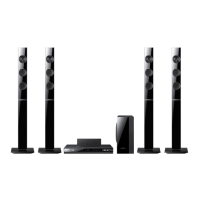
Samsung HT-E4550
128 pages
Print Icon
To Next Page IconTo Next Page
Loading...
imagine the possibilities
Thank you for purchasing this Samsung product.
To receive more complete service,
please register your product at
www.samsung.com/register
5.1CH Blu-ray™
Home Entertainment System
user manual
HT-E4500
HT-E4530
HT-E4550
HT-E4500_TK_0316.indd 1HT-E4500_TK_0316.indd 1 2012-03-16 오후 6:53:182012-03-16 오후 6:53:18

Table of Contents

Questions and Answers

  • C
    Cody MackSep 3, 2025
    Why can I hear sound from only a few speakers on my Samsung HT-E4550?
    • M
      Molly VillarrealSep 3, 2025
      On certain Blu-ray/DVD discs, sound is output from the front speakers only. Check if the speakers are connected properly. Adjust the volume. When listening to a CD, radio or TV, sound is output to the front speakers only.
  • F
    Frederick EricksonSep 2, 2025
    How to reset rating level password on Samsung Home Theater System?
    • J
      Joseph HahnSep 2, 2025
      With no disc in the product, press and hold the product's 5 button for longer than 5 seconds. 'INIT' will appear on the display, and all settings will return to the default values. Then, press the POWER button. Be aware that using the RESET function will erase all stored settings.
  • M
    Matthew GoldenSep 1, 2025
    Why is Dolby Digital 5.1 CH Surround Sound not produced on my Samsung HT-E4550?
    • A
      Alyssa WatsonSep 1, 2025
      Dolby Digital 5.1 CH Surround Sound is only produced if the disc is recorded with 5.1 channel sound. Check if the disc has the "Dolby Digital 5.1 CH" mark. Also, verify that the audio language is correctly set to Dolby Digital 5.1-CH in the information display.
  • D
    Dennis GonzalezAug 31, 2025
    Why is there no sound produced on my Samsung HT-E4550?
    • M
      mary34Aug 31, 2025
      Sound may not be produced during fast playback, slow playback, and step motion playback. Check if the speakers are connected correctly and if the speaker setup is customized correctly. Also, check if the disc is severely damaged.
  • M
    Michele EdwardsAug 30, 2025
    Why is there no sound when listening to TV audio through my Samsung HT-E4550?
    • J
      Jennifer Shepard DDSAug 30, 2025
      If the OPEN/CLOSE ^ button is pressed while listening to TV audio using the D. IN or AUX functions, the Blu-ray/DVD disc functions are turned on and the TV audio is muted.
  • M
    Mrs. Courtney James DDSAug 29, 2025
    What to do if iPod fails to connect to Samsung HT-E4550 Home Theater System?
    • P
      Philip RoblesAug 29, 2025
      If your iPod fails to connect, check the condition of the iPod connector. Keep the iPod software version up to date.
  • M
    Mr. Benjamin Holden DDSAug 28, 2025
    Why is Dolby Digital 5.1 CH Surround Sound not working on my Samsung HT-E4550 Home Theater System?
    • J
      Joshua JohnsonAug 28, 2025
      Dolby Digital 5.1 CH Surround Sound is produced only if the disc is recorded with 5.1 channel sound. Check for the "Dolby Digital 5.1 CH" mark on the disc. Also, verify that the audio language is correctly set to Dolby Digital 5.1-CH in the information display.
  • T
    Taylor RogersAug 27, 2025
    Why is sound only coming from a few speakers on my Samsung HT-E4550 Home Theater System?
    • J
      Jessica SkinnerAug 27, 2025
      Sound may only be coming from a few speakers because on certain Blu-ray/DVD discs, sound is output from the front speakers only. Check if the speakers are connected properly. Adjust the volume. When listening to a CD, radio or TV, sound is output to the front speakers only.
  • K
    Kelly HarrisAug 26, 2025
    How to fix no HDMI output on Samsung HT-E4550?
    • B
      Brianna RiceAug 27, 2025
      If there is no HDMI output, check the connection between the TV and the HDMI jack of the product. Also, verify that your TV supports the 576p/480p/720p/1080i/1080p HDMI input resolution.
  • J
    joepeckAug 25, 2025
    What to do if my Samsung HT-E4550 Home Theater System produces no sound?
    • S
      Sara PhillipsAug 26, 2025
      If your Samsung Home Theater System isn't producing sound, consider the following: The home cinema doesn't play sound during fast playback, slow playback, and step motion playback. Ensure the speakers are connected properly and the speaker setup is correctly customized. Also, check if the disc is severely damaged.

Summary

Safety Information

Warning and Caution

General safety warnings, electrical shock, and laser exposure precautions.

Disc Storage & Management

Guidelines for storing and managing discs for optimal performance.

Handling Cautions

Precautions for handling the apparatus to prevent damage or hazards.

Using the 3 D Function

Health and safety information for using the 3D viewing feature.

Copyright and License

Legal notices and information on licensed technologies.

Getting Started

Disk and Format Compatibility

Lists compatible and incompatible disc types and file formats.

Region Code and Disc Logos

Explains regional coding and shows compatible disc logos.

Supported Formats

Details supported audio and music file formats.

Video File Support

Technical specifications for supported video file formats and codecs.

USB Connection and AVCHD

Notes on USB connection and AVCHD format compatibility.

Accessories

Lists the supplied accessories with the product.

Front and Rear Panel Overview

Identifies and describes front and rear panel controls and connections.

Remote Control Functions

Overview of the remote control and its buttons.

Remote Control Setup

Instructions for installing batteries and setting up the remote control.

Connections

Speaker Connection and Placement

Connecting speakers and selecting listening positions.

Speaker Components

Visual guide to speaker components for different models.

Installing Speakers and Connecting Wires

Assembling speakers and connecting wires.

Wireless Receiver Module Connection

Connecting the optional wireless receiver module.

Antenna, iPod;iPhone, and Ferrite Core

Connecting FM antenna, iPod/iPhone, and ferrite core.

Connecting to a TV

Methods for connecting the product to a TV using HDMI or video cables.

Connecting External Audio Devices

Connecting analogue and digital audio components.

Network Router Connection

Instructions for connecting to wired or wireless networks.

Settings

Initial Settings Procedure

Step-by-step guide for initial product setup and configuration.

TV Aspect Ratio and Home Screen

Setting TV aspect ratio and overview of the Home screen.

Accessing Settings and Remote Controls

How to access settings and remote buttons used.

Display Settings Explained

Detailed explanation of various display settings.

Audio and Network Settings

Settings related to audio output and network configuration.

System and Device Management

System settings, device management, and Anynet+ function.

Language, Security, General, and Support

Settings for language, security, general options, and support.

Networks and Internet Connectivity

Information on network services and internet connectivity.

Configuring Network Connection

Steps to configure wired and wireless network connections.

Wireless Network Setup

Methods for setting up automatic and manual wireless connections.

WPS(PBC) and AllShare Settings

Setting up via WPS and managing AllShare devices.

Software Upgrading

Instructions for upgrading product software online or via USB.

Software Upgrade Methods

Details on upgrading via USB, disc, downloaded files, or standby mode.

Media Play

AllShare Play Screen and Content Playback

Accessing AllShare Play and playing video, photo, or music content.

USB and iPod;iPhone Media Playback

Playing media files from USB devices and iPod/iPhone.

Function Screen and Disc Playback

Selecting input sources and playing audio/video discs.

User Recorded Content and AllShare Network

Playing user content and using AllShare network function.

PC;DLNA Content Playback and Smartphone Control

Playing PC/DLNA content and controlling playback with a smartphone.

Video Playback Controls

Controls for video playback, including repeat and playback speed.

Tools Menu for Disc and File Playback

Using the Tools menu for BD/DVD and file playback options.

Music Playback Controls and Playlists

Controls for music playback, shuffling, and creating playlists.

Ripping Music and Playing Photos

Ripping music to USB and playing photo contents.

Tools Menu for Photo Playback

Using the Tools menu for photo playback options.

File Sending, Playlist Management, and Groups

Sending files, managing playlists, and playing groups.

Radio Tuning and RDS Information

Tuning FM radio, presetting stations, and RDS functions.

PTY Search and RDS Signals

Using PTY codes to search programs and viewing RDS signals.

Sound Effects and 3 D Video Playback

Using sound effects modes and playing 2D video in 3D.

Network Services

Smart Hub Overview and Usage

Overview of Smart Hub interface and instructions for its use.

Web Browser Usage and Features

How to access and use the web browser application.

BD-LIVETM Service

Information on using BD-LIVE services.

Appendix

Additional Information

Notes on HDMI, 3D, BD Wise, and digital output.

Anynet+, BD Data, DivX, Audio, and Playback Settings

Settings for Anynet+, BD data, DivX, audio, and playback options.

Subtitle Language, JPEG, Dolby Pro Logic II, and AllShare Notes

Settings for subtitles, JPEGs, Dolby Pro Logic II, and AllShare.

iPod;iPhone Compatibility Notes

Detailed compatibility notes for iPod/iPhone models.

Output Resolution Tables

Tables showing output resolutions for Blu-ray and DVD playback.

Digital Output Selection Details

Detailed table for digital output selections and audio streams.

Troubleshooting Common Issues

Common issues and their solutions for disc, iPod, and playback problems.

Troubleshooting More Issues

Troubleshooting menu, aspect ratio, power, and HDMI output problems.

Troubleshooting AllShare and BD-LIVE

Troubleshooting for AllShare Play and BD-LIVE connection issues.

Product Specifications

Technical specifications of the product, including weight, dimensions, and power.

Speaker System Specifications

Detailed specifications for each speaker component.

Samsung HT-E4550 Specifications

General IconGeneral
Disc types supportedBD, CD, CD-R, CD-RW, DVD, DVD+R, DVD+RW
Playback disc formatsBlu-Ray video, CD audio
Optical disc player typeBlu-Ray player
Built-in HDD-
CD-RW playbackYes
Apple docking compatibilityiPad, iPhone
Video formats supportedAVCHD, DIVX, MKV
Audio decodersDolby Digital, Dolby Digital Plus, Dolby Pro Logic II, Dolby TrueHD, DTS, DTS 96/24, DTS-HD
RMS rated power1000 W
Audio output channels5.1 channels
Front speaker type3-way
Center speaker type1-way
Subwoofer typePassive subwoofer
Product colorBlack
Consumer Electronics Control (CEC)Anynet+
BluetoothNo
USB version2.0
SCART ports quantity0
Number of HDMI outputs1
Weight and Dimensions IconWeight and Dimensions
Main unit weight2500 g
Subwoofer weight2600 g
Center speaker weight470 g
Main unit dimensions (WxDxH)430 x 250 x 55 mm
Subwoofer dimensions (WxDxH)168 x 285 x 350 mm
Front speaker dimensions (WxDxH)90 x 70 x 1050 mm
Center speaker dimensions (WxDxH)228 x 70 x 77 mm

Related product manuals