A
Connecting without a HUB (Not Included)
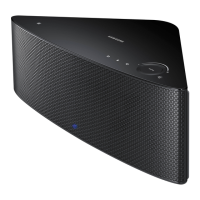
• If the M7 fails to connect to your network or its network connection operates abnormally,
place the M7 closer to the HUB or your router and try again.
• The M7 is a wireless network device. Its communications with your network may
be disrupted because of the distance between it and other devices on the network,
obstructions, or interference from other wireless devices.
❚
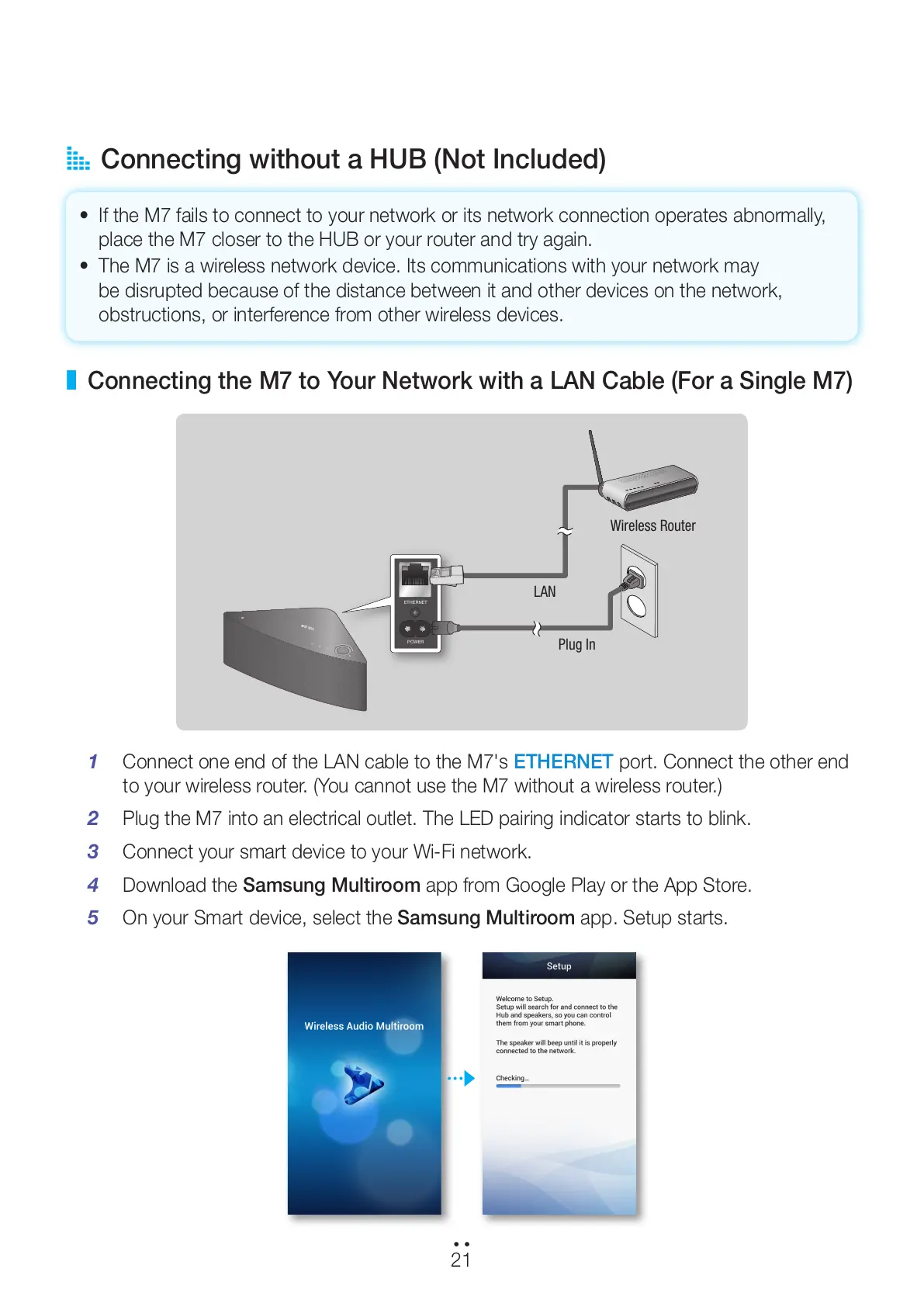
Connecting the M7 to Your Network with a LAN Cable (For a Single M7)
1 Connect one end of the LAN cable to the M7's ETHERNET port. Connect the other end
to your wireless router. (You cannot use the M7 without a wireless router.)
2 Plug the M7 into an electrical outlet. The LED pairing indicator starts to blink.
3 Connect your smart device to your Wi-Fi network.
4 Download the Samsung Multiroom app from Google Play or the App Store.
5 On your Smart device, select the Samsung Multiroom app. Setup starts.
ETHERNET
POWER
VOLUME
Wireless Router
LAN
Plug In
21
44
All manuals and user guides at all-guides.com


 To Next Page