Changing the Boot Priority
This computer is congured to boot from an external-type ODD rst.
This chapter describes how to change the boot priority so that the computer boots from
the hard disk drive rst.
1
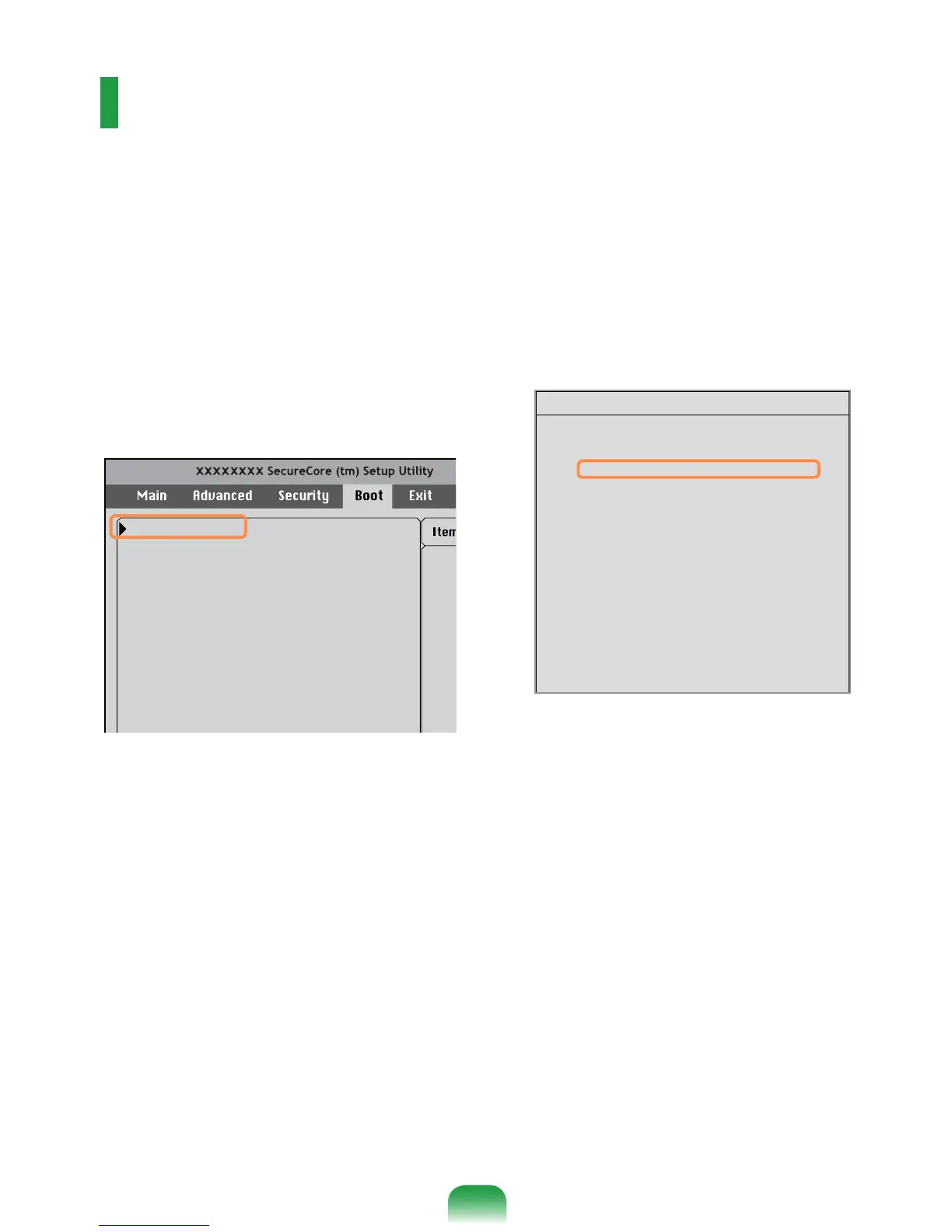
Select the
Boot
menu in the BIOS
Setup.
2
Press <
Enter
> on the
Boot Device
Priority
item.
Select system boot
options
Boot Device Priority
NumLock [Off]
Summary screen [Disabled]
Boor-time Diagnostic Screen [Disabled]
PXE OPROM [Only with F12]
Brightness Mode Control [Auto]
Wireless Device Control [Always On]
Smart Battery Calibration
3
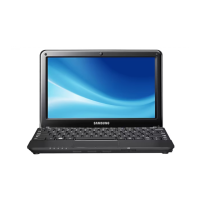
Press the down key (↓) to move to the
IDE HDD
item and press the
F6
key to
move the item to the top.
[Boot priority order]
1. USB CD : N/A
2. IDE HDD : XXXXXXXX
3. PCI BEV : N/A
4. USB FDD : N/A
5. USB KEY : N/A
6. USB HDD : XXXXXXXX
7.
8.
[Excluded from boot order]
- USB ZIP : N/A
- USB LS120 : N/A
- PCI SCSI : N/A
- Other USB : N/A
- PCI : N/A
Boot Device Priority
4
Press the
F10
key to save the settings
and exit Setup. The highest boot
priority device is now set to the Hard
Drive.


 To Next Page