Need help?
Do you have a question about the Samsung QB65H and is the answer not in the manual?
Lists the items included in the product package and advises contacting the vendor if any are missing.
Details the function of each button on the product's control panel, including power and navigation.
Provides solutions for common display problems like screen flickering, no signal, and distorted images.
Illustrates how to connect the display to a personal computer using various ports like HDMI and DP.
Shows how to connect an audio system to the display using the AUDIO OUT port.
Explains how to connect the display to MDC (Multi-Device Control) using LAN or RS232C cables.
Guides on connecting external video devices via HDMI or DVI ports.
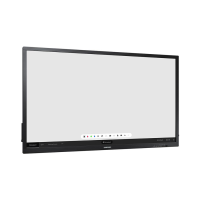
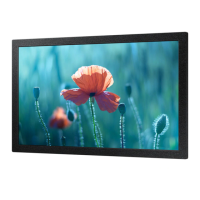
Details the model names (QB65H, QB75H) and their physical screen sizes.
Specifies the AC voltage and frequency requirements for the product.
Outlines the recommended temperature and humidity ranges for operation and storage.
Provides critical safety warnings regarding electric shock, ventilation, and product placement.
Includes warnings about potential radio interference and RoHS compliance.
Advises on the responsible disposal and recycling of electronic accessories and the product.
This document provides a comprehensive guide for the setup, usage, and troubleshooting of the Samsung QB65H and QB75H display models. It covers everything from initial component checks and control panel functions to various connection methods and important safety information.
Upon unboxing, users should first verify all components against the provided list. The package typically includes the Quick Setup Guide, a power cord, a remote control with batteries (though batteries may not be included in all regions), an RS232C(IN) adapter, and three HOLDER-CABLE units. For the QB75H model, a MagicInfo Software DVD is also provided. If any components are missing, users are advised to contact their vendor.
The display features a user-friendly control panel and remote control for easy operation. The control panel includes a "Spacer logo" which should not be pulled with force to avoid damage. The remote sensor, located at the bottom of the product face, receives signals from the remote control. It's important to note that using other display devices in the same space might inadvertently control this product. The panel key, when pressed while the product is on, displays the control menu. To exit this menu, the panel key must be pressed and held for at least one second. Navigation through menus and adjustment of option values are done using the upper/lower and left/right keys.
The display offers a wide range of connectivity options to accommodate various devices and setups.
Connecting to a PC: For PC connections, the display supports HDMI IN 1 (ARC) and HDMI IN 2, DP IN, DVI/MAGICINFO IN, and DVI/HDMI/AUDIO IN.
Connecting to an Audio System: An AUDIO OUT port is available for connecting to an external audio system, allowing users to output sound from the display to speakers or other audio devices.
Connecting to MDC (Multi Display Control): The display can be integrated into a Multi Display Control system, offering centralized management.
Connecting to a Video Device: Similar to PC connections, video devices can be connected via HDMI IN 1 (ARC), HDMI IN 2, and DVI/HDMI/AUDIO IN. This versatility ensures compatibility with a broad spectrum of media players, set-top boxes, and other video sources.
The display is designed for continuous operation, with a recommended daily usage of under 16 hours to maintain warranty validity. Exceeding this limit may void the warranty. The product's color and appearance may vary, and specifications are subject to change for performance improvements. Users are encouraged to download the full user manual from the Samsung website for comprehensive details.
The display supports HDMI High-Definition Multimedia Interface, with the HDMI Logo being a registered trademark of HDMI Licensing LLC. It also features DOLBY AUDIO™ for enhanced sound quality and HEVCAdvance™ technology, covered by patents, for efficient video compression.
A dedicated troubleshooting section helps users resolve common issues.
Screen keeps switching on and off:
No Signal is displayed on the screen:
"Not Optimum Mode" message:
Distorted, unstable, or shaky images:
Shadows or ghost images:
No image and power LED blinks (0.5-1 second interval):
Poor picture quality compared to the dealer shop:
Remote control not working:
Beeping sound during PC boot:
"The defined resolution is not supported" message:
The manual emphasizes important safety instructions to ensure safe operation and longevity of the device.
Electrical Safety:
Installation and Environment:
RoHS Compliance and Recycling:
For any questions or comments, users can contact the SAMSUNG customer care center via the provided telephone numbers or website.
 General
| Panel life | - h |
|---|---|
| Color gamut | 72 % |
| Pixel pitch | 0.105 x 0.315 mm |
| Response time | 8 ms |
| Display diagonal | 65 \ |
| Display brightness | 300 cd/m² |
| Display technology | LED |
| Vertical scan range | 48 - 75 Hz |
| Horizontal scan range | 30 - 81 kHz |
| LED backlighting type | Edge-LED BLU |
| Contrast ratio (typical) | 4000:1 |
| Display number of colors | - |
| Display diagonal (metric) | 163 cm |
| Active display area (W x H) | 1428.48 x 803.52 mm |
| Dynamic contrast ratio marketing name | Mega Contrast |
| L2 cache | 2000 KB |
| Bezel width | 12.2 mm |
| User memory | 4.12 GB |
| Memory clock speed | 1600 MHz |
| Temperature indicator | Yes |
| Video compression formats | AVC, AVS, H.263, H.264, HEVC, MPEG, MPEG1, MPEG2, MPEG4, VC-1, VP8, VP9 |
| AC input voltage | 100 - 240 V |
| AC input frequency | 50 - 60 Hz |
| Power consumption (off) | 0 W |
| Power consumption (standby) | 0.5 W |
| Power consumption (typical) | 122 W |
| RMS rated power | 20 W |
| Number of built-in speakers | 2 |
| Product color | Black |
| Product design | Digital signage flat panel |
| Placement supported | Indoor |
| Panel mounting interface | 400 x 400 mm |
| Purpose | Universal |
| Operating hours (hours/days) | 16/7 |
| VGA (D-Sub) input ports | 0 |
| Ethernet LAN (RJ-45) ports | 1 |
| Operating temperature (T-T) | 0 - 40 °C |
| Operating relative humidity (H-H) | 10 - 80 % |
| Package depth | 212 mm |
| Package width | 1571 mm |
| Package height | 956 mm |
| Package weight | 32400 g |
| Internal memory | 3 GB |
| Processor cores | 4 |
| Processor model | A72 |
| Processor family | ARM Cortex |
| Processor frequency | 1.7 GHz |
| Audio formats supported | MP3 |
| Internal storage capacity | 8 GB |
| Operating system installed | Tizen 3.0 |
| Certification | 60950-1, EMC A |
| Cables included | AC |
 Weight and Dimensions
| Depth | 37.6 mm |
|---|---|
| Width | 1456.1 mm |
| Height | 835.6 mm |
| Weight | 22800 g |


 To Next Page