Closing the e-Manual
To close the e-Manual, press and hold the RETURN button or select at the
upper-right corner of the screen.
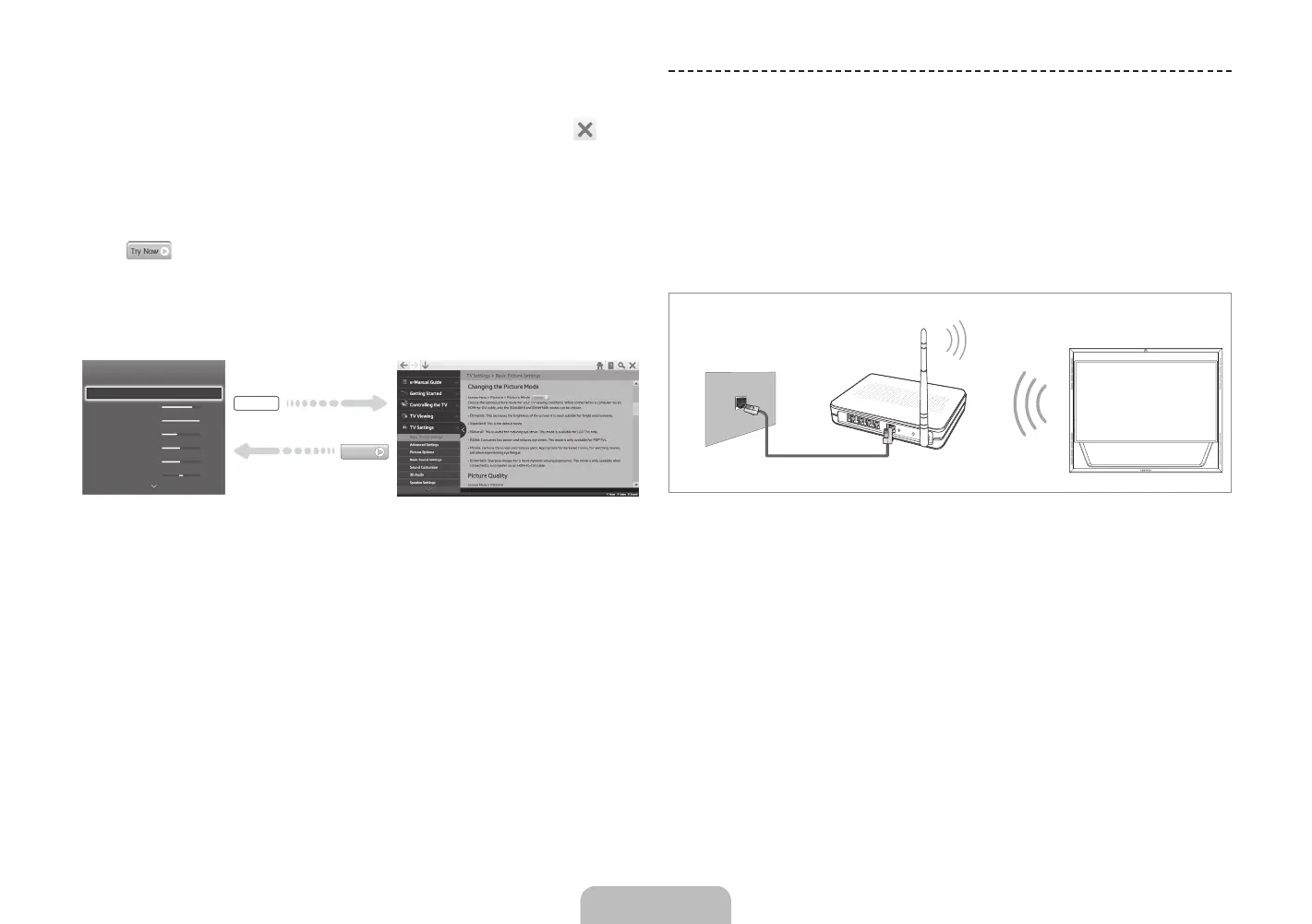
Jumping to a Menu Item
To jump directly to the menu item that is described in the current section,
select . It is possible to jump from a menu item directly to the related
section in the e-Manual. On a menu screen, press the MORE button on the
Smart Touch Control and then select e-Manual on the virtual remote panel
that appears on the screen.
✎
This feature may not be available, depending on the menu.
Picture
Picture Mode
• Backlight
• Contrast
• Brightness
• Sharpness
• Color
• Tint (G/R)
Standard
14
100
45
50
50
R50
G50
e-Manual
Try Now
Updating the e-Manual
Press the ™ button and select Apps, and then select More Apps. The
e-Manual can be updated in the same way with an application update.
On the More Apps screen, select Update Apps, and then select e-Manual
from the list. The e-Manual starts updating to the latest version. However,
Update Apps appears on the screen only when the update is required.
Connecting to a Network
Connecting the TV to a network gives you access to online services such
as Smart Hub and lets you update the TV's software online directly from
Samsung.com.
Network Connection - Wireless
Connect the TV to the Internet using a standard wireless router or modem.
Wireless IP Router or Modem
that has a DHCP Server
LAN Cable (Not Supplied)
The LAN Port on the Wall
Wireless Network Precautions
• This TV supports the IEEE 802.11a/b/g /n communication protocols.
Samsung recommends using IEEE 802.11n. Otherwise, when you play
video over a network connection, the video may not play smoothly.
Network Configuration
English - 18 English - 19
[UN85S9AF-ZC]BN68-05182C-04L02.indb 18 2013-10-30 �� 9:56:18


 To Next Page