PictBridge TM (SC-D353/D354/D355 only)
Setting the Date/Time Imprint Option
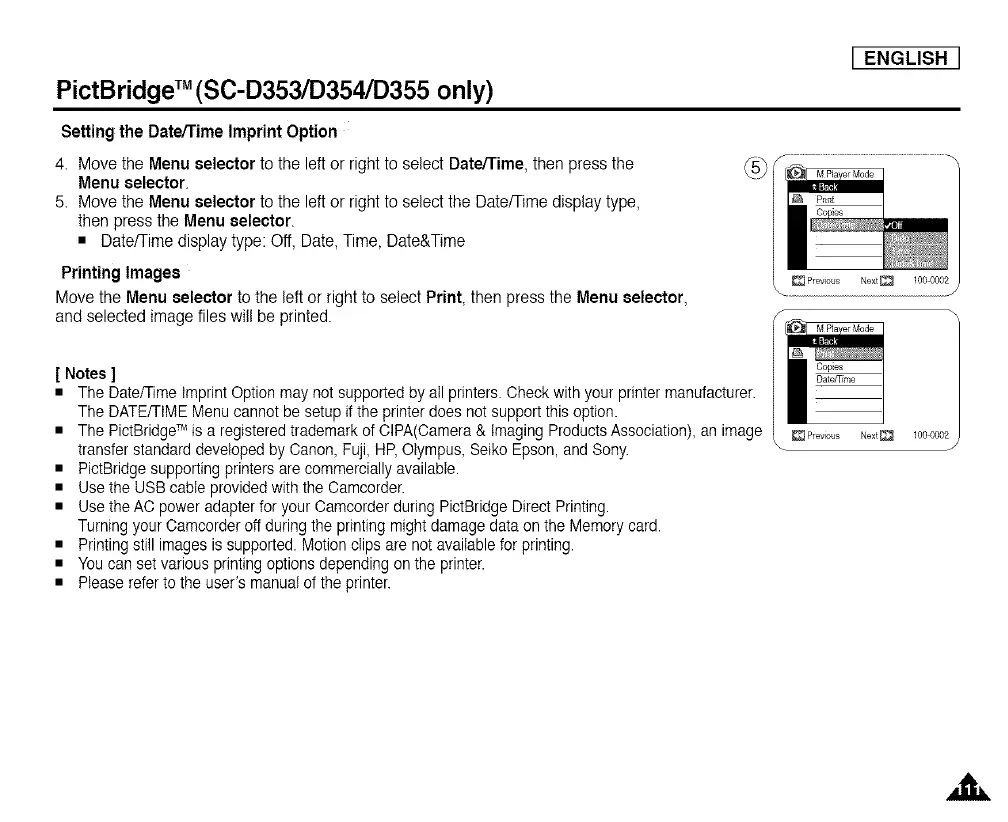
4. Move the Menu selector to the left or right to select Date/Time, then press the
Menu selector.
5. Move the Menu selector to the left or right to select the Date/Timedisplay type,
then pressthe Menu selector.
• Date/Timedisplay type: Off, Date, Time, Date&Time
Printing Images
Move the Menu selectorto the left or rightto select Print, then press the Menu selector,
and selected image files will be printed.
I ENGLISH I
[ Notes ]
• The Date/T(me Imprint Option may not supported by all printers. Check with your printer manufacturer.
The DATE/TIME Menu cannot be setup if the printer does not support this option.
• The PictBridge T_is a registered trademark of CIPA(Camera & Imaging Products Association), an image _P,ev_oo_
transfer standard developed by Canon, Fuji, HP, Olympus, Seiko Epson, and Sony. _-
• PictBridge supporting printers are commercially available.
• Use the USB cable provided with the Camcorder.
• Use the AC power adapter for your Camcorder during PictBridge Direct Printing.
Turning your Camcorder off during the printing might damage data on the Memory card.
• Printing still images is supported. Motion clips are not available for printing.
• You can set various printing options depending on the printer.
• Please refer to the user's manual of the printer.
Next_





 To Next Page