Playback
I ENGLISH
+ The playbackfunction worksonly in Player mode.
Playback on the LCD Screen
+ Itis practicalto view atape usingthe LCD screen whenin a caroroutdoors.
Playback on a TV Monitor
+ To playback a tape, the television must be NTSCcompatible.(see page 114)
÷ We recommend that you use the AC Power adapter as the power source for the Camcorder.
Connecting to a TV which has Audio/Video input Jacks
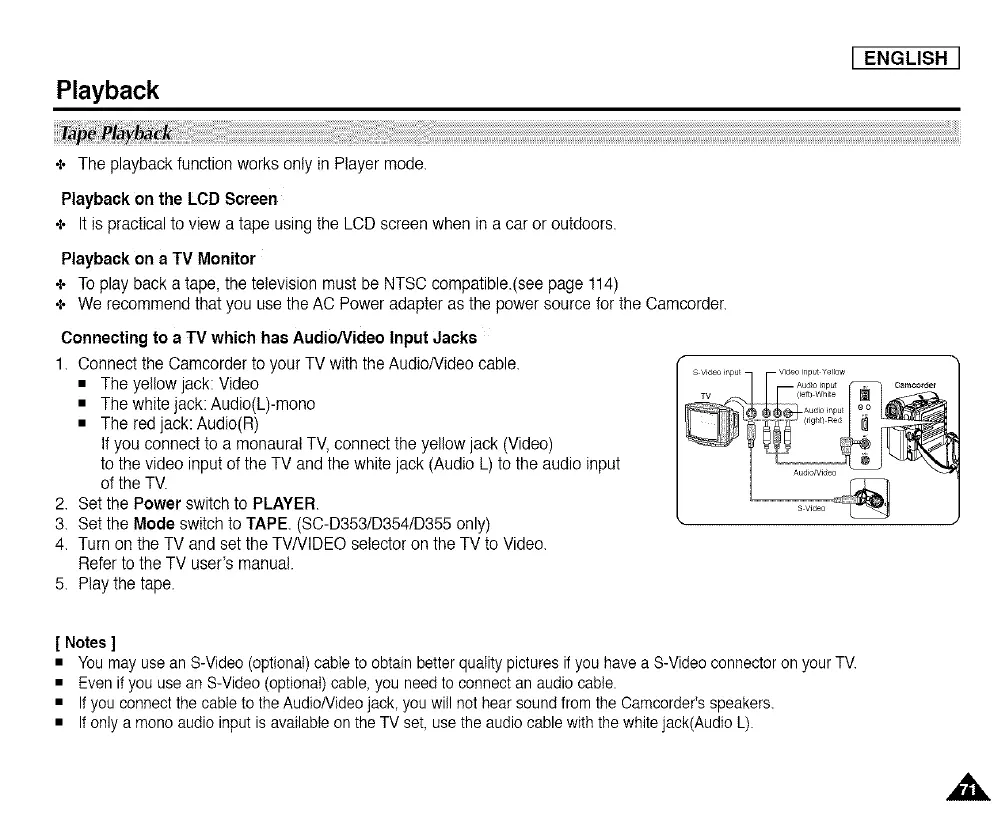
1. Connectthe Camcorder to your TV with the AudioNideo cable.
• The yellow jack: Video
• The whitejack: Audio(L)-mono
• The red jack: Audio(R)
If you connect to a monaural TV, connect the yellow jack (Video)
to the video input of the TV and the white jack (Audio L) to the audio input
of the TV.
2. Set the Power switch to PLAYER.
3. Set the Mode switch to TAPE. (SC-D3531D3541D355only)
4. Turn on the TV and set the TVNIDEO selector on the TV to Video.
Refer to the TV user's manual.
5. Play the tape.
s video
[ Notes ]
• You may use an S-Video (optional) cable to obtain better quality pictures if you have a S-Video connector on your TV.
• Even if you use an S-Video (optional) cable, you need to connect an audio cable.
• If you connect the cable to the AudioNideo jack, you will not hear sound from the Camcorder's speakers.
• If only a mono audio input is available on the TV set, use the audio cable with the white jack(Audio L).




 To Next Page