11
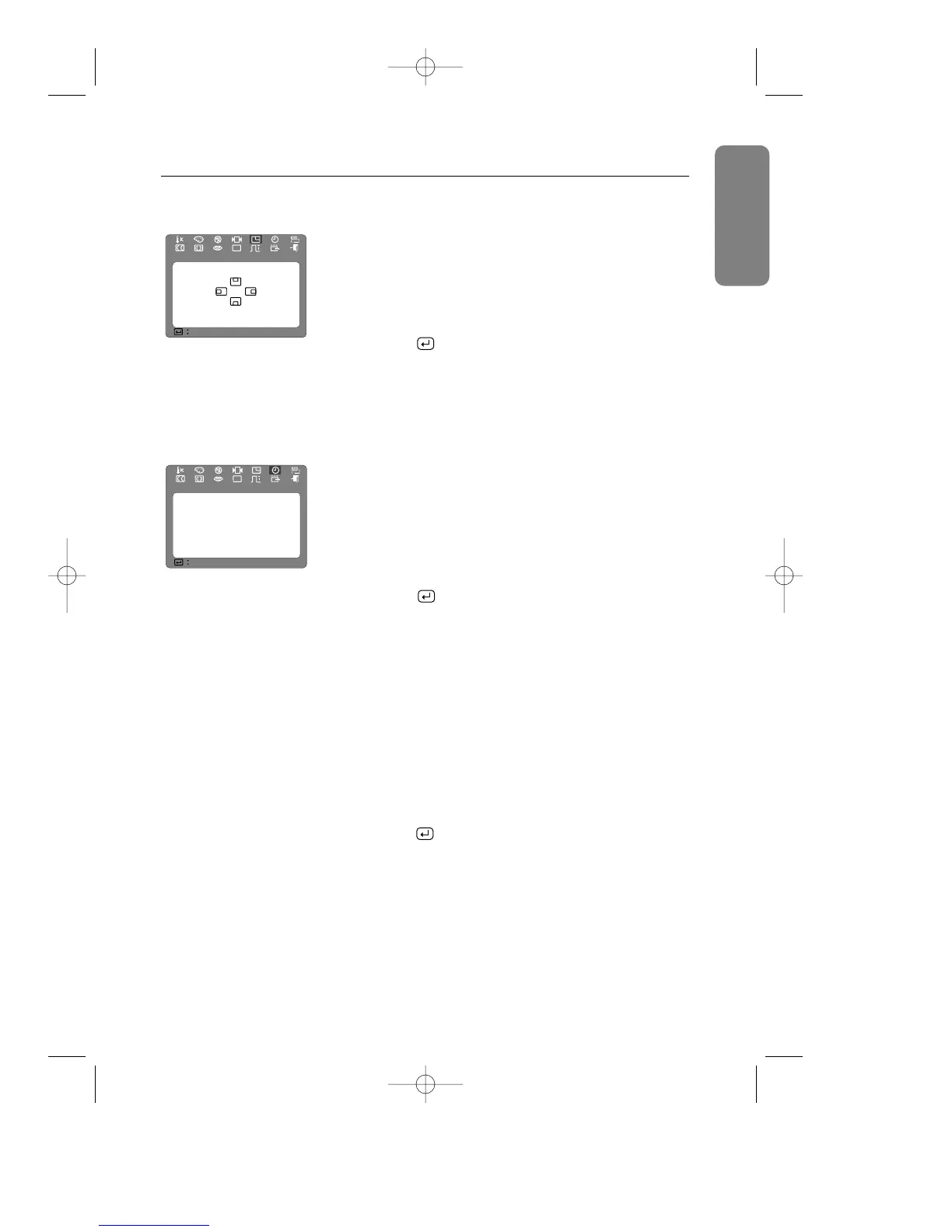
Menu Position
You can change the position where the menu appears on
your monitor.
1
With the menu off, push the MENU button. Push the
$ button or % button until the “Menu Position” screen
is displayed.
2
Push the button to open the menu position
adjustment screen.
3
Use the ▲, ▼, $ or % buttons to place the menu in
the position you prefer.
Menu Duration
The menu will automatically turn off if no adjustments are
made for a certain time period. You can set the amount of
time the menu will wait before it turns off.
1
With the menu off, push the MENU button.
Push the $ button or % button until the “Menu
Duration” screen is displayed.
2
Push the button to open the menu duration
selection screen.
3
Use the $ or % buttons to select 3, 7, 10, 20, or 50
seconds. 10 seconds is the default value.
D-SUB/BNC
Use this menu to choose between the signal source
connected to the BNC connector input and the signal
source connected to the D-SUB connector input.
1
With the menu off, push the MENU button.
Push the $ button or % button until the “D-SUB/BNC”
screen is displayed.
2
Push the button to open the D-SUB/BNC selection
screen.
3
Use the $ button or % button to select “BNC” or
“D-SUB”.
NOTE: When you are finished, wait for a few seconds and
the screen will blank then display the image from the
new signal source (Other computer). A cable must
be connected to both inputs to use this function.
Chapter Three:Adjusting Your Monitor
English English ItalianoFrançais Español Deutsch Português



 To Next Page