12
3
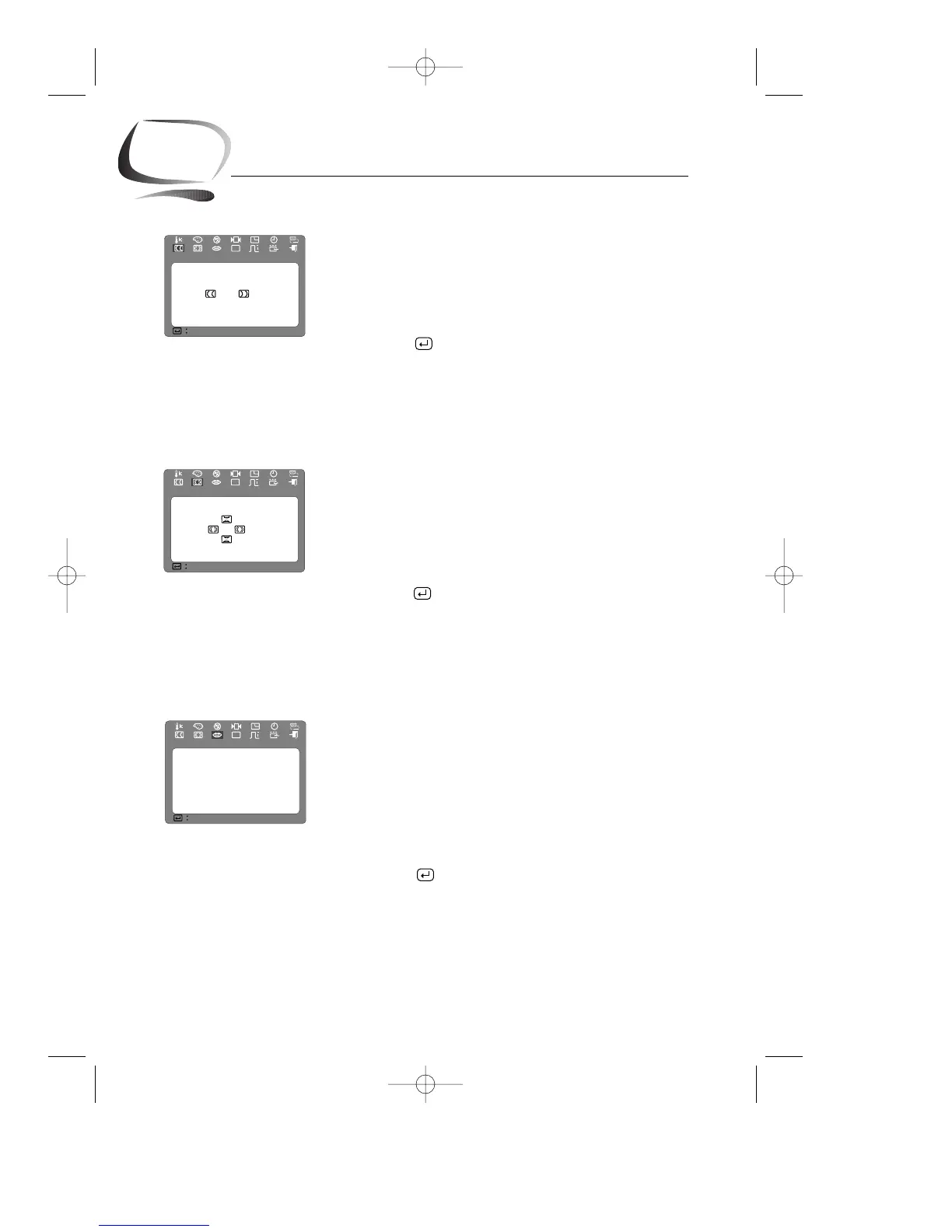
Pinbalance
Adjust the pinbalance setting when the sides of the display
are bowed towards the left or right.
1
With the menu off, push the MENU button.
Push the $ button or % button until the “Pinbalance”
screen is displayed.
2
Push the button to open the pinbalance adjustment
screen.
3
Use the $ button or % button to adjust the pinbalance
setting.
Clear Moire
A “moiré” pattern can appear on your screen, looking like
a series of concentric circles or arcs. To eliminate this
pattern, use the clear moiré adjustments.
1
With the menu off, push the MENU button.
Push the $ button or % button until the “Clear Moire”
screen is displayed.
2
Push the button to open the clear moiré adjustment
screen.
3
Use the ▲, ▼, $ or %buttons to make adjustments
until the moiré effect is cleared.
Languages
Follow these steps to change the language used in the
menu. This adjustment only changes the language of the
monitor’s menu; it does not change the language of any
other software.
1
With the menu off, push the MENU button.
Push the $ button or % button until the “Languages”
screen is displayed.
2
Push the button to open the language selection
screen.
3
Use the ▲ button or ▼ button to select the language
you would like to use.
Chapter Three: Adjusting Your Monitor



 To Next Page