Understanding Your Device 24
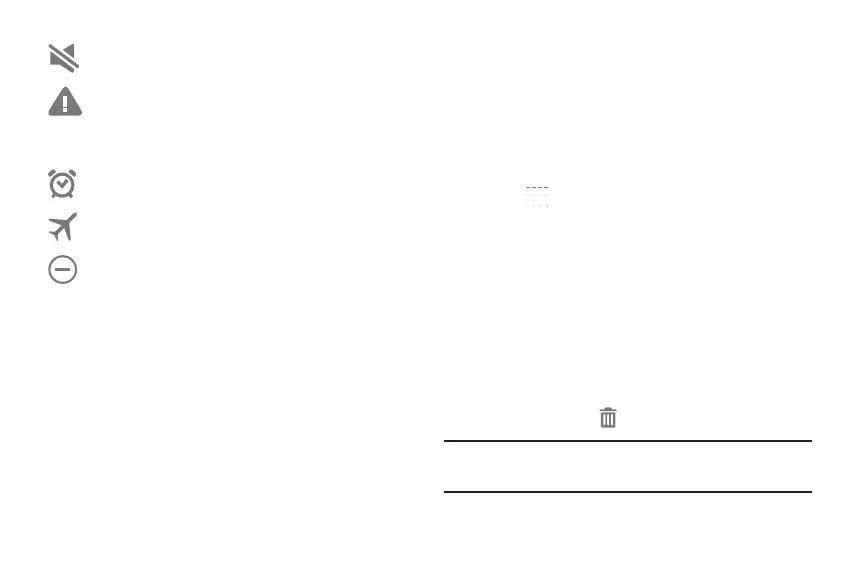
Other Icons
Shortcuts and Widgets
You can add, reposition, or remove shortcuts and widgets
from the Home screen.
• Shortcuts: Icons on the Home screen that launch
applications.
• Widgets: Small applications that run on the Home screen.
Adding a Shortcut or Widget
You can customize the Home screen by adding shortcuts
and widgets.
1. From a Home screen, touch and hold on an empty area
of the screen until the Home screen pop-up displays.
Touch Apps and Widgets.
– or –
Touch to display the Apps screen.
2. For shortcuts, touch the Apps tab. For widgets, touch
the Widgets tab.
3. Touch and hold the shortcut or widget, and then drag it
to the Home screen and release.
Removing a Shortcut or Widget
Shortcuts and widgets can be removed from the
Home screen.
Touch and hold the shortcut or widget until it detaches,
and then drag it to Remove and release.
Note: Removing a shortcut does not delete the application;
it simply removes the shortcut from the Home screen.
Mute mode enabled
Error occurred or caution required
Alarm activated
Airplane mode activated
Blocking mode activated







 To Next Page