57
Add a Wi-Fi Network Manually
1. From a Home screen, touch ➔ Settings ➔
Connections tab ➔ Wi-Fi.
2. Touch the OFF/ON button to turn Wi-Fi ON .
3. Touch Add Wi-Fi Network (below the available
networks), then enter these fields:
•Network SSID: Enter the name of the Wi-Fi network.
• Security: Select the type of security used by the Wi-Fi
network.
• Enter password: If the network is secured, enter the
password. Touch Show password to display it.
• Show advanced options: Select the Proxy settings
and IP settings for the network.
4. Touch Connect to save the settings and connect to
the network.
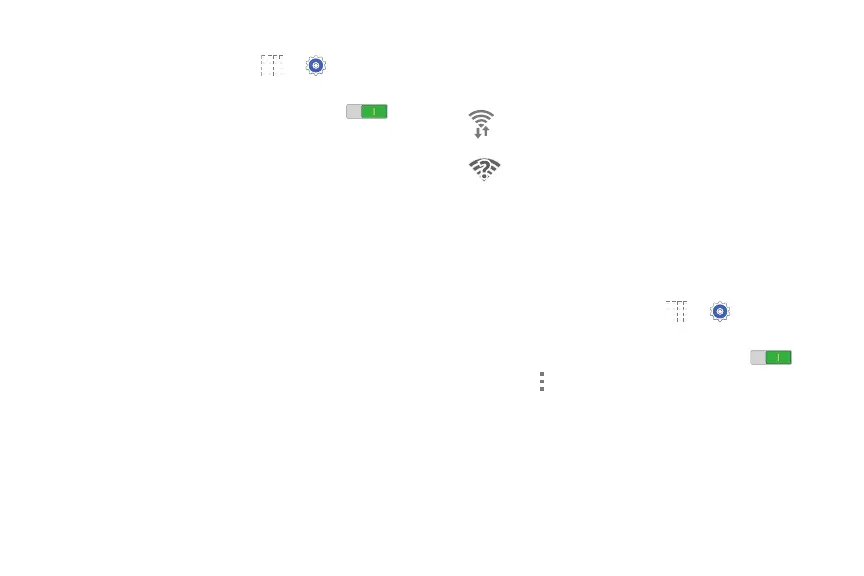
Wi-Fi Status Indicators
The following icons show your current Wi-Fi connection
status at a glance:
Advanced Settings
Set up and manage wireless access points.
1. From a Home screen, touch ➔ Settings ➔
Connections tab ➔ Wi-Fi.
2. Touch the OFF/ON button to turn Wi-Fi ON .
3. Touch Menu for options:
• Advanced:
– Network notification: Send a notification when an
open network is available.
– Sort by: Sort Wi-Fi networks by alphabet or RSSI
(received signal strength indicato).
Displays when Wi-Fi is connected, active, and
communicating with a Wireless Access Point (WAP).
Displays when there is a Wi-Fi network is available but
you are not connected to it. It may also display if there is
a communication issue with the Wireless Access Point
(WAP).








 To Next Page