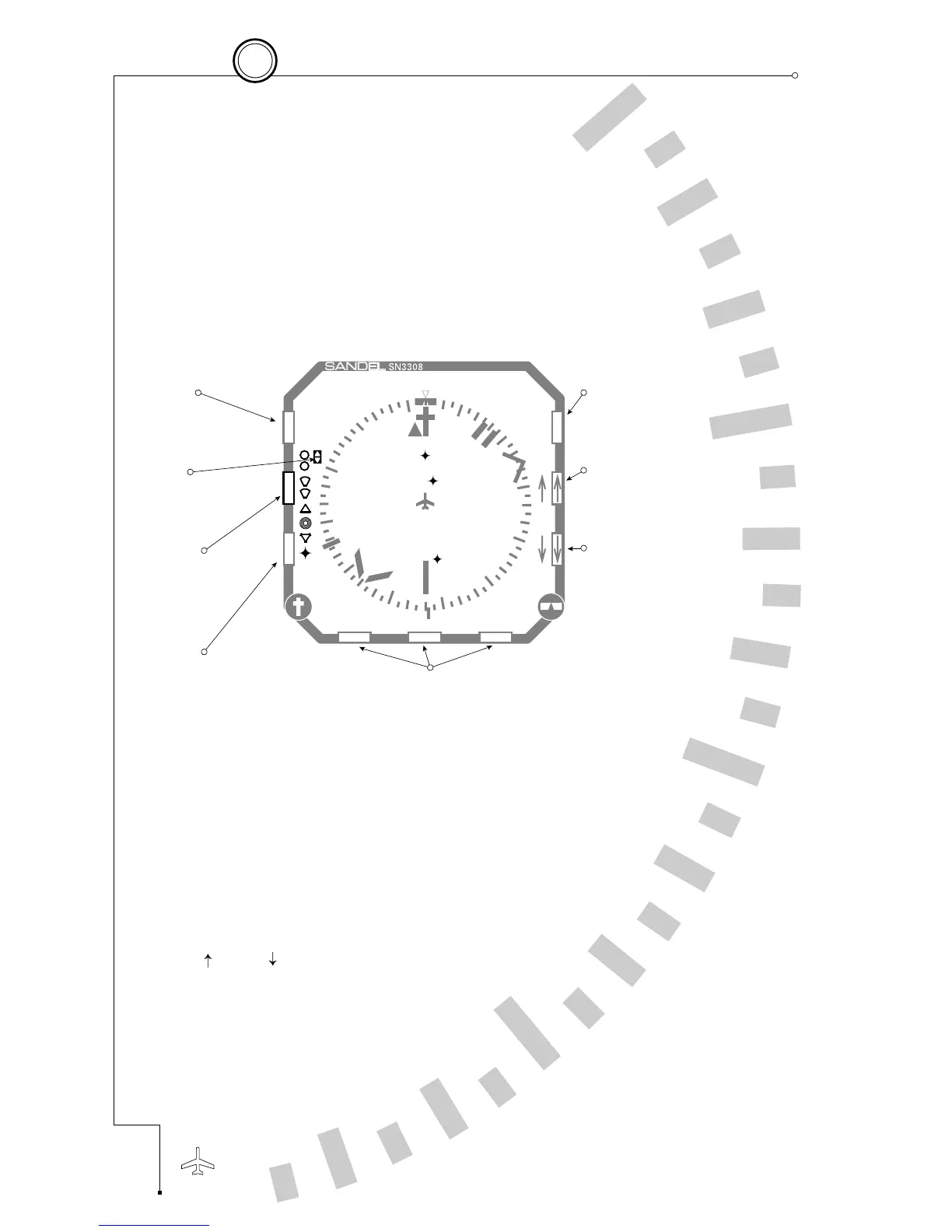
Map setup allows you to change the scratchpad memory S by adding
or deleting items from the map category by category. The two
buttons located next to the map status are used to move the map
status cursor up and down, selecting the different map setup items
you want to change.
Notice that when you select each setup item, the three softkeys at the
bottom of the screen change and are used to make your selections.
The [ ] or [ ] keys continue to function normally so you can
change the map range during setup operations to see the effect of
your changes.
For example, highlight the Airspace icon on the map status bar, and
then use softkeys ‘B’ and ‘C’ to enable airspace depiction and observe
5-8
5
Enhanced Moving Map Features
CHAPTER
The following actions occur every time you enter [SHFT]>[MAP]:
■
The currently selected display memory is copied into S.
■
S becomes the active memory.
■
You enter Map Setup and can make changes to the map display.
■
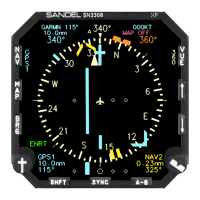
The map status bar shows all icons, with active items shown
with an *. A moveable cursor allows you to select which icon
category you want to change.


 To Next Page