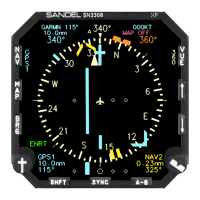
the map display. Assuming you are in a location with nearby Class B
or C airspace, you should see the airspace boundaries on your display.
Notice that you are displaying
scratchpad memory S,
and you have
added airspace depiction.
Note: During map setup operations the SN3308 continues to operate
normally. The compass and deviation displays are still active, and the HDG
and CRS knobs still operate.
Escaping Map Setup
Note the flashing ESC softkey. Pressing this softkey will immediately
exit the map setup page, and the map display will remain as you
programmed it. You should see both your flight plan and airspace on
the map display.
Setting Other Items
Using [SHFT]>[MAP] again, try changing other items on different
map setup pages and observe their effects. Note that you are not
changing memories 1-4 by these actions. In fact, if during normal
operation you are displaying any memory 1-4, you can press
[SHFT]>[MAP] to create a new
baseline
for the scratchpad memory.
Copying Settings into Preset Memories 1-4
Map settings can be retained for future use by storing them into one
of the four memory presets. This is done by copying the scratchpad
memory into one of the presets using the COPY function.
■
Press [SHFT]>[MAP] to access the map setup function and
adjust the settings as desired.
■
Press the COPY softkey.
■
Press one of the memory softkeys (1-4) to copy the
scratchpad into that memory. (To exit without saving,
press the QUIT COPY softkey.)
■
Press the ESC softkey to exit the map setup function.
The changes made during map setup are now stored in the memory
preset you chose and can be recalled during the map rotation.
5-9
5
Enhanced Moving Map Features
CHAPTER


 To Next Page