EasyManua.ls Logo

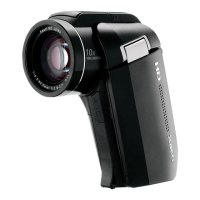
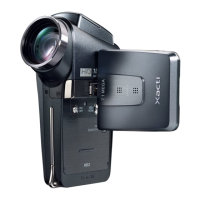
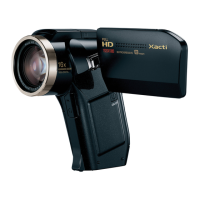
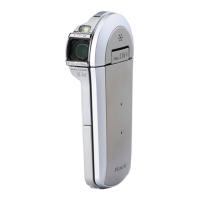
Sanyo VPC-HD1A - User Manual

Sanyo VPC-HD1A
247 pages
Print Icon
To Next Page IconTo Next Page
Loading...
VPC-HD1AEX
VPC-HD1A
INSTRUCTION MANUAL
Digital Movie Camera
Please read these instructions carefully before using the camera.
Make sure to read and understand the separate booklet “
SAFETY MANUAL”.
Keep this manual in a safe place for later reference.
Important note
This manual explains how to safely operate the VPC-HD1AEX and VPC-
HD1A.
Any information regarding only one of these products will be labeled as such.

Table of Contents

Other manuals for Sanyo VPC-HD1A

Questions and Answers

  • V
    vschultzSep 18, 2025
    How to enable digital zoom on Sanyo Digital Camera?
    • W
      Whitney PollardSep 18, 2025
      If the digital zoom on your Sanyo Digital Camera isn't working, check the still image mode and digital zoom settings. Set the still image mode to 's' and the digital zoom setting to 'ON'.
  • C
    Crystal WilliamsAug 25, 2025
    Why does my Sanyo VPC-HD1A have no power?
    • J
      james63Aug 25, 2025
      Your Sanyo Camcorder might not have power because the battery pack is dead or not correctly inserted. Try recharging the battery pack, replacing it with a new one, or connecting the AC adapter. Also, make sure the battery pack is correctly oriented when inserted.
  • M
    mooredavidAug 25, 2025
    What to do if the image on my Sanyo Camcorder is too dark?
    • N
      Nancy MckinneyAug 26, 2025
      If the image from your Sanyo Camcorder is too dark, it could be due to several reasons. The flash might be blocked, the subject may be too far away or lit from behind, or there may not be enough light. To fix this, hold the camera correctly ensuring the flash isn't obstructed, capture the image within the flash's range, use the forced flash mode, use the exposure correction function, use the spot light-measuring mode, or adjust the ISO sensitivity setting.
  • D
    Danielle RussellAug 26, 2025
    What to do if my Sanyo Camcorder remote control doesn't work?
    • L
      Laurie GarciaAug 27, 2025
      If the remote control unit for your Sanyo Camcorder doesn't seem to work, there are several possible reasons. Make sure the remote control unit is aimed at the camera’s remote control sensor within a range of about 30 degrees horizontally. Also, ensure that nothing is obstructing the space between the remote control unit and the camera’s remote control sensor. Check if the remote control unit battery is consumed and replace it with a new battery, ensuring the (+) and (–) poles are correctly oriented. Finally, make sure that you operate the remote control unit from a position up to 7 meters from the docking station and change the remote control code if the codes for the remote control unit and camera’s remote control sensor are different.
  • N
    Nicholas HollandSep 22, 2025
    How to reduce noise in Sanyo Digital Camera images?
    • R
      Robin HarringtonSep 22, 2025
      If you notice noise in the captured image with your Sanyo Digital Camera, the ISO sensitivity setting might be too high. Try setting the ISO sensitivity to a lower setting.
  • A
    Adam Carpenter MDSep 23, 2025
    Why does zoom stop on Sanyo Digital Camera?
    • J
      Jennifer ThompsonSep 23, 2025
      When zooming in or out with your Sanyo Digital Camera, the zoom movement may pause momentarily when the optical zoom reaches its maximum magnification. This is normal; release the zoom switch and press it again.
  • D
    Dr. Theresa HannaSep 9, 2025
    What to do if there is no sound during audio playback on my Sanyo VPC-HD1A Camcorder?
    • C
      Colleen BrownSep 10, 2025
      If there is no sound during audio playback on your Sanyo Camcorder, the playback volume setting on the camera might be too low. Adjust the playback volume.
  • R
    Rebecca TaylorSep 12, 2025
    How to fix a Sanyo Camcorder image that is too bright?
    • P
      Paul HernandezSep 12, 2025
      If the image from your Sanyo Camcorder is too bright, it could be because the forced flash mode is selected, the subject was too bright, or the ISO sensitivity setting is incorrect. To fix this, select a different flash mode, use the exposure correction function, or set the ISO sensitivity to t.
  • M
    Mark SanchezSep 3, 2025
    How to fix noise in captured image on Sanyo VPC-HD1A?
    • J
      James RussellSep 3, 2025
      If there is noise in the captured image on your Sanyo Camcorder, the ISO sensitivity setting might be too high. Try setting the ISO sensitivity to a lower setting.
  • K
    Kristy SmithSep 1, 2025
    What to do if my Sanyo VPC-HD1A is not capturing images?
    • M
      Mallory HaynesSep 1, 2025
      If your Sanyo Camcorder is not capturing images when you press the still image shooting button or video clip recording button, ensure that the power is turned on. If the power save function was activated, turn on the camera before shooting. If the camera was turned off, press the ON/ OFF button to turn it on.

Summary

Instruction Manual

Important Note

Provides essential information on operating the camera and safety precautions.

Warning

Shoot, Play Back and Save

Preparing the Camera

Details the initial steps to get the camera ready for use, including card insertion and power connection.

Shooting

Video Clip Recording

Step-by-step guide to recording video clips and stopping the recording process.

Still Image Photography

Instructions for capturing still photographs using the camera's dedicated button.

Playback

Video Clip Playback

Describes how to select and play back recorded video clips.

Still Image Playback

Explains how to view captured still images on the camera's monitor.

Install Application Programs

Connect Your Camera to a Computer

SETUP

PARTS NAMES

Identifies and labels the various components and parts of the camera.

Installing the Card

Preparing the Power

Charging the Battery Pack

Provides detailed steps for charging the camera's battery pack using the provided accessories.

Turning the Camera On and Off

Turning On the Camera

Details how to power on the camera, including opening the monitor unit and pressing the ON/OFF button.

Operation Buttons

Date and Time Setting

Before Taking Pictures

How to Hold the Camera

Provides guidance on the correct posture and grip for stable camera handling.

Using the Autofocus

Explains the camera's autofocus function and conditions that might affect its performance.

Video Clip Recording and Playback

Capturing and Playing Back Still Images

Shooting Single Shots

Step-by-step instructions for capturing individual still images.

Recording in the HD Mode

Audio Recording and Playback

Audio Recording

Guides on how to initiate and perform audio recordings using the camera.

Using the Zoom

Shooting with the Flash

Exposure Correction

SHOOTING

Displaying the Shooting Setting Screens

Explains how to access and navigate the camera's shooting settings menus.

Video Clip Mode (Image Quality) Setting

Still Image Mode (Resolution) Setting

Scene Select

Exposure Setting

Filters

Motion Compensation (Image Stabilizer)

Focus Range

Focus Area Setting

Light-Measuring Mode Setting

ISO Sensitivity

White Balance

Self-Timer

PLAYBACK

Displaying the Playback Setting Screens

Explains how to access and navigate the camera's playback settings menus.

Playback Mode

Playback Volume

Image Protect

Erasing Data

Editing Video Clips

Procedure to Cut (Extract) a Portion of a Video Clip

Guides on trimming unwanted parts from video clips to create new segments.

Procedure to Join Video Clips

Details how to combine multiple video clips into a single file.

Print Settings

Display the Printing Instructions Screen

Covers options for printing still images, including DPOF settings and print quantities.

Displaying Image Properties (Information Screen)

OPTION SETTINGS

Displaying the Option Screen

Explains how to access and navigate the camera's main settings menu.

Screen Display

TV Output Setting

Formatting a Card

Resetting the Camera Settings

OTHER DEVICES AND CONNECTIONS

Connecting to a TV

Provides instructions for connecting the camera to a television for playback.

Direct Printing

Print Preparations

Outlines the initial steps required before initiating direct printing, such as card insertion.

Hints for Taking Pictures

If Images Are Blurred Even When the Autofocus is Used

Addresses common issues with autofocus and provides solutions for achieving sharp images.

SAFETY MANUAL

Cautions Concerning Both Camera and Accessories

Lists essential warnings and precautions related to the camera and its accompanying items.

Cautions Concerning the Camera

Provides specific safety guidelines and warnings for using the camera itself.

Cautions Concerning the Docking Station and AC Adaptor;Charger

Cautions Concerning the Battery

General Precautions Concerning the Batteries (When Using Alkaline Batteries)

Offers specific safety advice for using alkaline batteries with the camera.

Cautions Concerning Use and Storage of the Rechargeable Li-ion Battery Pack

Details safety guidelines for handling and storing the rechargeable Li-ion battery.

Before Mounting Your Camera

Cautions When Using the Camera as an External Drive

Warns against altering camera files when connected to a computer to prevent data issues.

Setting to the Card Reader Mode

Installing the Application Software

How to Use Photo Explorer

Set Up the Environment

Details how to configure the computer and camera for data transfer using Photo Explorer.

Using as a PC Camera

ABOUT MovieFactory

Main Features

Highlights the key functionalities of MovieFactory, such as creating movie discs and editing clips.

Sanyo VPC-HD1A Specifications

General IconGeneral
Video Resolution1280 x 720
Optical Zoom10x
Sensor TypeCMOS
Storage MediaSD/SDHC
Optical Sensor Size1/2.5 inch
Digital Zoom5x
Image StabilizerElectronic
Focus AdjustmentAuto/Manual
Display TypeLCD
Battery TypeLithium-ion
Shooting ModesScene
White BalanceAuto
Display Size2.7 inches
Connector TypeHDMI, USB
Memory Card SlotSD

Related product manuals