APPENDIX A: FALCON & FALCON PRO SIMULATOR
Minimum system requirement for installing the Satloc Falcon & Falcon Pro Simulator:
• Windows 8 OS and above
• 2 G RAM memory
• 32 G Hard drive
How-To Download the Satloc Falcon & Falcon Pro Simulator:
• Visit the Resources page on Satloc’s website - https://satloc.com/resources/
• Scroll down to the Falcon & Falcon Pro Simulator area
• When you click the “Click Here to Download the Simulator”, the les will automatically download onto your
computer.
• Open the zipped le and follow your computer prompts.
Troubleshooting the Install for the Satloc Falcon & Falcon Pro Simulator:
ere are a couple of scenarios that might cause installation diculties. So, here are some troubleshooting steps.
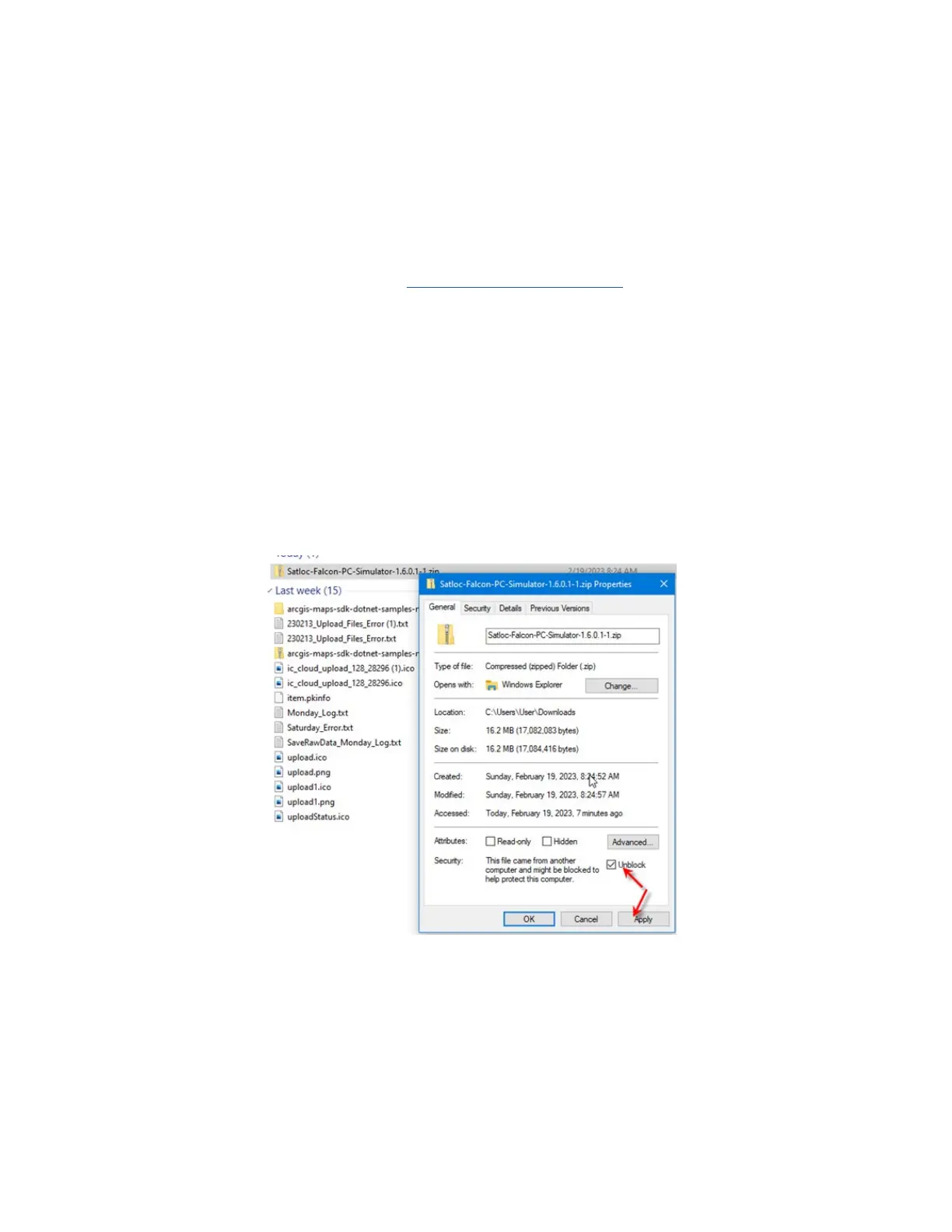
1. Downloaded zip le needed to be unlocked prior to unzipping and installing.
a. Once the zip le is downloaded. Right-click on the le and select “Properties.”
b. On the properties screen, uncheck the “Unblock” check box before extracting and installing.
2. e user’s computer might be locked down to prevent downloading and installing soware.
a. Suppose you work for a company that prevents you from automatically downloading and installing
soware. In that case, you must contact your company’s Admin for privileges to download and install the
soware.
Path to GPS Signal in the Simulator:
• Main Menu > Mapping > Map Setup > GPS Input > Internal Simulator
• Tap ‘Return’ button twice to go to Moving Map Screen



 To Next Page