48 Configuring the Shuttle
C
5. Query URL
For every barcode scan, the SK must send a query URL with the requested
barcode information to the web-server.
The Web-Price-Checker uses tag-variables in the URL for this, like for example:
http://192.137.81.60/auth/tbl_products/scan/{@BARCODE}/{@SKTYPE}
When scanning an EAN13 barcode 5029053021454 on a SK-50, the URL
request with variables, {@SKTYPE} and {@BARCODE} will be reformatted and
send to the web server as:
http://192.137.81.60/auth/tbl_products/scan/5029053021454/SG15
Note that the sequence of the variables {@BARCODE} and {@SKTYPE} in the
specified URL, is one to one related with the search path on the web server.
6. Allow URL barcodes
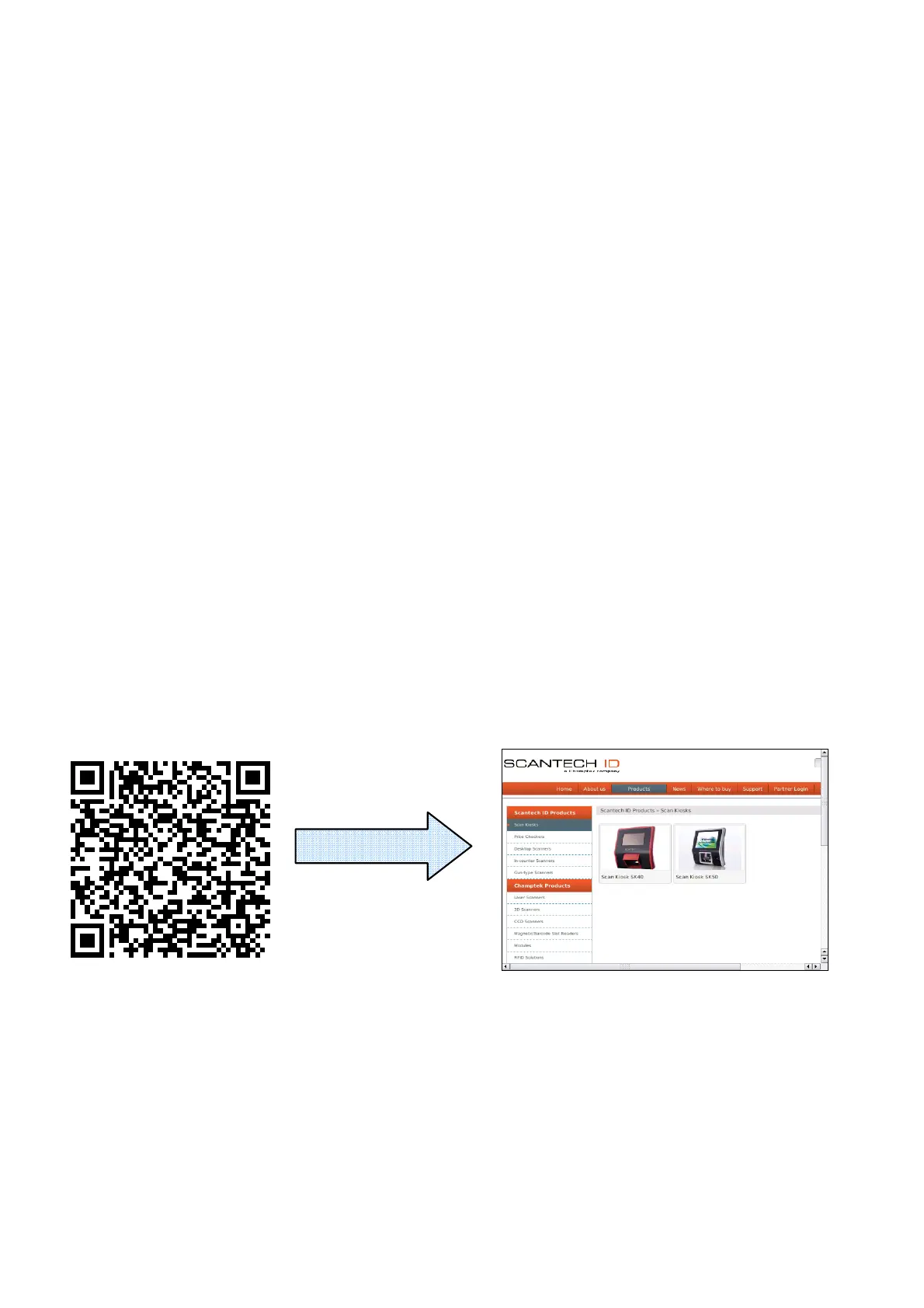
This feature is useful for scanning 2D-barcodes on products or leaflets with
2D-barcodes that represent a URL referring directly to a site on the internet or
intranet. When this feature is ON and your SG-15
Colour
is equipped with a
2D-scanengine, then scanning the QR-code here below will show the following
response on the display:
QR-code with URL
http://www.scantech-id.com/en/products/list.php?pin=3aa3cded3eacb975929df79009da68fd&type=s
Scan QR code
Notes:
1. This requires the following settings:
i. Allow URL barcodes = ON
ii. 2D barcodes = ON
iii. The SK is equipped with 2D scan-engine.
2. DNS must be activated on SK
(i.e. DHCP service is responsible for providing a name server).



 To Next Page