EasyManua.ls Logo

Sceptre C Series - User Manual

Sceptre C Series
58 pages
Print Icon
To Next Page IconTo Next Page
Loading...
- 1 -
www.SCEPTRE.com
SCEPTRE C Series UHD Display User Manual
Dear Sceptre Customer,
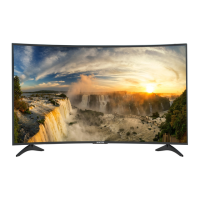
Congratulations on your new ultra-high definition SCEPTRE C Series UHD
Display purchase. This display supports 4K resolution. Thank you for your
support. To ensure safety and many years of trouble free operation of your
display, please read the manual carefully before making any adjustments, and
keep them in a safe place for future references. This manual contains
instructions for the C650CV-UMR model. We hope you enjoy your new
SCEPTRE Curve UHD Display.
For technical assistance, please call 1800-788-2878 and select option 3 or
email our tech support group at SceptreTS@sceptre.com
.
For all other inquiries, please call 1800-788-2878 and select option 4 or
email our customer service group at SceptreCS@sceptre.com
.
Web Chat is available during business hours M-F 8:30AM-5:30PM.
We recommend you register your SCEPTRE Display at our online website
http://www.sceptre.com/registration.html.
This 4K Curve UHD Display is and MHL® ready using HDMI 1 / MHL.
This UHD Display supports HDMI v2.0 under HDMI 1, 3, and 4. HDMI 2
supports HDMI v1.4 to offer maximum compatibility.

Questions and Answers

  • S
    Shawn ByrdSep 10, 2025
    Why doesn't my cell phone work when I connect MHL cable to my Sceptre C Series HDTV?
    • N
      Nicole RuizSep 10, 2025
      If your cell phone doesn't work when connecting an MHL cable to your Sceptre HDTV, ensure you're connected to HDMI3, as only HDMI1 supports MHL. If it still doesn't work, verify you have the correct MHL cable. Consult your cell phone manufacturer for compatibility issues.
  • W
    William BowersAug 23, 2025
    What to do if my Sceptre HDTV has picture only but no audio?
    • S
      shane60Aug 23, 2025
      If your Sceptre HDTV shows a picture but has no audio, ensure the audio cable is properly connected. Also, readjust the volume using the remote control. Ensure that the display’s tuner signal is not lower than 65%.
  • G
    Gregory MonroeAug 25, 2025
    Why does my Sceptre HDTV remote control not work?
    • C
      Crystal BryantAug 25, 2025
      If your Sceptre HDTV remote isn't working, try these steps: turn off the display and unplug it. Remove the batteries from the remote for 30 seconds, press the remote buttons and the power button randomly for 2 seconds, then reinstall the batteries. Also, make sure there is a clear line of sight between the remote control's front sensor and the display's remote sensor, which is located near the power indicator light.
  • A
    alexandermarkAug 27, 2025
    What to do if my Sceptre C Series has audio only but no picture?
    • K
      kelly53Aug 27, 2025
      If your Sceptre HDTV has audio but no picture, verify that both your video and audio cables are connected correctly. Also, make sure the display’s tuner signal is not lower than 65%.
  • C
    colton06Aug 28, 2025
    Why are my Sceptre C Series HDTV channels blocked?
    • S
      Sean AllenAug 28, 2025
      If channels are blocked on your Sceptre HDTV, check the auto lock function's settings within the OSD (On-Screen Display). You may have inadvertently locked certain channels.
  • J
    Jessica RobertsAug 29, 2025
    How to fix abnormal colors on Sceptre C Series HDTV?
    • D
      Dr. Jesse FisherAug 29, 2025
      To fix abnormal colors on your Sceptre HDTV, ensure that the colors on the cables match the ports on the back of the television. For example, connect the red cable to the red colored port.
  • M
    Mary BryantSep 18, 2025
    Why don't I see an option for the resolution 3840 x 2160 while connected to HDMI on my Sceptre C Series?
    • T
      Troy MillerSep 18, 2025
      If you don't see the 3840 x 2160 resolution option while connected to HDMI on your Sceptre HDTV, verify that your video card supports that resolution and that you are using an HDMI 1.4 or higher cable. Also, ensure your drivers are updated to the newest version.
  • J
    James BoyleSep 12, 2025
    Where are the volume and channel changing buttons on my Sceptre C Series?
    • P
      peter16Sep 12, 2025
      The volume and channel changing buttons on your Sceptre HDTV are represented by the ???? buttons on the remote control. ?? changes the channels, and ?? changes the volume.
  • A
    Anthony EscobarSep 8, 2025
    Why is my Sceptre HDTV picture very dim?
    • J
      Jessica ShawSep 8, 2025
      If your Sceptre HDTV picture is very dim, check if you are in POWER SAVING mode. Press the PICTURE button on the remote control to cycle out of POWER SAVING mode.
  • K
    Kaitlyn JacksonSep 5, 2025
    What does weak signal or no program symbol on Sceptre C Series HDTV mean?
    • A
      Alejandro VaughanSep 5, 2025
      If you see a weak signal or no program symbol on your Sceptre HDTV, and the display’s tuner signal is lower than 65 %, try changing the direction of your antenna and rescanning for channels. If you have cable, contact your cable company to ask about the strength of your local cable signal.

Summary

Safety Instructions

Important Information

Television Antenna Connection Protection

Guidelines for proper grounding of antenna systems to protect against surges.

Lightning Protection

Steps to protect the display during lightning storms or when unattended.

Power Lines

Advice on avoiding placement near overhead power lines.

Opening the Package

Package Contents

Lists all items included with the SCEPTRE display.

Installation

Instructions for proper display installation and placement.

Attaching or Removing the Stand

Identifying Front and Rear Panel

Front View

Describes the front panel components and indicator light.

Rear View Mounting Pattern

Details the VESA mounting pattern specification for the display.

Side Control Buttons

Rear View Connections

Port Descriptions

Details SPDIF, YPbPr/AV, Line Out, HDMI (2.0/1.4), TV, and USB ports.

SCEPTRE Remote Control

Remote Control Functions

Explains general function buttons and color function buttons on the remote.

Installing Batteries to the Remote Control

Connection Suggestions

Connecting Digital Cable

Guide for connecting digital cable without a cable box or antenna.

Connecting Various Devices

Connecting a DVD Player

Guide for connecting a DVD player using component YPbPr cables.

Connecting a Wii

Guide for connecting a Wii console using composite video cables.

Connecting Cable;Satellite Boxes

Guide for connecting cable or satellite boxes via HDMI.

Connecting a PC

Guide for connecting a PC via HDMI for display output.

Connecting an Audio Receiver

Guide for connecting a digital audio receiver via optical SPDIF.

Switching Sources

Lets Watch Some TV!

Starting Up the Display

Steps to power on the UHD display and check connections.

Antenna Connection Setup

Guide for initial setup when using an antenna.

OSD (On Screen Display) Controls

Remote Control Navigation

Explains how to navigate OSD menus using the remote control.

Side Panel Navigation

Explains how to navigate OSD menus using the display's side buttons.

OSD Options

Picture Settings

Adjusts display's picture sharpness, color, tint, and other functions.

Sound Settings

Adjusts display's sound functions like surround, bass, treble, and digital output.

Channel Settings

Adjusts tuner functions like scanning, editing, and signal type.

Setup Menu

Adjusts miscellaneous options like language, clock, sleep timer, and CEC.

Parental Control Features

V-Chip Content Blocking

Allows blocking content based on TV and movie ratings.

Password, Keypad, and Source Locks

Manages parental control password and locks for buttons/sources.

Display Behavior Options

Configures blue background, power-off timers, and reset options.

Voice Guidance and Video Description

Enables voice descriptions and audio options for visually impaired users.

USB Connection Explained

Browsing Music and Photo

Details browsing music/photos, media settings, and technical limitations.

Closed Captioning Explained

MHL Explained

Direct Function Buttons

Color Buttons

Controls 2D/3D modes and 3D effects.

Sound Bar Control Buttons

Controls Sceptre Sound Bar power, source, mode, and volume.

HDMI ARC Explained

Ratings Explained

TV Program Ratings (USTV)

Explains TV-Y, TV-Y7, TV-G, TV-PG, TV-14, TV-MA ratings.

Movie Ratings (MPAA)

Explains G, PG, PG-13, R, NC-17, X movie rating systems.

Aspect Ratio Explained

Shortcuts to Browsing Channels

Cleaning and Maintenance

Cleaning Bezel and Remote

Instructions for cleaning the display bezel and remote control.

Cleaning the Screen

Instructions for safely cleaning the LCD screen.

Troubleshooting

Recycling Information

Call Us If You Need Help!

C650 CV-UMR Specification

Limited Product Warranty

SCEPTREs Responsibility

Outlines SCEPTRE's warranty obligations for manufacturing defects.

Service Labor and Parts

Details warranty coverage for labor and replacement parts.

Warranty Exclusions

Lists conditions and damages not covered by the warranty.

Dead Pixel Policy

Defines the acceptable number of dead pixels for a display.

Obtaining Warranty Service

Provides instructions and contact information for warranty claims.

Disclaimer, Trademarks, & Copyright Information

FCC Compliance Statement

Sceptre C Series Specifications

General IconGeneral
BrandSceptre
ModelC Series
CategoryHDTV
LanguageEnglish

Related product manuals