EasyManua.ls Logo

Sceptre E246W-1080P - User Manual

Sceptre E246W-1080P
31 pages
Print Icon
To Next Page IconTo Next Page
Loading...
SCEPTRE E246 Page1
Important Information

Other manuals for Sceptre E246W-1080P

Questions and Answers

  • S
    Steven RogersAug 14, 2025
    What to do if my Sceptre E246W-1080P Monitor screen says no video?
    • N
      Norma WangAug 14, 2025
      If your Sceptre monitor displays 'No Video', ensure you've selected the correct source. Check all available sources. Inspect your video cable for damage and try a different cable. Also, verify that the power plug is securely connected to both the monitor and the wall outlet.
  • B
    Bruce BaldwinAug 17, 2025
    What to do if Sceptre E246W-1080P says signal out of range?
    • C
      Chris CharlesAug 17, 2025
      If your Sceptre monitor displays 'Signal Out of Range', for a CRT monitor, connect it to the computer and reduce the refresh rate to 60Hz in your video card settings. For LCD monitor: 1. Turn off both the monitor and the computer. 2. Turn on the monitor and the computer. 3. While the computer starts, repeatedly press the “F8” key until a selection menu appears and choose “Safe Mode”. 4. In Safe Mode, uninstall the video card and monitor drivers using 'Add / Remove Programs' or 'System Properties'. 5. Reboot the computer and reinstall the monitor driver first, then the video card driver, ensuring the refresh rate is set to 60Hz.
  • D
    Drew MoranAug 20, 2025
    How to fix blurry video on Sceptre Monitor?
    • B
      Brandon BurgessAug 20, 2025
      If the words and video appear blurry on your Sceptre monitor, ensure you are using the monitor’s native resolution of 1920x1080 at 60 Hz. If you’re using VGA, use AUTO ADJUST. If the words remain blurry, try enabling or disabling the CLEAR TYPE function in Windows.
  • S
    Sarah WhiteAug 25, 2025
    How to fix unclear display on Sceptre E246W-1080P Monitor?
    • R
      Rachael DodsonAug 25, 2025
      To stabilize and clarify your Sceptre monitor's display, use the AUTO ADJUST function. Alternatively, change the resolution to the display’s optimal setting of 1920 X 1080 at 60Hz, then use AUTO ADJUST.
  • W
    Wayne ChavezAug 27, 2025
    Why is my Sceptre Monitor too bright?
    • A
      Alexandria RobertsAug 27, 2025
      If your Sceptre monitor's video is too bright even after adjustments, it might be due to compatibility issues between newer LCDs and older video cards. Try lowering the contrast and increasing the brightness to compensate.
  • X
    Xavier CoxAug 31, 2025
    Why are the colors wrong on my Sceptre E246W-1080P Monitor?
    • A
      Andrew MurphyAug 31, 2025
      Incorrect colors on your Sceptre monitor can sometimes be due to a loose or damaged VGA or DVI cable. Try reconnecting the cable securely. If the problem continues, try swapping the cable with a new one to see if that resolves the issue.
  • W
    Willie MooreSep 3, 2025
    How to make words bigger on Sceptre E246W-1080P Monitor?
    • N
      Nathan SmithSep 3, 2025
      If the words appear too small at 1920x1080 resolution on your Sceptre monitor, you can adjust the text size in Windows display settings: For Windows XP: 1. Right-click on the desktop background and select PROPERTIES. 2. Click the SETTINGS tab. 3. Click ADVANCED. 4. Under the GENERAL tab, change the text size from NORMAL SIZE to LARGE SIZE. 5. Click OK to exit, then reboot the computer. For Windows Vista or Windows 7: 1. Right-click on the desktop background and select PERSONALIZE. 2. Click ADJUST FONT SIZE (DPI). 3. Click CONTINUE. 4. Change the text size from DEFAULT SCALE to LARGE SCALE. 5. Click APPLY and reboot the computer.
  • S
    Sheila NavarroSep 6, 2025
    Why no sound from Sceptre Monitor with HDMI?
    • J
      Jacqueline WilliamsSep 6, 2025
      If you're not getting sound from the speakers when using the HDMI port on your Sceptre monitor, ensure that your video device's audio output is set to HDMI and is outputting PCM sound format, as the monitor only decodes PCM signals.
  • R
    Richard FreemanSep 9, 2025
    Why doesn't my Sceptre E246 Monitor have an HDMI port?
    • L
      Laura JohnsonSep 10, 2025
      The HDMI port is an optional design feature and may not be available on all models of the Sceptre E246 monitor.

Summary

Important Information and Safety Precautions

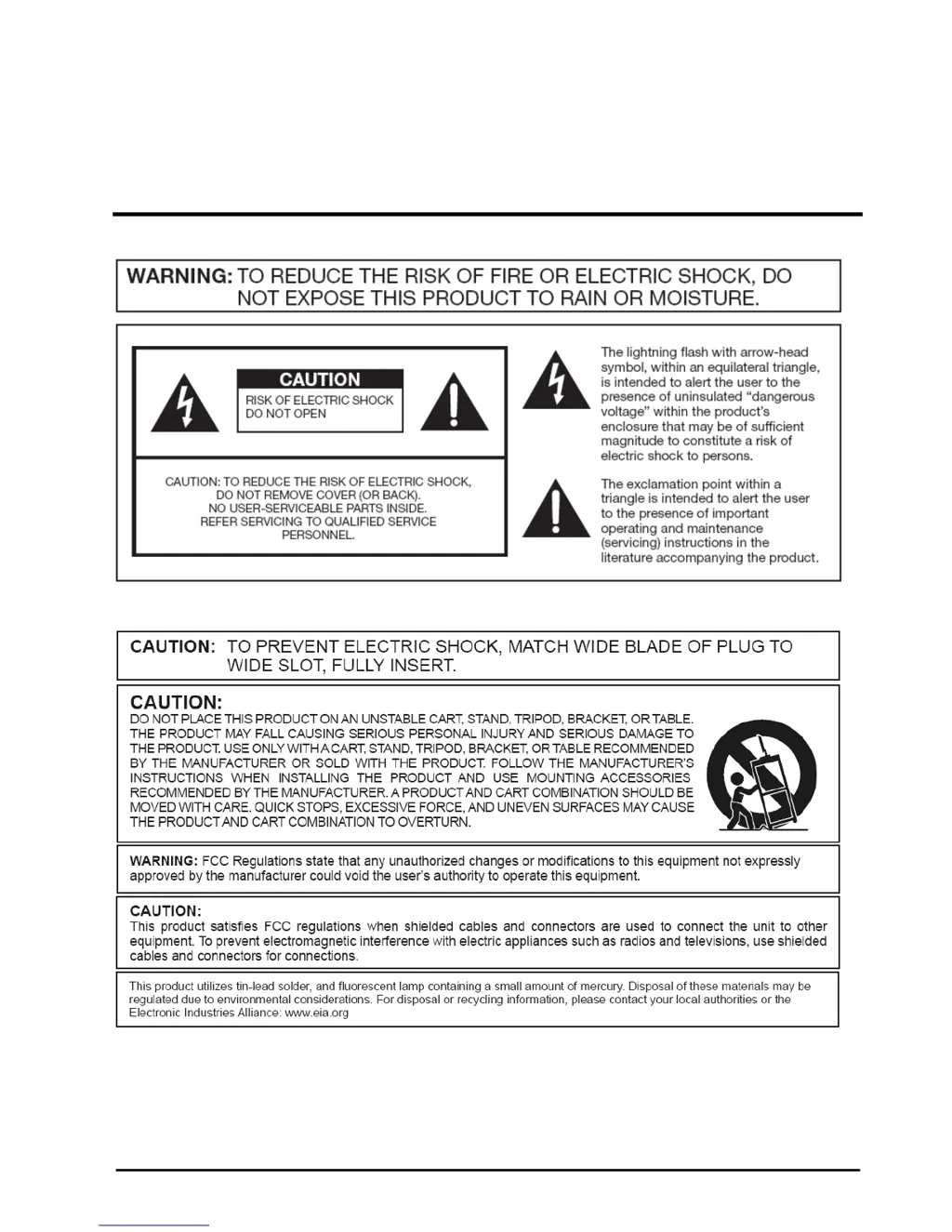
Fire and Moisture Hazard Warning

Warns against exposing the product to rain or moisture to prevent fire or electric shock.

Electrical Safety and Servicing

Advises on plug safety, avoiding unauthorized servicing to prevent electric shock.

FCC Compliance Statement

Device Operation Conditions

States compliance with FCC rules and conditions for avoiding interference.

Radio Frequency Interference Statement

Detailed Safety Instructions

General Usage Precautions

Lists essential instructions for safe operation, including reading and following warnings.

Electrical and Cord Safety

Covers plug safety, cord protection, and proper power source usage.

Tips and Safety Precautions

Electrical Shock and Damage Prevention

Advises switching off power before connecting components and handling with care.

Environmental and Usage Guidelines

Covers temperature changes, ventilation, portrait mode, and avoiding liquids/objects.

Grounded Plug Safety

Explains the importance of the three-pronged plug and grounding for safety.

Installing or Uninstalling the Base

Setting Up Your Monitor

Windows XP Setup Guide

Steps to set up the monitor with a PC running Windows XP.

Vista;Windows 7 Setup Guide

Steps to set up the monitor with a PC running Vista or Windows 7.

Identifying Front and Rear Panel

Control Buttons Overview

Connecting the LCD

DVI Connection Setup

Provides instructions for connecting the monitor using a DVI cable.

VGA Connection Setup

VGA Cable Connection and Configuration

Steps to connect and configure the monitor using a VGA cable.

HDMI Connection Setup

HDMI Cable Connection and Audio

Instructions for connecting the monitor via HDMI and setting audio output.

On Screen Display (OSD) Menu

Contrast and Brightness Adjustment

Input Select Function

Selecting Video Input Source

Guides users on how to select the desired video input source (VGA, DVI, HDMI).

Audio Adjust Function

Color Adjust Function

Manual Image Adjust

Supported PC Resolutions

Troubleshooting Common Issues

Display Clarity and Stability

Solutions for unclear or unstable displays and no video signals.

Signal Out of Range Errors

Addresses "Signal Out of Range" errors and safe mode driver uninstallation.

Product Specifications

Display Panel Specifications

Details technical specifications of the display panel, like size, resolution, and brightness.

Customer Support and Contact Information

Technical Support Details

Provides contact information for technical assistance, including phone and email.

Limited Product Warranty

Warranty Coverage and Responsibilities

Outlines SCEPTRE's one-year warranty on parts and labor.

Warranty Policies and Services

Sceptre E246W-1080P Specifications

General IconGeneral
Screen Size24 inches
Resolution1920 x 1080 (Full HD)
Panel TypeTN
Aspect Ratio16:9
Brightness250 cd/m²
Response Time5 ms
Refresh Rate60 Hz
PortsHDMI, VGA
Contrast Ratio1000:1
Built-in SpeakersYes
Viewing Angle170° / 160°
VESA Mount CompatibleYes

Related product manuals