39
5 RS-232-C interfaces, inputs and outputs
5.1 General
The TITRONIC
â
ââ
â
universal Piston Burette is equipped with two serial RS-232-C interfaces for data com-
munication with other devices. You can use these two interfaces to connect several devices to one com-
puter (PC) interface.
The plug connectors of the two interfaces are located on the devices’ back panel, & Fig. 7. RS-232-C
socket “1” makes the connection to a connected computer, a printer with a serial interface, or to the up-
stream device within the “daisy chain”. RS-232-C socket “2” can be used to connect additional devices
(daisy chain concept).
PIN allocation of the RS-232-C interfaces:
PIN-
No.
Signification / description
1 T x D Data out
2 R x D Data in
3 Digital ground
5.2 Setting the data-transfer parameters
All devices communicating with each other require the same transfer parameters. The following transfer
parameters are set ex factory:
Baud rate: 4800 baud Data bits: 7 Bit Stop bits: 1 Parity: No.
If you wish to change the data-transfer parameters, press the <MODE> key for approximately 3 seconds.
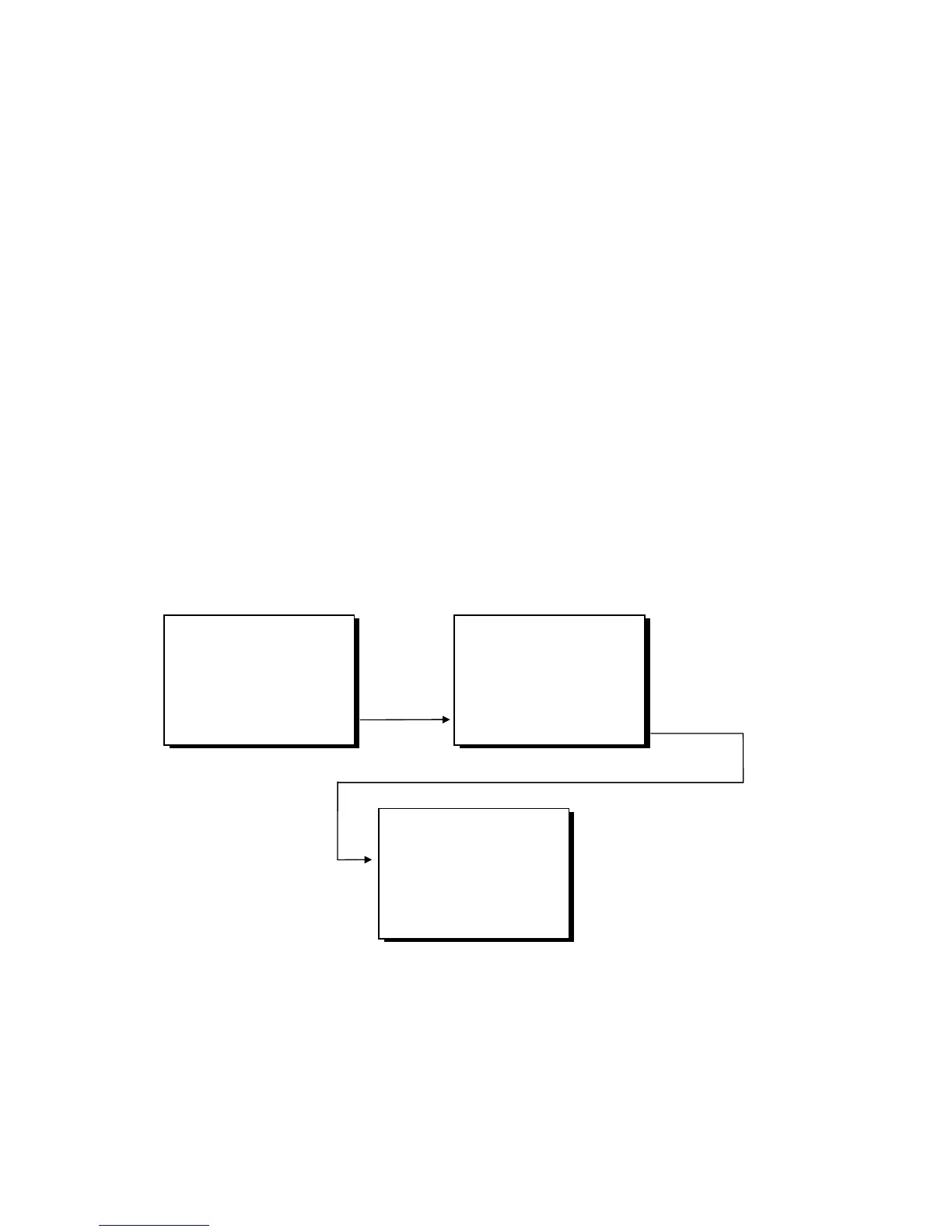
The switch-on image offers you to select the “System” parameters using the <F3> key, & Fig. 26.
Fig. 26
TITRONIC universal
Ver.: 99.14
Cylinder volume 20 ml
Rins./init. fill. <F1>
Filling time 30 (s) <F2>
System <F3>
Menu <Mode>
Language / RS 232
Deutsch <F1>
English <F2>
Français <F3>
Español <F4>
RS 232 Param. <START>
Parameter RS 232
Baudrate :4800 <F1>
Parity :NO <F2>
Data bits :7 <F3>
Address :01 <F4>
escape <F5>
Using the <F1> to <F4> keys, the burette offers you the possibility of changing the respective parameters
for RS-232-C communication. In this context, too, the new settings are to be stored using the <F1> key.
Subsequently, the <F5> or <MODE> keys will take you back to the function last selected.
The <START> key
opens the <<Parameter
RS 232>> image
Press shortly
<F3>



 To Next Page