28
Changing Resistance Levels
Push the Increase() or Decrease() buttons to change the resistance level at any time in a workout program.
Results / Cool Down Mode
After a workout the TIME display shows 00:00 and then starts to count up. During this Cool Down period, the Console shows
theWorkoutResultsandyourcurrentHeartRate.AllworkoutsexceptQuickStarthavea3-minuteCoolDownperiod.
TheLCDdisplayshowseachworkoutdatavaluefor4seconds:TIME,DISTANCE,CALORIES,AVG/MPH(KMH),AVG/HR,
MAX HR. You can use the ENTER button to move through the results manually. The HR display shows the current BPM value.
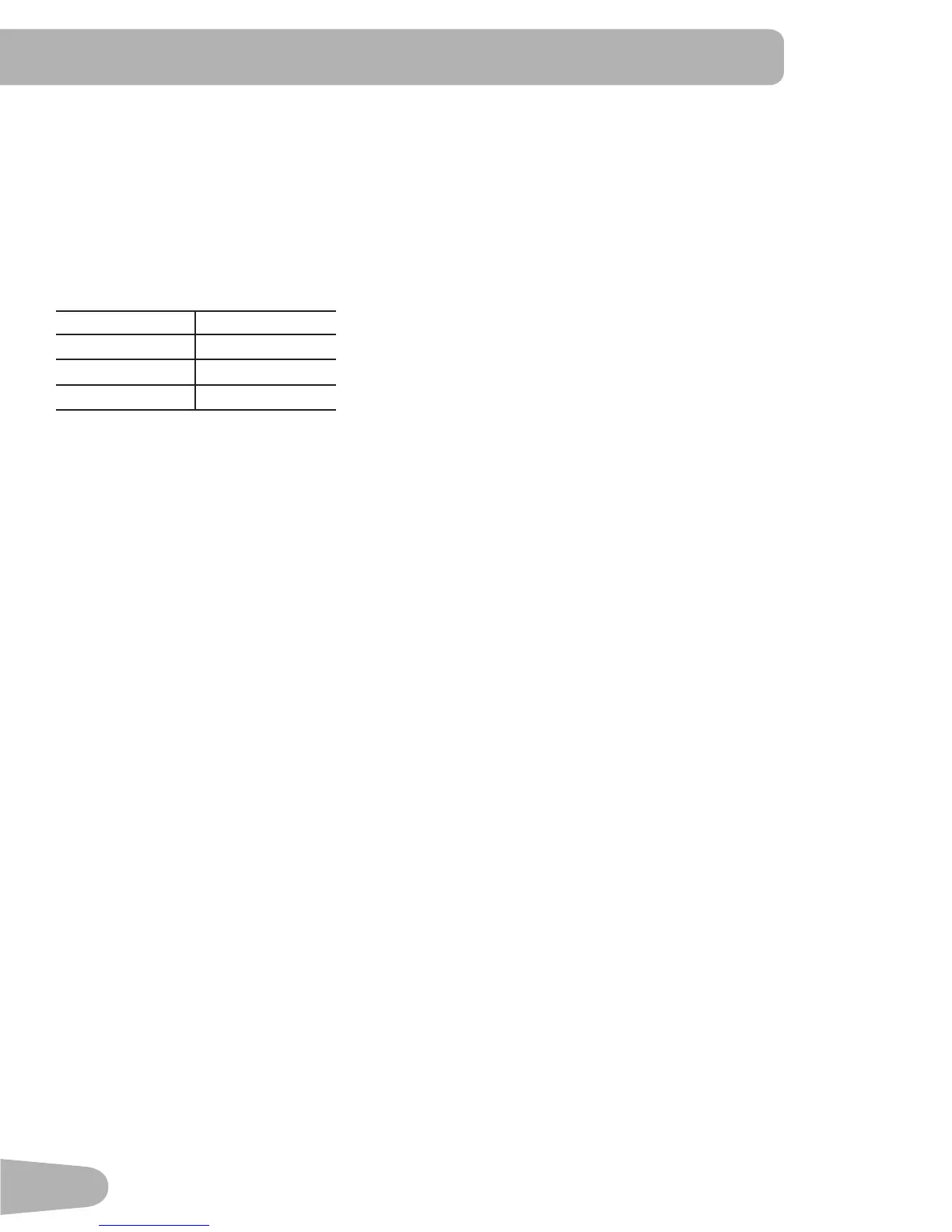
The Level during Cool Down is based on the Level at the end of the workout:
End Level Cool Down Level
Level ≤ 3
1
3 < Level ≤ 10
3
10 < Level
5
You can push START/STOP to stop the Results display and go back to Power-Up Mode. If there is no RPM or HR signal, the
Console automatically goes into Sleep Mode.
Pausing or Stopping
The Console will go into Pause Mode if the user stops pedaling and pushes START/STOP during a workout, or there is no
RPMsignalfor5seconds(usernotpedaling).TheConsoledisplayshowsWORKOUTPAUSED,andafter4secondsthe
current workout data starts to scroll automatically (the same format as Results Mode). You can use the Increase/Decrease
buttons to move through the results manually.
1. Stop pedaling and push the START/STOP button to pause your workout.
2. To continue your workout, start pedaling.
To stop the workout, push the START/STOP button. The Console will go into Results Mode.
User Statistics
The custom User profile stores statistics from all workout data recorded for that user. When the total for a statistic is more
thanthemaximumvalue,thecountwillstartagainatzero.
• Total number of workouts—maximumis9999.
• Total hours—maximumis999:59(999hours,59minutes).
• Average speed—mph or km (per units in setup)
• Total distance—maximumis9999.9.
• Total calories—maximumis999999.
The Stats option in the User profile menu lets you look at the recorded data or delete it.
1. Push ENTER at the Power-Up Mode screen. The Console display shows the User menu.
2. Use the Increase/Decrease buttons to go to the User profile, and push ENTER to make your selection.
3. AfteryouselecttheUserprofileoption,youhavetwooptions:VIEWSTATSandWORKOUT.UsetheIncrease/Decrease
buttons to go to the Stats option, and push ENTER to make your selection. The Console display shows the User Statis-
tics menu options—TOTALS and RESET TOTALS. The RESET TOTALS option will clear the accumulated workout values.
4. Use the Increase/Decrease buttons to move between the menu options, and push ENTER to make your selection.
5. If you go to the Totals option, after a few seconds the workout statistics start to scroll automatically. You can use the
Increase/Decreasebuttonstomovethroughtheresultsmanually.PushSTART/STOPtoexittotheUserStatisticsmenu.
If you go to the Reset Totals option, the Console display shows a Reset Stats prompt with Yes and No options. Use the
Increase/Decrease buttons to make your selection and push ENTER. Or you can push START/STOP to go back to the
User Statistics menu without deleting the statistics.
6. Push START/STOP to go back to the User profile menu—Stats and Workout options.



 To Next Page