14
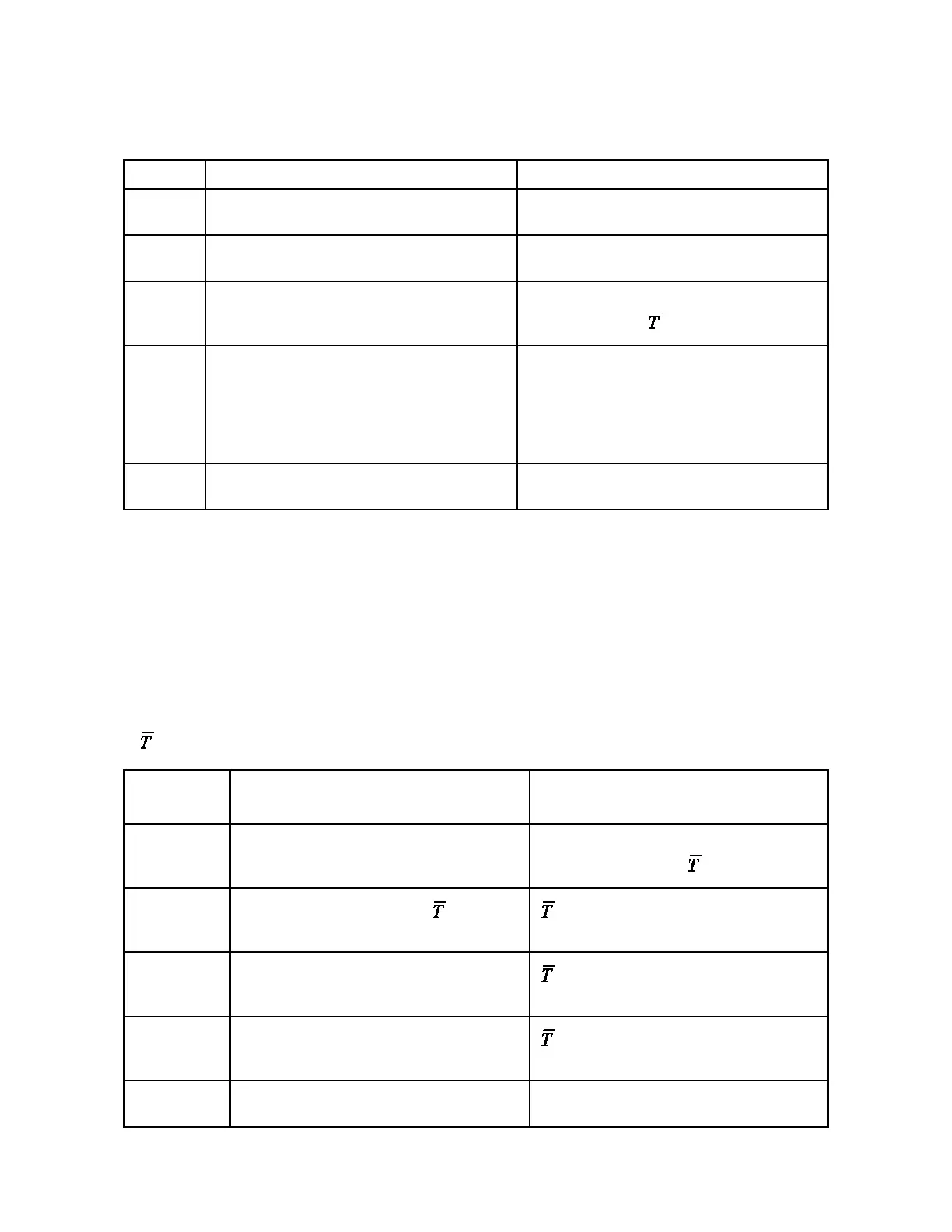
( ) Live Animal Weighing / Severe Environment Weighing:
User Action Balance Response
1 Press the FUNCTION button (or MODE and
RANGE buttons simultaneously for dual range
models).
Display cycles repeatedly through PCS, HI-
OK-LO, CAL1, CAL2, , and %.
2
Press the MODE button when appears on
the display.
appears in the display and you are now in
the time averaging weighing mode.
3 Place a container/cage on the pan.
appears in the display as well as a slowly
increasing weight of the container/cage.
4 Wait 5 seconds or until the OK is displayed
and press the RANGE/FUNCTION button .
appears in the display and the container/
cage weight.
5 Press the ZERO button and remove the con-
tainer/cage.
A slowly decreasing negative weight is dis-
played.
(%) Percent Weighing:
User Action Balance Response
1 Place an empty container on the weighing pan
and press the ZERO button.
Zeros are displayed.
2 Place the sample which represents 100% in the
weighing container.
Display indicates the weight of the sample in the
unit of measure you have selected.
3 Press the FUNCTION button (or MODE and
RANGE buttons simultaneously for dual range
models).
Display cycles repeatedly through PCS, HI-OK-
LO, CAL1, CAL2, , and %.
4 Press the MODE button when % appears on the
display.
Display will indicate % and 100.00
1
. This means
that the weight on the pan now represents
100.00%. You are now in the percent weighing
mode with all weight readings displayed as a
percentage of the weight of the sample used in
Step 2.
5 If you want to exit the percent weighing mode,
press the MODE button.
You are now in the weighing mode you used just
before selecting percent weighing.
Note 1. Displays three decimal places for weights above ½ capacity of the balance.
Displays two decimal places for weights below ½ capacity.
Displays one decimal place for weights below 5% capacity.
Displays Err below 1% capacity.
Percent Weighing over the RS-232 port
Percent weighing is also available from the I/O using the SETPERCENT <%> command.
Example:
SETPERCENT 60 ↵



 To Next Page