Rev.2
65
6.
Click “Copy”.
7.
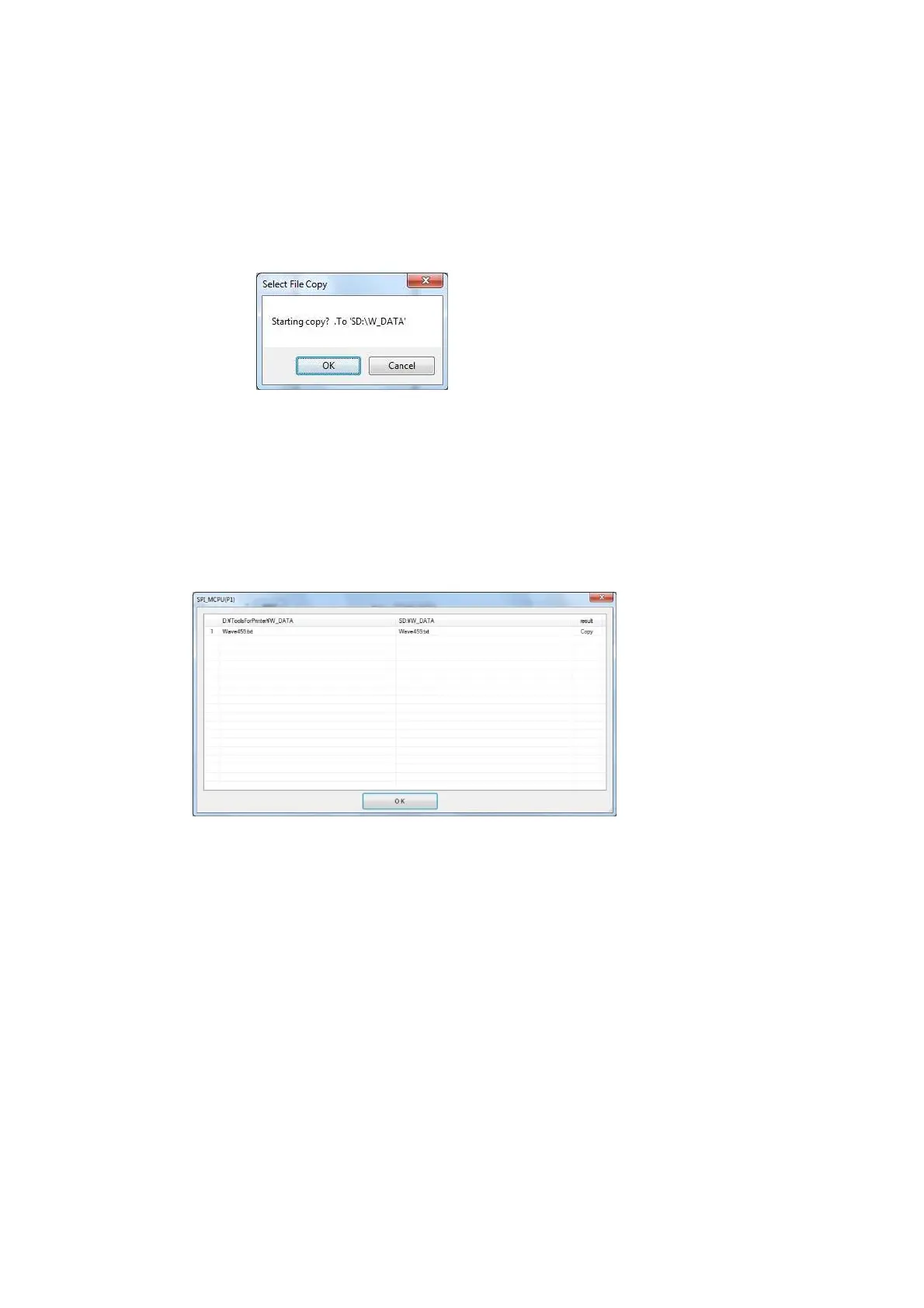
The confirmation dialog box for copying is displayed. Click "OK".
8.
If the Confirmation File Replace dialog box is displayed, click “Yes to All”
9.
When copying starts, the Copying dialog box is displayed.
10.
When file copying is complete, a list of the names of copied files is displayed.
After confirming the list, click “OK” to complete the copying.
11.
Next copy to KJCPU2.
Select “HCPU2”.
Repeat from 5 to 10(KJCPU2 and KJCPU3).
12.
It is finish when the transfer is completed to the KJCPU3.
Exit BoardSDcardAccessForHCPU.exe.
13.
Printer restart.
14.
Start the Printer Controller.



 To Next Page